6 Best Samsung Watch Faces And Wallpapers For Total Customization
Over 40 million Galaxy Watch units were shipped globally in 2025 alone, yet most owners never move past the three or four stock faces that ship on the device. That gap between what Samsung’s ecosystem actually offers and what users discover on their own is enormous. The 6 best Samsung watch faces and wallpapers for total customization covered in this guide close that gap, walking through every major method, from built-in tools to professional design software to third-party apps, so that every part of the watch display reflects exactly what the wearer wants.
Disclosure: This post contains affiliate links. As an Amazon Associate, we earn from qualifying purchases, and at no extra cost to you.
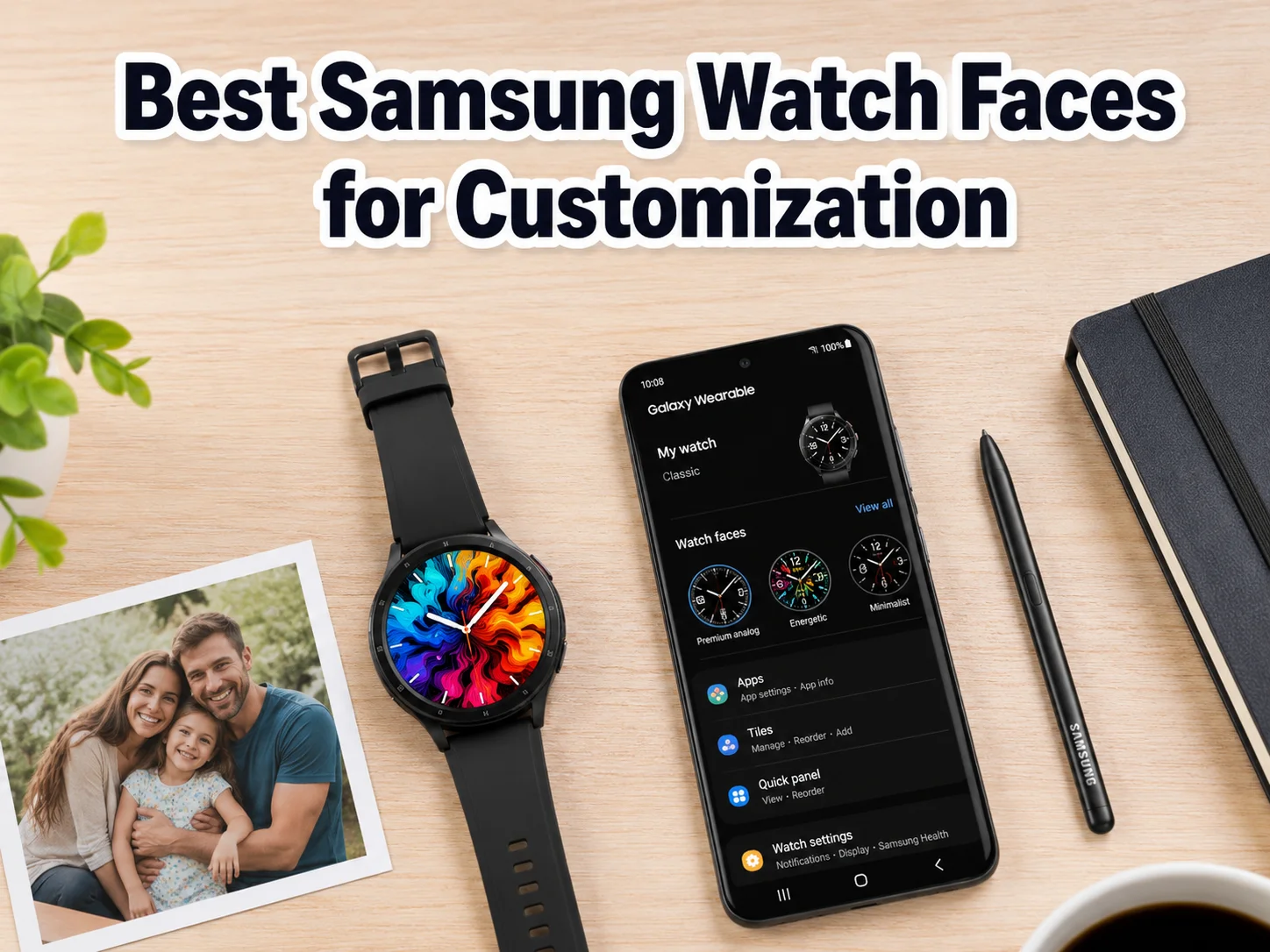
Whether the goal is a sleek minimalist dial, a personal photo turned into a full-screen wallpaper, or a fully animated custom design built from scratch, Samsung’s platform supports all of it. The key is knowing where to start.
Key Takeaways
- Samsung Galaxy Watch owners can customize faces directly on the watch or through the Galaxy Wearable app on their phone, with both methods staying in sync [1][2]
- Photo-based watch faces act as personal wallpapers, letting users apply any Gallery image as the watch background [3]
- Watch Face Studio is a free, professional-grade design tool for building entirely original watch faces from scratch [5][7]
- Third-party apps like Watch Base bundle faces and matching wallpapers together, simplifying the customization process [14]
- The Galaxy Watch design community on platforms like Dribbble offers hundreds of ready-to-use concepts for users who want inspiration without building from zero [10]
What Makes Samsung Watch Customization Different From Other Smartwatches
Samsung’s Galaxy Watch platform stands apart because it operates on two simultaneous levels of customization. The first level is consumer-facing: intuitive, fast, and accessible directly from the wrist or the Galaxy Wearable app. The second level is developer-facing: a full design suite called Watch Face Studio that rivals desktop graphic design tools in its depth.
Most competing smartwatch platforms lock users into one of those two levels. Samsung offers both, and they work together. A designer can build a face in Watch Face Studio, publish it to the Galaxy Store, and a non-technical user can download and customize it without ever touching design software. This layered approach is what makes the 6 best Samsung watch faces and wallpapers for total customization genuinely useful for a wide range of users.
The two main access points for customization are:
- On the watch: long-press the current watch face to enter Edit mode, swipe to browse available faces, and tap “Customize” to adjust colors, complications, and widgets [1][9]
- On the phone: open the Galaxy Wearable app, navigate to Watch faces, select a face, and tap Customize to adjust hand color, background color, and widget layout [2][9]
Both methods mirror each other, so changes made on the phone appear on the watch immediately and vice versa.
“The Galaxy Wearable app and the watch itself stay in sync, meaning users can fine-tune their display from whichever device is more convenient at any given moment.” [2]
The 6 Best Samsung Watch Faces And Wallpapers For Total Customization
The six options below are ranked by their combination of visual impact, ease of use, and depth of personalization. Each one represents a distinct approach to making a Galaxy Watch feel uniquely personal.
1. My Photo+ Face, Personal Images as Watch Wallpapers
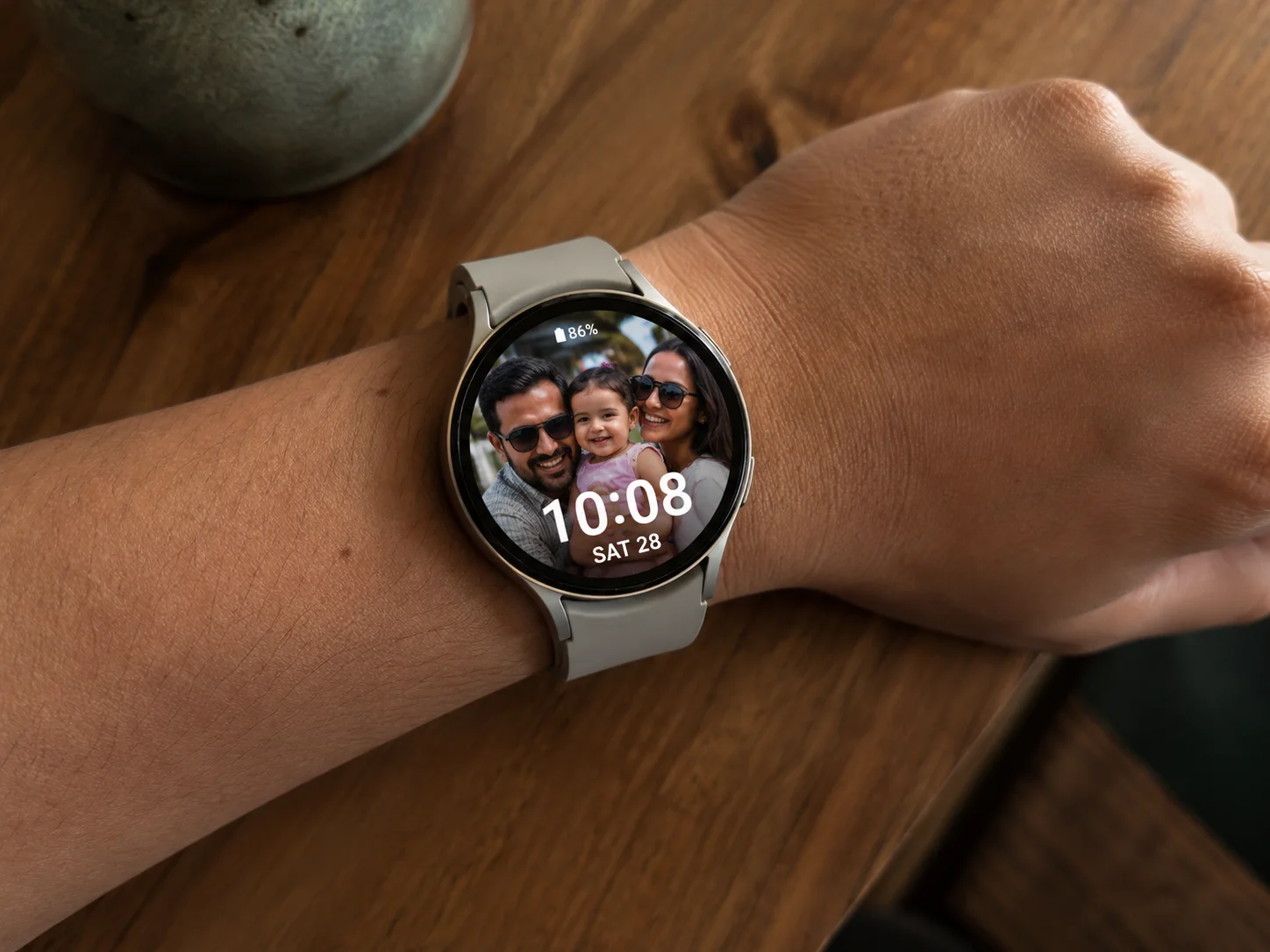
The My Photo+ watch face is the most direct way to turn a personal photograph into a watch wallpaper. Samsung’s support documentation confirms that users can take a new photo or select one from the Gallery, crop it to fit the circular or square display, and apply it as the watch background [3][8].
This approach works especially well for:
- Family photos or portraits
- Travel photography and landscapes
- Minimalist abstract images with strong color contrast
The process on a Galaxy Watch 8 or newer is straightforward: long-press the current face, tap the plus icon to access the face library, select the photos face option, then use the pencil icon to pick a picture from the Gallery and apply it instantly [8]. The result is a full-screen wallpaper that makes the watch feel genuinely personal rather than generic.
What can be customized on My Photo+:
| Element | Customization Option |
|---|---|
| Background image | Any Gallery photo or new camera shot |
| Complications | Time, date, battery, steps, heart rate |
| Text color | Adjustable to contrast with the photo |
| Crop and zoom | Manual crop to highlight the best part of the image |
A newer addition to this workflow is the “photo slot” component, introduced in Samsung’s companion app, which adds a “+” button for inserting images into designated slots on a face, making it easier to swap wallpapers without redesigning the entire face layout [11].
2. My Style Face, Color-Sampled Themes From Personal Photos
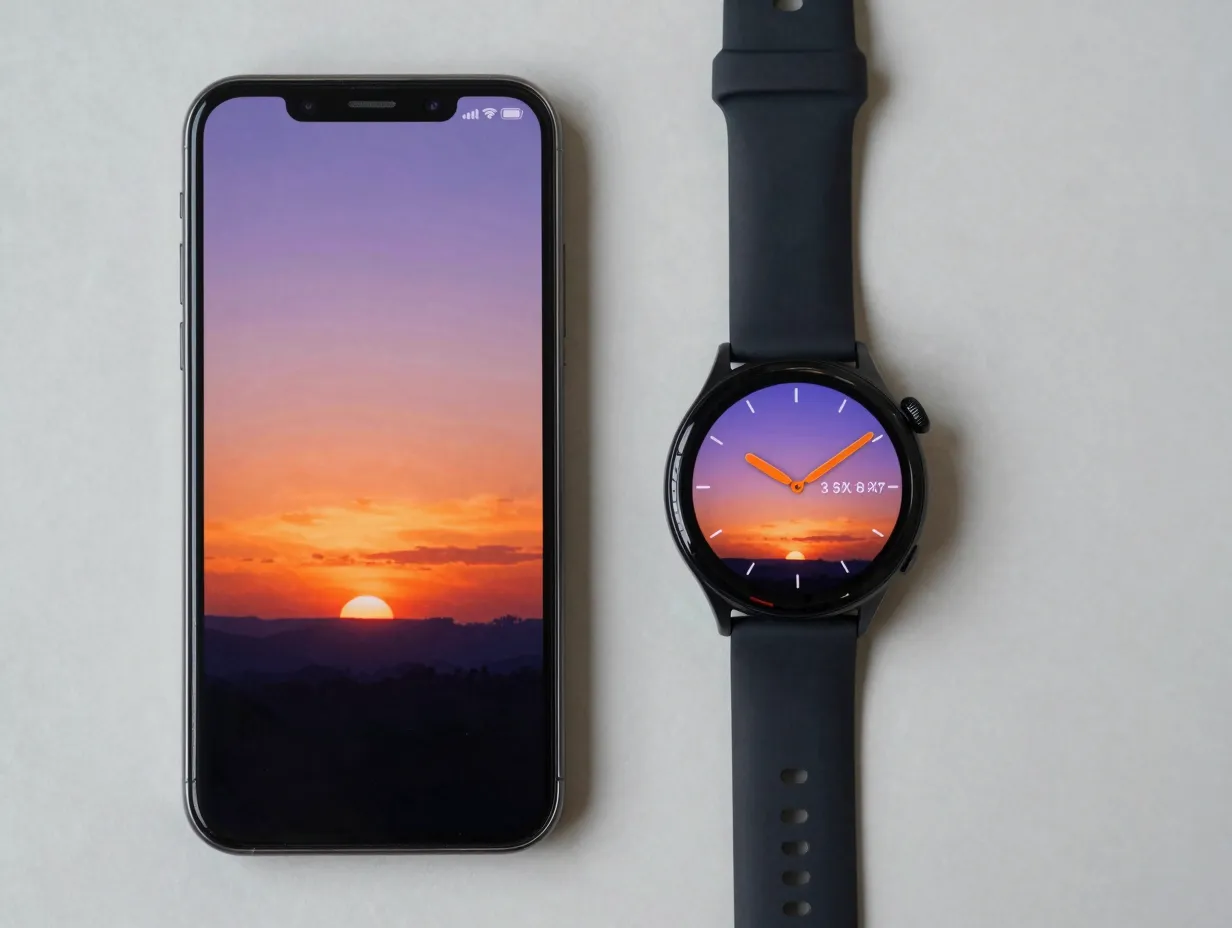
My Style takes the photo-based concept one step further. Instead of simply using the image as a background, My Style samples the dominant colors from a chosen photo and applies them across the entire watch face, the background, hands, dials, and other components all shift to match the photo’s palette [3].
The workflow, as documented by Samsung, involves dragging the picture to a collection of color swatches and saving the resulting design as a reusable style [3]. This means a single photo of a sunset, a favorite outfit, or a piece of artwork can generate a cohesive, color-coordinated watch face theme.
Why My Style stands out:
- Creates visual harmony between the watch and the user’s aesthetic preferences
- Saves the design as a reusable style that can be switched back to at any time
- Requires no design skills, the color sampling is automatic
For users who want their watch to feel like an extension of their personal style rather than a generic tech device, My Style is one of the most underused features in Samsung’s lineup.
3. AR Emoji Watch Face, Animated Personal Avatars
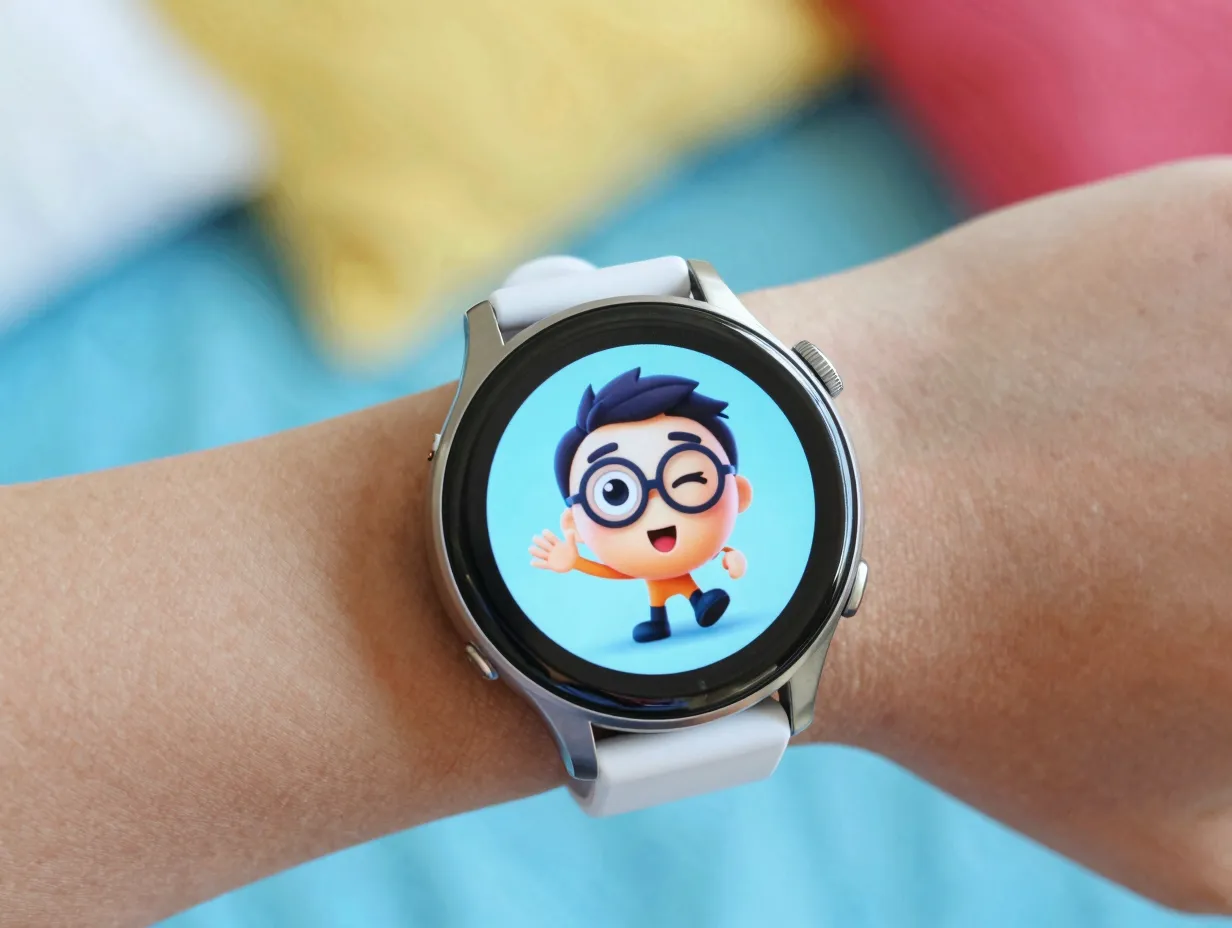
The AR Emoji watch face brings a dynamic, animated element to Galaxy Watch customization. Users create a custom AR Emoji character on their Samsung phone, select it under the “Other emojis” option in the watch face settings, and sync it to the watch as a live, animated face [3].
Samsung’s guides walk through the full process: character creation on the phone, transfer to the watch, and saving the configuration. The result is a watch face that features a miniature animated version of the user, or any character they design, moving and reacting on the display.
This option is particularly popular for:
- Users who want a playful, expressive watch face
- Parents who set up watches for children
- Anyone who wants their wearable to feel more like a personal companion than a utility device
The AR Emoji face also updates when the character is edited on the phone, so the watch face can evolve over time without starting from scratch.
4. Watch Face Studio, Professional Custom Design From Scratch
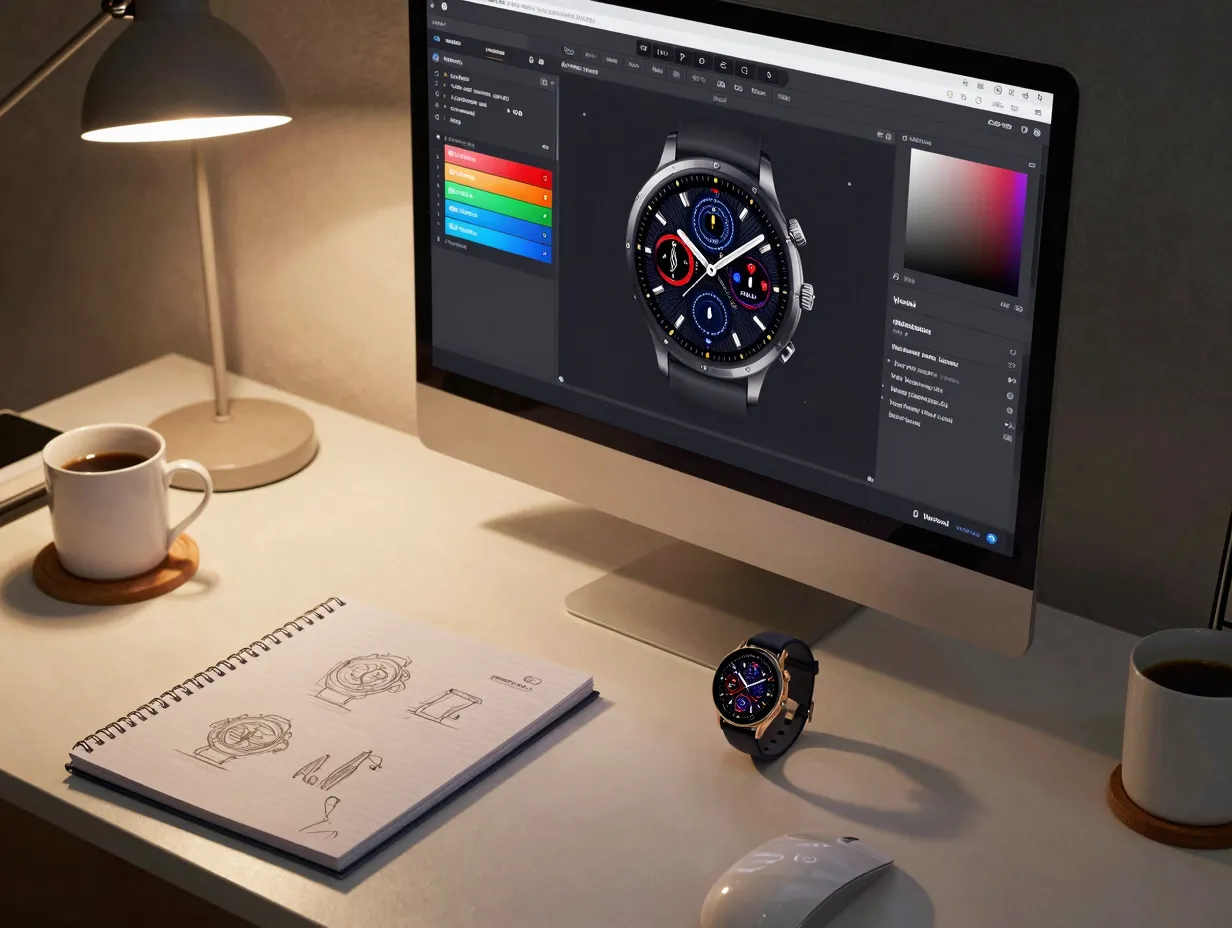
Watch Face Studio is Samsung’s official, free design tool for building completely original Galaxy Watch faces. Described by Engadget as a “graphic-design-style environment,” it allows both developers and creative users to construct bespoke faces instead of relying solely on the Galaxy Store [5].
After downloading Watch Face Studio from Samsung’s developer site, users access a full component-based editor where they can:
- Add and position complications (battery, heart rate, weather, steps)
- Import custom background images and animations
- Adjust styles using the Customization Editor, which controls colors, fonts, and visual treatments [4]
- Generate multiple premade designs inside a single project that users can switch between later [6]
The Premade Design feature inside Watch Face Studio deserves special attention. It allows a designer to create several variations of the same face, different color schemes, different complication layouts, and package them together so the end user can pick their preferred version without needing to open the design tool [6].
Watch Face Studio component types:
- Background layers (images, gradients, animations)
- Hand components (analog clock hands with custom shapes)
- Digital text components (time, date, custom text)
- Complication slots (health data, weather, calendar)
- Interactive elements (tap-to-change behaviors)
For users who want total control over every pixel of their watch display, Watch Face Studio is the most powerful option in the 6 best Samsung watch faces and wallpapers for total customization lineup [7].
5. Galaxy Store Watch Faces, Curated Third-Party Designs
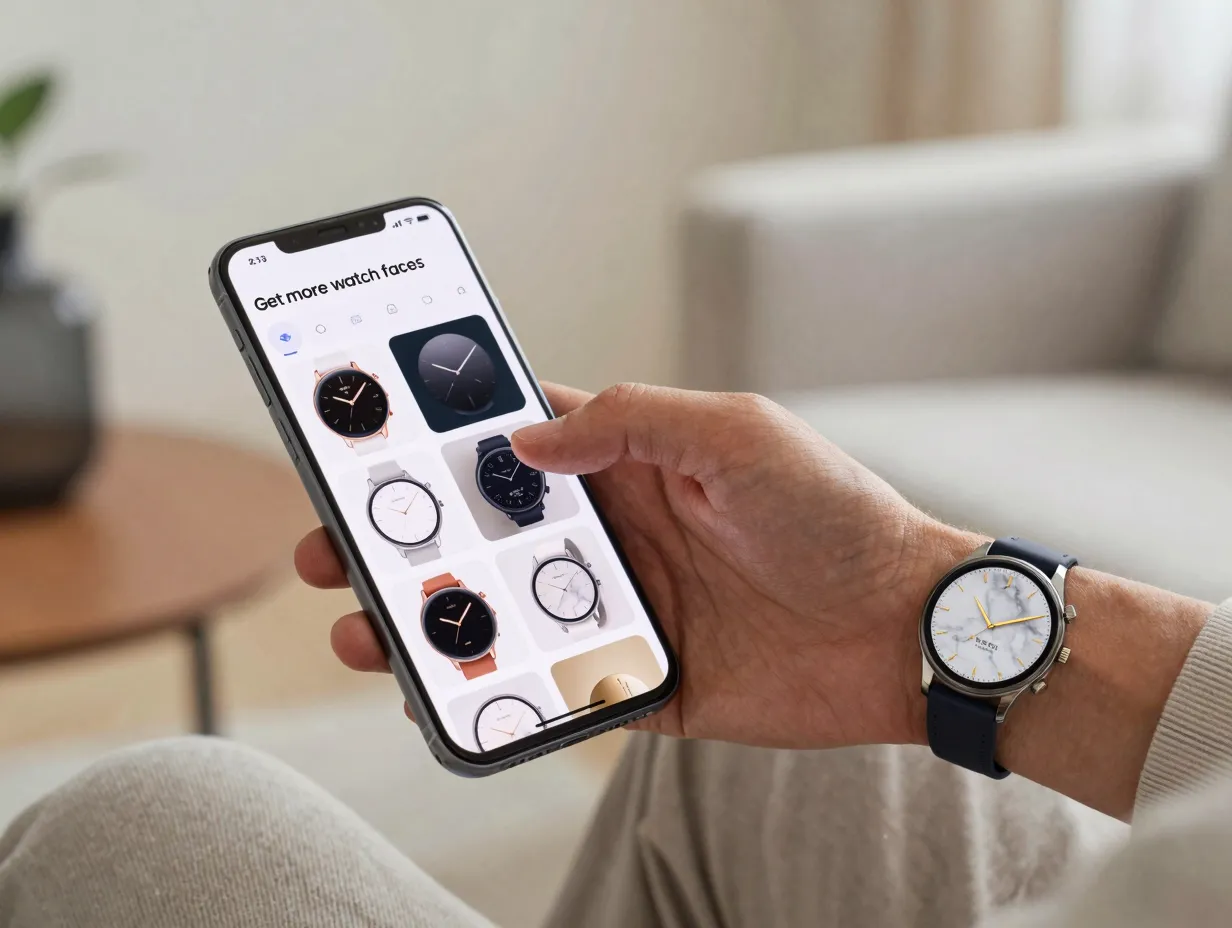
The Galaxy Store hosts thousands of watch faces created by independent designers and studios. Many are free; others are available as one-time purchases or as part of subscription bundles. This option sits between the fully manual approach of Watch Face Studio and the purely personal approach of My Photo+.
What makes Galaxy Store faces valuable is that many of them come with built-in customization options. After downloading a face from the store, users can still open it in the Customize menu, available both on the watch and in the Galaxy Wearable app, and adjust colors, complications, and widget placement to match their preferences [2][9].
How to access and customize Galaxy Store faces:
- Open the Galaxy Wearable app on the phone
- Navigate to Watch faces
- Tap “Get more watch faces” to open the Galaxy Store
- Download a face and return to Watch faces
- Select the new face and tap Customize to personalize it [9]
Free watch face packs, such as the SWF1 pack compatible with Galaxy Watch models 4 through 9 and the Galaxy Watch Ultra line, demonstrate that high-quality customization does not require spending money on individual faces [13]. These packs can be combined with Samsung’s own photo and wallpaper features for richer results.
6. Watch Base and Third-Party Customization Apps, Faces and Wallpapers Together
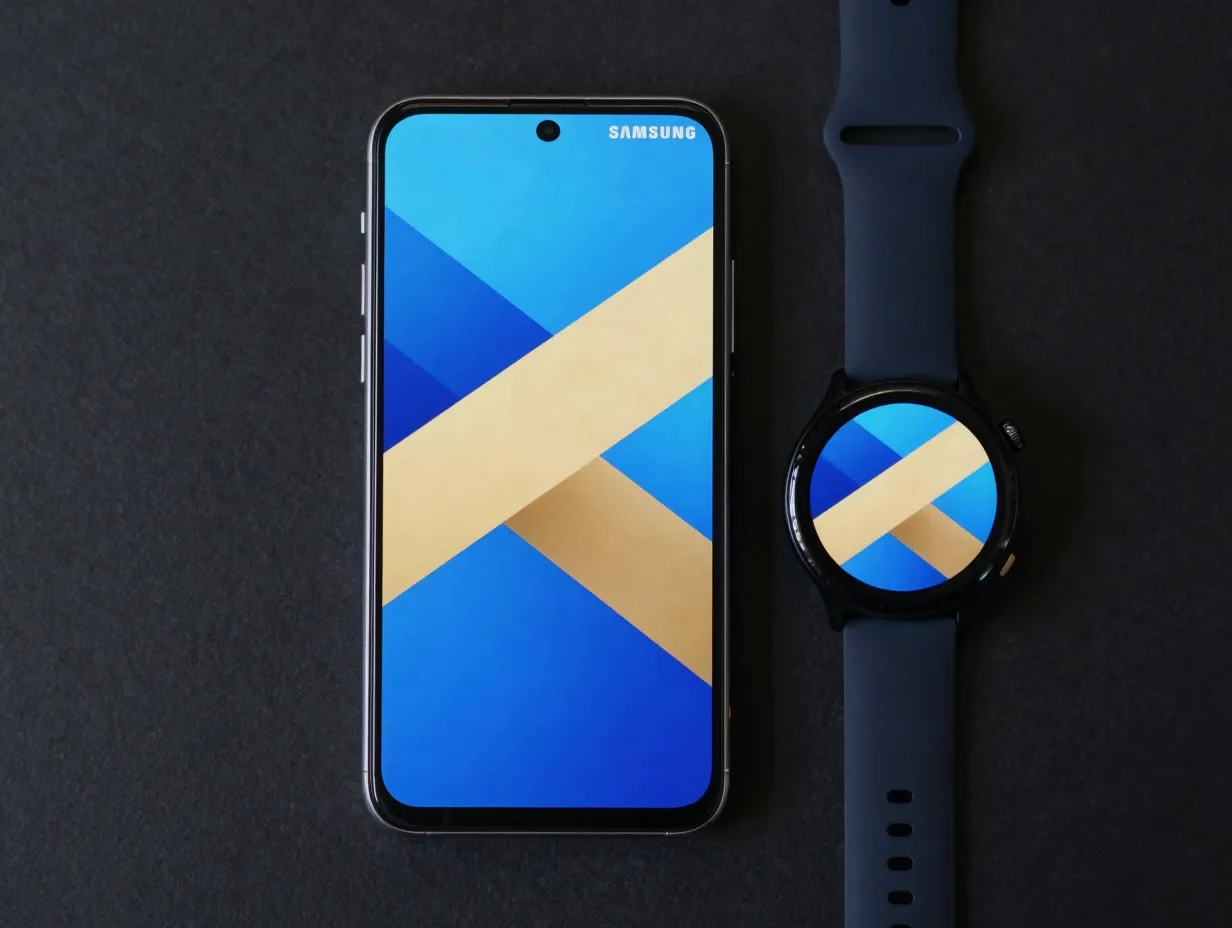
Watch Base represents a growing category of third-party apps that treat watch faces and wallpapers as a unified customization system rather than separate features. Described in its Google Play listing as “the first customization app which offers watch faces and wallpapers in one place,” Watch Base bundles multiple face designs with matching background images [14].
This matters because one of the most common frustrations with watch customization is visual inconsistency, a great watch face paired with a mismatched phone wallpaper or notification screen background. Watch Base and similar apps solve this by curating coordinated sets.
What third-party customization apps typically offer:
- Themed packs that include both the watch face and matching phone wallpaper
- Regular updates with new designs tied to seasons, trends, or popular aesthetics
- One-tap application of an entire visual theme
- Community ratings and previews before downloading
The design community around Samsung watches also extends beyond dedicated apps. Dribbble hosts more than 300 Galaxy Watch design concepts and templates, giving users and designers a large pool of aesthetic inspirations for faces and backgrounds beyond Samsung’s own catalog [10]. While these concepts are not always directly downloadable as installable faces, many designers share their WFS (Watch Face Studio) project files, allowing other users to import and modify them.
How to Get the Most Out of Samsung Watch Face Customization
Understanding the individual options is only part of the picture. Getting genuine value from the 6 best Samsung watch faces and wallpapers for total customization requires knowing how to combine them effectively.
Matching the Face to the Use Case
Not every watch face works equally well in every context. A practical framework:
- Fitness and workouts: Choose faces with large complication slots for heart rate, pace, and calories. Avoid photo-based faces where the background image competes with health data readability.
- Professional settings: Minimalist analog or digital faces from the Galaxy Store or Watch Face Studio tend to look more refined. My Style faces built from neutral-toned photos work well here.
- Casual and social: AR Emoji faces, bold color-sampled My Style themes, and Watch Base packs with expressive designs are appropriate.
- Always-on display: Faces designed specifically for Samsung’s Always-On Display mode conserve battery while maintaining a clean look. Watch Face Studio allows designers to create dedicated AOD layers [7].
Syncing Customizations Across Devices
Samsung’s Galaxy Wearable app ensures that any face configured on the phone appears on the watch immediately. Regional Samsung support documentation updated in 2026 confirms that the app mirrors on-watch controls, meaning users can make detailed adjustments, hand color, background color, widget layout, from the phone’s larger screen and see the results on the watch in real time [2][9].
This is particularly useful when working with complex faces built in Watch Face Studio, where fine-tuning complication positions on a small watch screen is impractical.
Building a Rotation of Faces
Samsung’s interface allows users to save multiple watch faces and switch between them quickly. The recommended approach is to build a small rotation:
- One face optimized for fitness tracking
- One face for professional or formal settings
- One personal photo-based face for casual use
- One expressive or themed face for weekends or social occasions
Switching between saved faces takes only a few seconds via the long-press Edit mode on the watch [1].
Common Mistakes to Avoid When Customizing Samsung Watch Faces
Even with a powerful platform, a few common errors reduce the quality of the final result.
Overloading complications: Adding too many data widgets to a single face creates visual clutter. Most well-designed faces use three to five complications maximum, positioned to avoid overlapping the primary time display.
Ignoring contrast on photo faces: A beautiful photo does not always make a readable watch face. Dark photos with light text or light photos with dark text work best. Mid-tone photos with complex textures often make time hard to read at a glance.
Skipping the Always-On Display layer: When building or selecting a face, checking whether it has a well-designed AOD version extends battery life and maintains usefulness when the wrist is not raised.
Not updating Watch Face Studio: Samsung regularly releases updates to Watch Face Studio that add new component types and fix compatibility issues with newer Galaxy Watch models [7]. Working with an outdated version can result in faces that do not display correctly on current hardware.
Conclusion
The 6 best Samsung watch faces and wallpapers for total customization, My Photo+, My Style, AR Emoji, Watch Face Studio, Galaxy Store faces, and Watch Base, cover every point on the spectrum from quick personal touches to professional-grade design. Each method serves a different type of user and a different level of investment, but all of them are accessible to anyone with a Galaxy Watch.
Actionable next steps:
- Start with My Photo+ or My Style to personalize the watch immediately using existing photos, no downloads required
- Browse the Galaxy Store for free face packs compatible with the specific Galaxy Watch model in use
- Download Watch Face Studio from Samsung’s developer site to explore professional customization without any cost
- Check Watch Base on Google Play for coordinated face-and-wallpaper bundles
- Revisit the Galaxy Wearable app’s Customize menu regularly, Samsung updates face options and complication types through software updates
The watch display is the most visible part of any wearable. Taking an hour to configure it properly transforms the device from a generic gadget into something that genuinely fits the person wearing it.
References
[1] Ans10002950 – https://www.samsung.com/us/support/answer/ANS10002950/
[2] How Do I Customize The Watch Face On My Galaxy Watch – https://www.samsung.com/latin_en/support/mobile-devices/how-do-i-customize-the-watch-face-on-my-galaxy-watch/
[3] Crafting Samsung Watch Faces Unleash Your Creativity – https://www.samsung.com/ae/support/mobile-devices/crafting-samsung-watch-faces-unleash-your-creativity/
[4] Style Customization – https://developer.samsung.com/codelab/watch-face-studio/style-customization.html
[5] Customize Samsung Galaxy Watch Free Graphic Design Tool Watch Face Studio – https://www.engadget.com/2218758/customize-samsung-galaxy-watch-free-graphic-design-tool-watch-face-studio/
[6] Premade Design – https://developer.samsung.com/codelab/watch-face-studio/premade-design.html
[7] Create – https://developer.samsung.com/watch-face-studio/user-guide/create.html
[8] Watch – https://www.youtube.com/watch?v=7NeeADSs_bw
[9] Manage And Customize Watch Faces On Your Samsung Galaxy Watch – https://www.samsung.com/ca/support/mobile-devices/manage-and-customize-watch-faces-on-your-samsung-galaxy-watch/
[10] Galaxy Watch – https://dribbble.com/tags/galaxy-watch