6 Gaming Computer Setup Ideas To Supercharge Your Performance
A single dropped frame can cost a competitive match. Pro-level players react in under 200 milliseconds, and every extra millisecond of input lag or every stutter from an overloaded background process shifts the odds. Most gamers assume a stronger graphics card is the only fix, but hardware alone rarely solves the problem. The real gains come from a layered approach that touches software, memory, storage, cooling, and the display itself. This guide breaks down 6 Gaming Computer Setup Ideas To Supercharge Your Performance that cover everything from in-game settings to future hardware trends, so both budget builds and high-end rigs can run smoother and faster.
Disclosure: This post contains affiliate links. As an Amazon Associate, we earn from qualifying purchases, and at no extra cost to you.
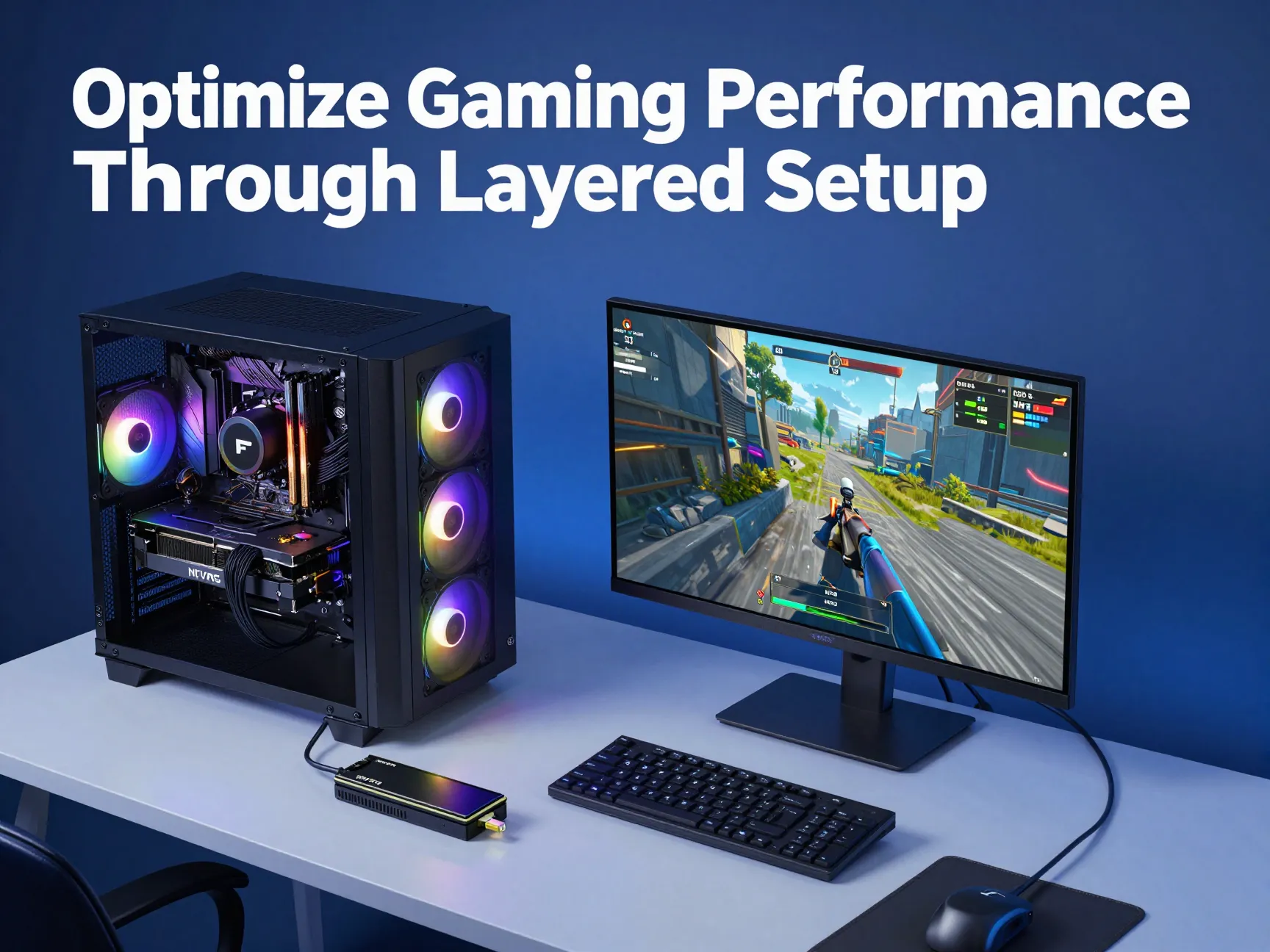
Each idea below is grounded in practical, testable changes rather than guesswork. Whether the goal is squeezing more frames out of an aging laptop or building a competitive-grade desktop from scratch, these six strategies work together to reduce latency, raise frame rates, and keep systems stable under load.
Key Takeaways
- Software and settings tuning often delivers bigger, cheaper frame rate gains than a hardware upgrade alone [1][4].
- Hardware upgrades should follow a strict order: GPU first, CPU second, then RAM and SSD for the best return on spend [6][9].
- DDR5 memory with XMP or EXPO profiles enabled can meaningfully boost effective memory bandwidth and in-game frame consistency [6].
- Moving games to NVMe SSDs and pairing that with a high-refresh, low-latency OLED display reduces both load times and motion blur [7][10].
- Cooling, airflow, and stable power delivery are just as important as raw specs, especially for sustained gaming sessions [8][3].
Why These 6 Gaming Computer Setup Ideas To Supercharge Your Performance Matter Right Now
Game engines in 2026 push higher polygon counts, more complex lighting, and larger open worlds than ever before. At the same time, competitive titles reward split-second reactions, which means frame rate stability and input latency matter more than peak benchmark numbers. A rig that averages 200 frames per second but stutters every few seconds will feel worse to play than one holding a steady 120.
That is why the 6 Gaming Computer Setup Ideas To Supercharge Your Performance in this guide are organized from cheapest and fastest to implement toward larger hardware investments. Readers on a budget can start with settings and software tweaks, while those planning a new build can use the hardware-order guidance to spend wisely.
1. Optimize In-Game Graphics Settings for Competitive FPS Gains
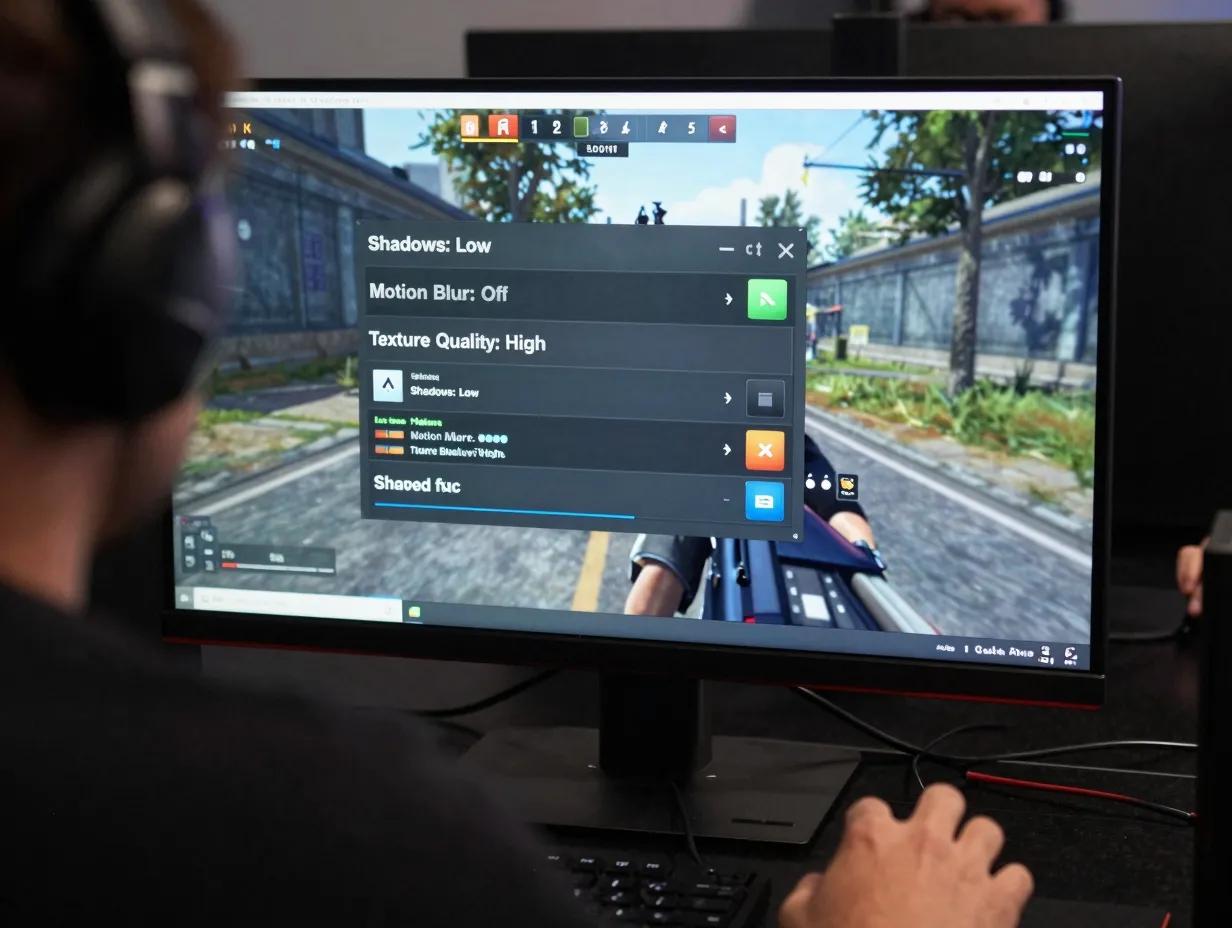
Most players leave default graphics presets untouched, which almost always wastes performance on visual effects that barely matter mid-match. Shadows, ambient occlusion, motion blur, and volumetric fog are some of the heaviest settings on frame rate, yet they add little value in fast-paced competitive play [1].
Lowering or disabling these settings while keeping texture quality and draw distance higher can produce a noticeably crisper image without a soft, blurry look. Community-tested configurations for popular competitive shooters show that trimming post-processing effects alone can add double-digit frame rate improvements on mid-range hardware [4].
A practical approach looks like this:
- Set shadows to low or medium, since they rarely affect target visibility.
- Disable motion blur and film grain, which reduce clarity during fast camera movement.
- Keep texture quality high if VRAM allows, since this affects visual clarity more than performance.
- Cap the frame rate slightly below the monitor’s maximum refresh rate to reduce tearing and heat.
- Test one setting change at a time to isolate what actually improves frame rate.
Community benchmark videos also demonstrate how side-by-side comparisons of stock versus optimized settings reveal significant visual clarity gains alongside the performance boost [2]. This step costs nothing and takes less than twenty minutes, making it the logical starting point in any of the 6 Gaming Computer Setup Ideas To Supercharge Your Performance covered here.
2. Fine-Tune Windows 11, Power Plans, and Background Processes
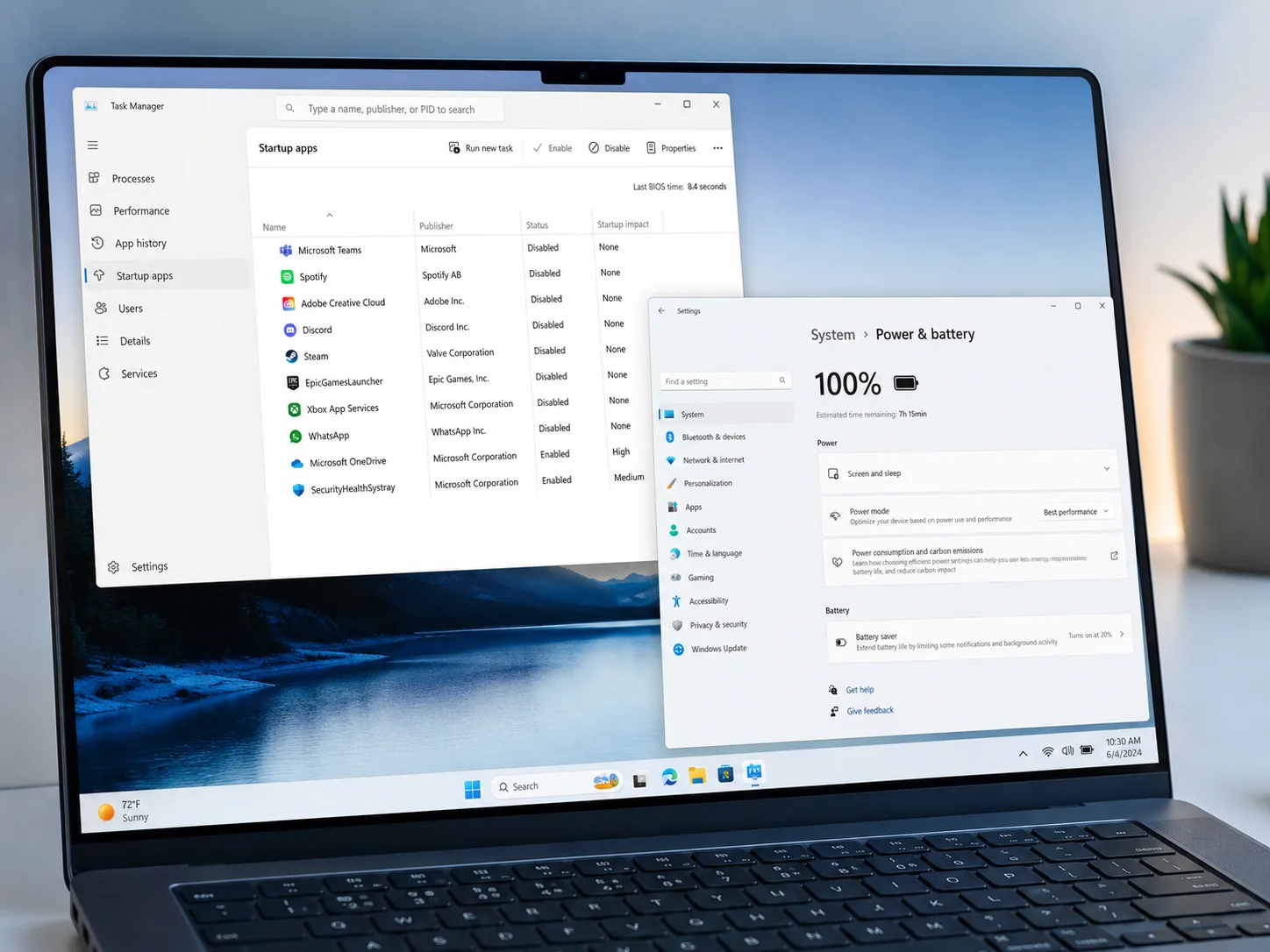
Windows 11 ships with several features designed for general productivity rather than gaming, and they quietly compete for CPU cycles and memory. Background telemetry, search indexing, and unnecessary startup applications can all shave frames off a session without any obvious warning sign [8].
Switching the Windows power plan to a High Performance or Ultimate Performance profile prevents the operating system from throttling the CPU to save energy during gameplay. Game Mode, when enabled correctly, also deprioritizes background tasks in favor of the active game process [3].
Key adjustments include:
- Disabling unnecessary startup programs through Task Manager to free RAM at boot.
- Turning off visual effects like transparency and animations that consume GPU resources.
- Updating GPU drivers regularly, since driver updates often include game-specific performance patches.
- Using the built-in Xbox Game Bar or third-party overlays sparingly, since overlays themselves consume resources.
- Running periodic disk cleanup and checking for malware, which can silently consume CPU cycles.
For lower-end systems without a dedicated graphics card, these software-level changes matter even more, since there is no extra GPU horsepower to compensate for wasted resources [3]. Combining this step with idea one creates a strong foundation before any money is spent on new parts.
3. Upgrade Hardware in the Right Order: GPU, Then CPU, Then RAM and SSD
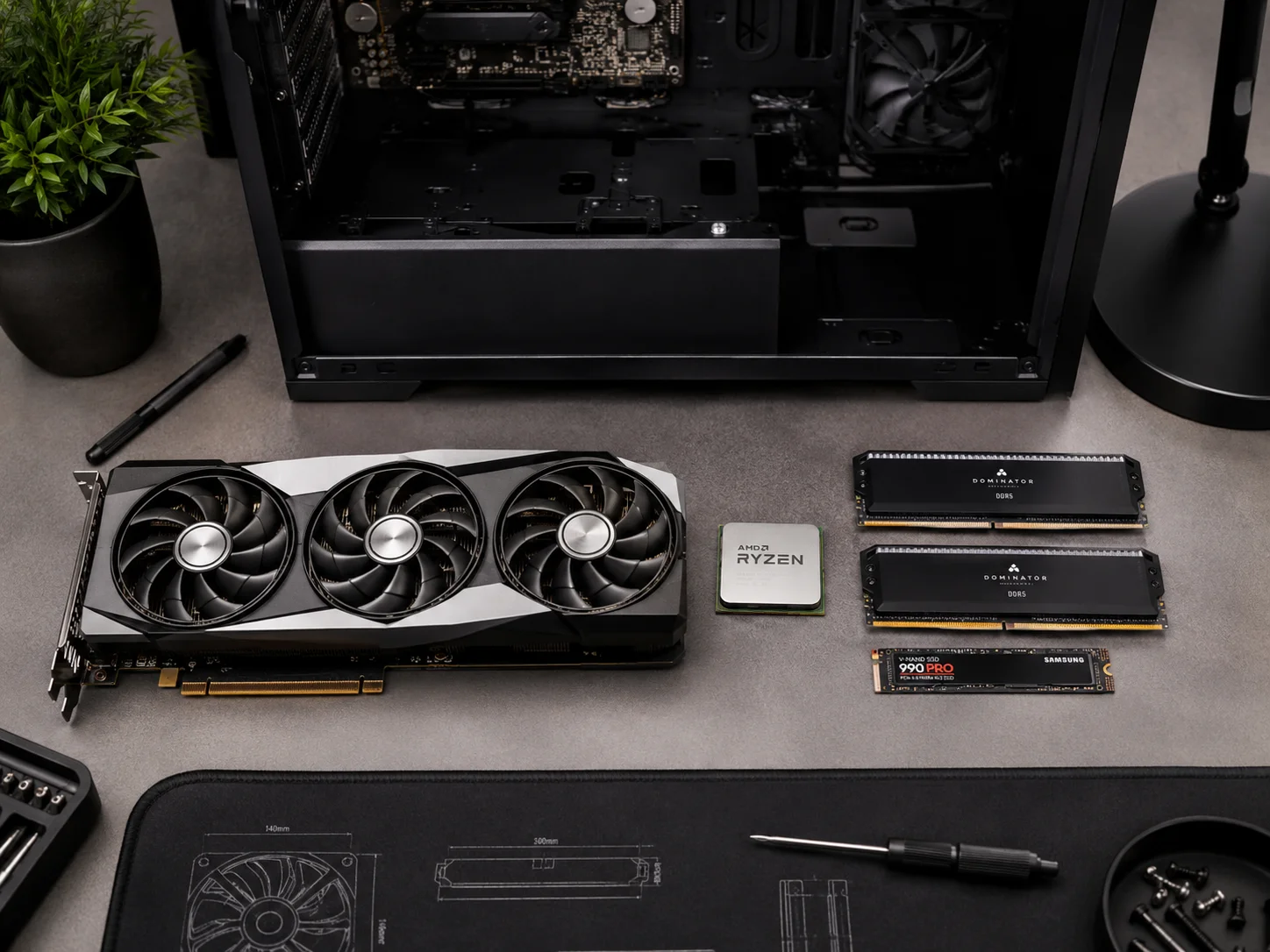
Not every component deserves the same upgrade budget. Testing across build guides consistently shows the graphics card has the single largest impact on frame rate in modern titles, since most games are GPU-bound at higher resolutions [6].
The general upgrade order recommended by build guides and community discussions looks like this:
| Priority | Component | Why It Matters Most |
|---|---|---|
| First | Graphics Card | Directly controls frame rate and visual fidelity at most resolutions |
| Second | Processor | Prevents bottlenecks in physics, AI, and high-refresh scenarios |
| Third | RAM and SSD | Improves load times, texture streaming, and multitasking stability |
Community discussions among builders in 2026 reinforce this order, noting that pairing a strong GPU with an outdated CPU still creates a bottleneck in CPU-heavy scenes, but the reverse mismatch is usually less severe [9]. Buyers guides for finished systems echo the same pattern, ranking GPU tier as the primary differentiator between budget and premium gaming PCs [7].
Spending on RAM or storage before securing a capable GPU and CPU is one of the most common mistakes new builders make. Following this order ensures every dollar spent produces a measurable frame rate improvement.
4. Maximize Memory Bandwidth with Fast DDR5 and XMP/EXPO
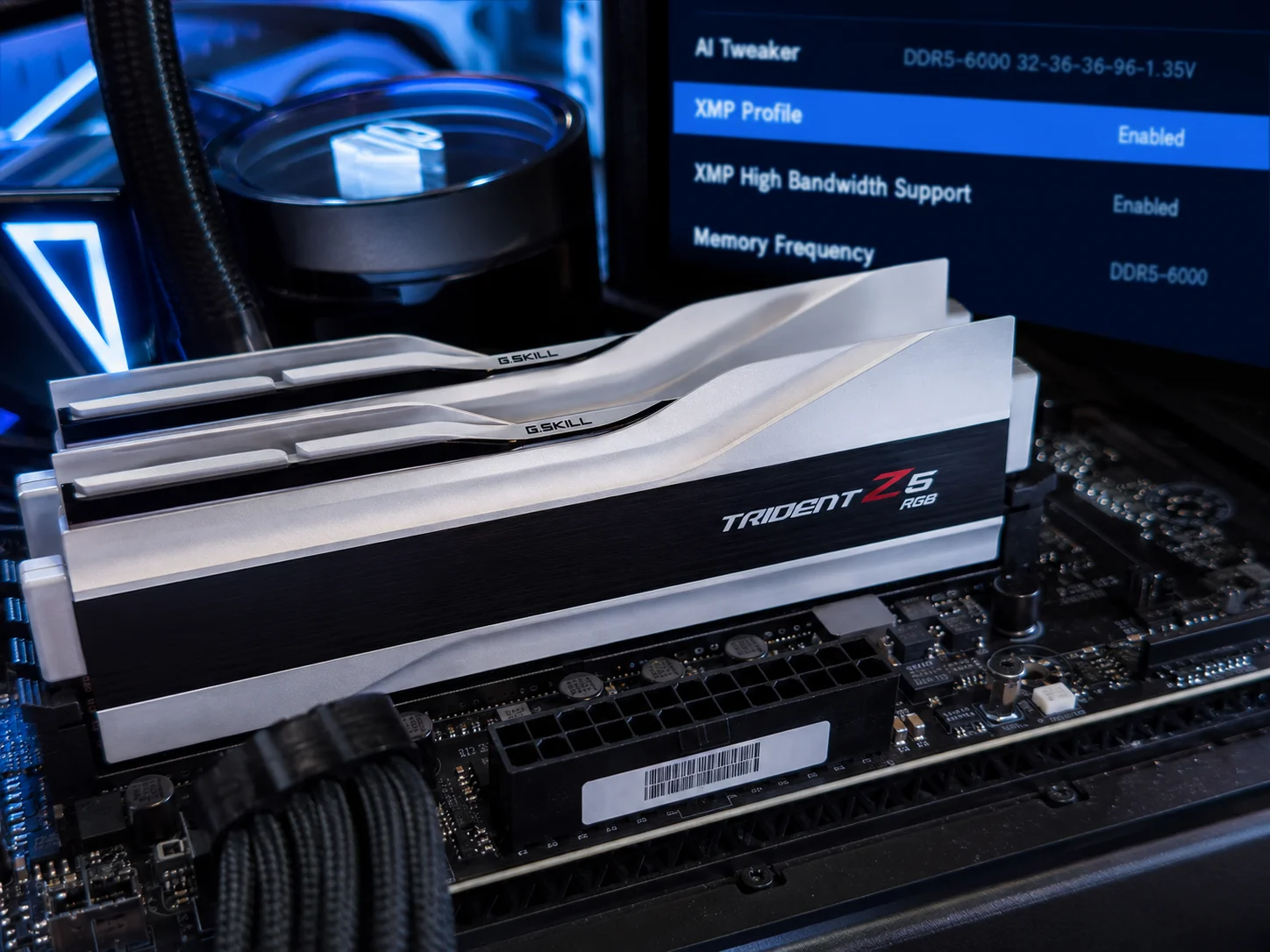
Even a top-tier GPU and CPU pairing can underperform if memory bandwidth is left on the table. DDR5 memory modules typically ship at a conservative default speed until a profile is manually enabled in the BIOS [6].
Enabling XMP on Intel systems or EXPO on AMD systems unlocks the memory’s rated speed and timings, which can noticeably smooth out frame delivery in memory-sensitive titles like open-world and strategy games. Build guides consistently recommend checking motherboard compatibility before purchasing high-speed kits, since not every board supports the fastest available DDR5 speeds [6].
Practical steps for this upgrade include:
- Confirming the motherboard’s supported DDR5 speed range before buying memory.
- Enabling XMP or EXPO in the BIOS immediately after installing new memory.
- Running a stress test afterward to confirm stability at the enabled speed.
- Choosing dual-channel kits over single sticks, since dual-channel configurations improve bandwidth significantly.
- Avoiding mismatched memory modules from different kits, which can prevent XMP or EXPO from applying cleanly.
This is a low-cost, high-impact step that many builders skip simply because it requires a short trip into the BIOS menu. For systems already equipped with DDR5, enabling the correct profile takes minutes and can be done without spending anything extra.
5. Move Games to NVMe SSDs and Upgrade to High-Refresh OLED Displays
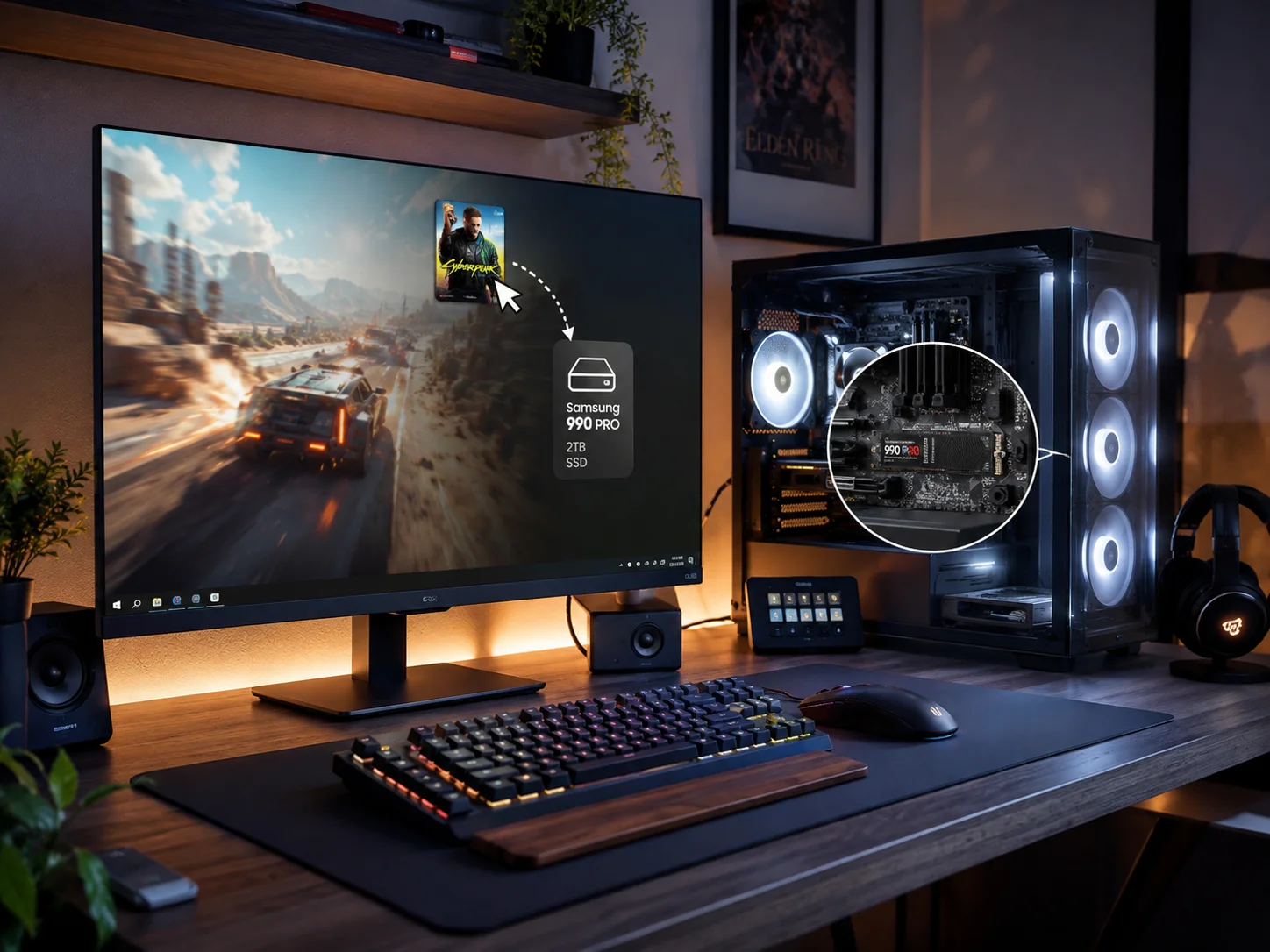
Storage speed affects far more than boot times. Modern open-world games stream massive texture files in real time, and a slow drive can cause visible texture pop-in or stuttering even when the GPU and CPU are capable of higher frame rates [7].
Moving actively played titles to a fast NVMe SSD, rather than a traditional SATA drive, reduces load times dramatically and helps textures stream in smoothly during fast camera movement. Monitoring drive health through built-in tools also prevents performance degradation as an SSD fills up or ages.
Pairing fast storage with a high-refresh display closes the other half of the performance gap. Industry roundups from major hardware events in 2026 highlight a clear shift toward high-refresh, low-latency OLED panels becoming mainstream even outside premium price tiers [10]. OLED technology offers near-instant pixel response times, which reduces motion blur and ghosting compared to older LCD panels.
When shopping for a new monitor, prioritize:
- Refresh rate of at least 144Hz for competitive titles, with 240Hz or higher for esports-focused setups.
- Low input latency, since a high refresh rate alone does not guarantee a fast on-screen response.
- OLED or fast-response IPS panels over standard VA panels for motion clarity.
- Adaptive sync support, such as variable refresh rate technology, to prevent screen tearing.
- A resolution that matches the GPU’s realistic output capability rather than chasing 4K on modest hardware.
Together, fast storage and a responsive display remove two of the most overlooked bottlenecks in a gaming setup.
6. Lock In Network Stability, Cooling, and Future-Proof Your Rig
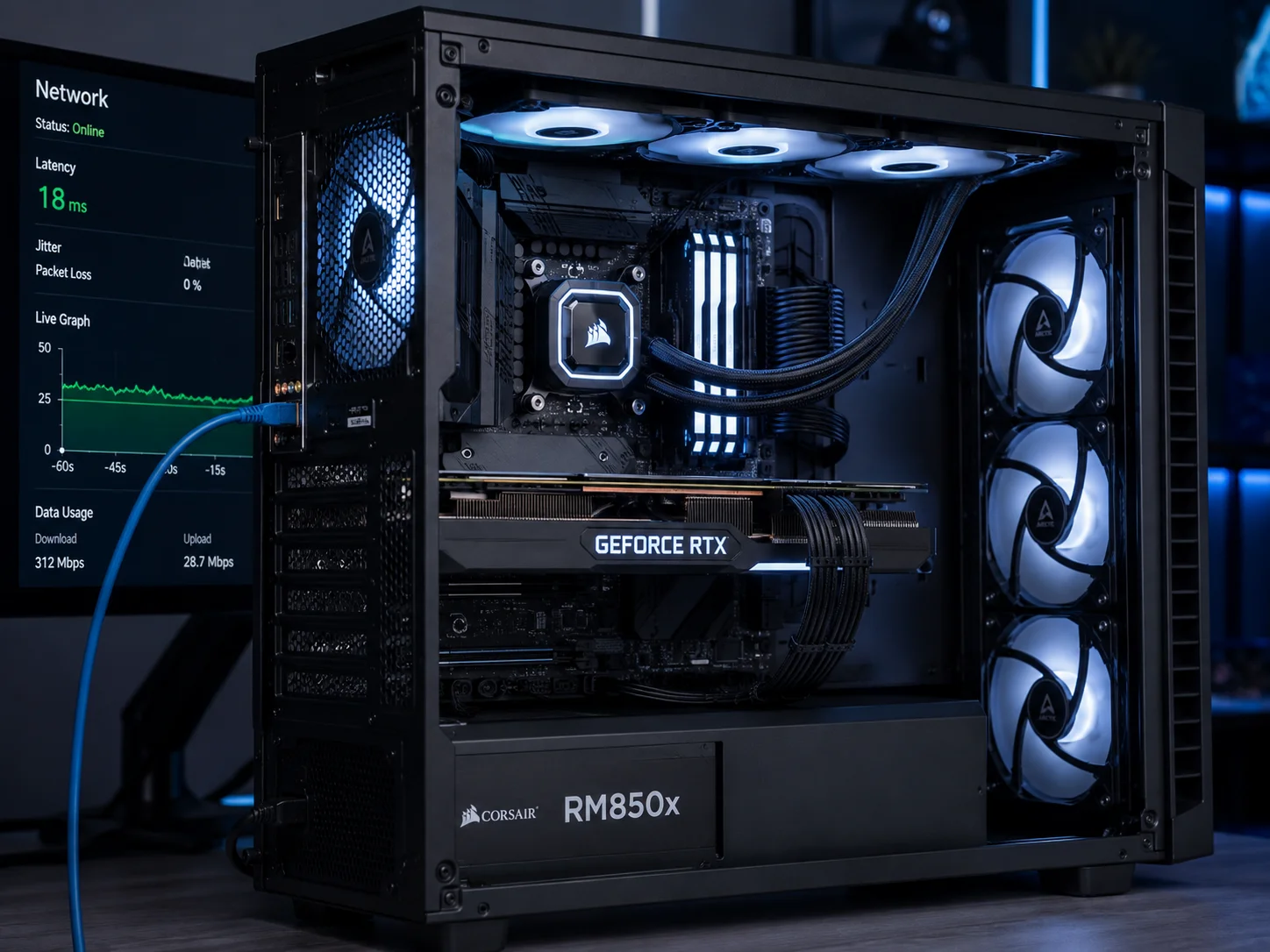
The final piece of these 6 Gaming Computer Setup Ideas To Supercharge Your Performance covers three areas that often get ignored until something breaks: network stability, thermal management, and forward planning for future upgrades.
Network and operating system tuning directly affects latency stability in online games. Wired ethernet connections consistently outperform Wi-Fi for consistency, even when Wi-Fi speeds look comparable on paper. Adjusting network adapter settings, disabling bandwidth-heavy background downloads, and prioritizing game traffic through router quality-of-service settings can all reduce ping spikes during matches [8][3].
Cooling and airflow deserve equal attention. Sustained gaming sessions push components to their thermal limits, and inadequate airflow forces the CPU and GPU to throttle clock speeds to avoid overheating. A balanced case airflow setup, with intake fans drawing cool air and exhaust fans expelling warm air near the top and rear, keeps temperatures stable during long sessions. Reliable power delivery through a quality power supply unit also prevents random shutdowns under heavy load, particularly in systems running power-hungry GPUs [8].
For lower-end systems and laptops relying on integrated graphics, targeted tweaks matter more than brute-force upgrades. Lowering resolution slightly, disabling background overlays, and using lightweight game launchers can meaningfully improve playability on integrated GPU systems without any new hardware purchase [3]. Demonstration videos comparing before-and-after settings on budget hardware show how much headroom exists in supposedly underpowered machines [5].
Looking ahead, hardware trends discussed at major industry events in 2026 point toward wider adoption of faster memory standards, more efficient power delivery designs, and increasingly affordable high-refresh OLED panels [10]. These trends are still developing, so treat any specific future product claims as forward-looking rather than guaranteed, but the general direction toward faster, more efficient, and more responsive gaming hardware appears well supported by current industry momentum.
Frequently Asked Questions
Which of these six ideas gives the biggest performance boost for the least money?
Optimizing in-game graphics settings and tuning Windows background processes typically deliver the fastest, cheapest gains since they require no new purchases at all [1][8].
Is it worth upgrading RAM before the graphics card?
Generally no. Build guides and community feedback consistently show the GPU has a larger direct impact on frame rate than additional memory, so it should be upgraded first in most cases [6][9].
Does enabling XMP or EXPO void any warranty?
These profiles are officially supported features built into the memory and motherboard, so enabling them through the BIOS does not typically void standard hardware warranties [6].
Are OLED gaming monitors worth it for competitive play?
Their near-instant response time and reduced motion blur make OLED panels appealing for fast-paced games, though buyers should confirm refresh rate and input latency specs alongside panel type [10].
Can integrated graphics systems really run modern games well?
With targeted settings adjustments and lightweight software configurations, many integrated GPU systems can reach playable frame rates in a wider range of titles than expected [3][5].
Conclusion: Putting These 6 Gaming Computer Setup Ideas To Supercharge Your Performance Into Action
Better gaming performance rarely comes from a single dramatic upgrade. It comes from stacking small, deliberate improvements across settings, software, hardware, and cooling until the whole system works in balance. Start with the free changes: trim unnecessary graphics settings, clean up background processes, and set the correct Windows power plan. From there, follow the proven upgrade order of GPU, then CPU, then RAM and SSD, and make sure any new DDR5 memory has its XMP or EXPO profile enabled.
Once the core hardware is solid, address the details that often get overlooked, including drive health, cooling airflow, network stability, and display response time. Each of the 6 Gaming Computer Setup Ideas To Supercharge Your Performance covered in this guide builds on the last, so even a modest budget can produce a noticeably smoother, faster gaming experience when applied together. The next step is simple: pick one idea from this list, apply it this week, and measure the difference before moving to the next.
References
[1] Struggling Low Fps 2026s Best Pc Settings Dominate Competitive Games 162538 – https://www.player.one/struggling-low-fps-2026s-best-pc-settings-dominate-competitive-games-162538
[2] Watch – https://www.youtube.com/watch?v=bVaYUSQYVAQ
[3] Pc Gaming Optimization Low End 2026 – https://www.sagetweaks.com/blog/pc-gaming-optimization-low-end-2026
[4] Game Settings – https://pcgamecheck.com/game-settings
[5] Watch – https://www.youtube.com/watch?v=Va0S0pEzCfw
[6] Ultimate Gaming Pc Build Guide 2026 – https://gamingpcguru.com/ultimate-gaming-pc-build-guide-2026/
[7] Best Gaming Pcs 2026 – https://www.techwhoop.com/gaming/gaming-hardware/best-gaming-pcs-2026/
[8] Optimize Gaming Pc Performance – https://www.pc4games.com/en/guides/optimize-gaming-pc-performance
[9] Help With Gaming Specs In 2026 – https://www.reddit.com/r/buildapc/comments/1q5suiw/help_with_gaming_specs_in_2026/
[10] Ces 2026 Roundup – https://uperfect.com/blogs/portable-gaming-monitor/ces-2026-roundup