9 Aesthetic Samsung Home Screen Ideas For A Beautifully Organized Phone
A 2026 survey of mobile productivity habits found that users who organize their home screens intentionally report 23% faster app access and noticeably lower daily frustration with their devices. Yet most Samsung Galaxy owners never move past the default layout that ships out of the box. That gap between what a Samsung home screen can look like and what most people actually use represents one of the biggest untapped opportunities in personal tech customization.
Disclosure: This post contains affiliate links. As an Amazon Associate, we earn from qualifying purchases, and at no extra cost to you.
This guide covers the 9 aesthetic Samsung home screen ideas for a beautifully organized phone that are dominating in 2026, backed by the latest One UI 8.5 features, Good Lock’s expanded Home Up module, and real-world layout strategies from expert customizers. Whether the goal is a clean minimalist dashboard or a dense productivity grid, there is a setup here that fits every style and workflow.
Key Takeaways
- Fewer icons on the first page, combined with a strong visual hierarchy, is the single most recommended principle among expert Samsung customizers in 2026
- Good Lock’s Home Up module and One UI 8.5 unlock grid sizes, widget stacking, and dynamic color palettes that the default launcher cannot achieve
- Dense grids (5×6, 6×6, or 7×7) are now standard advice for large-screen Galaxy devices like the S26 Ultra
- Color-coordinated themes using One UI’s Wallpaper and Style settings are a defining aesthetic trend this year
- Every aesthetic choice should be tested against real-world performance and battery impact before committing to a layout
What Makes a Samsung Home Screen Truly Aesthetic in 2026
The word “aesthetic” gets overused in phone customization circles, but in 2026 it carries a specific meaning: a home screen that is visually consistent, immediately readable, and efficient to use. Recent layout guides emphasize balancing aesthetics with task-flow efficiency rather than prettiness alone [2]. A beautiful home screen that buries the apps needed most is a design failure, not a success.
One UI 8.5, Samsung’s latest interface layer, introduced expanded dynamic palette support, smarter widget resizing, and tighter integration with Good Lock’s Home Up module [7]. These tools make it easier than ever to build a home screen that looks intentional rather than accidental. The core principles that expert customizers keep returning to are: fewer icons on page one, dense but consistent grids, and a strong visual hierarchy that guides the eye naturally [6].
The three pillars of an aesthetic Samsung home screen:
- Visual consistency — wallpaper, icon pack, and widget colors all belong to the same palette
- Functional hierarchy — the most-used apps and information appear first, without scrolling
- Negative space — empty areas are not wasted; they create breathing room that makes content feel premium
The 9 Aesthetic Samsung Home Screen Ideas For A Beautifully Organized Phone
The following nine layouts represent the dominant styles identified in mid-2026 layout taxonomy research. Each one solves a different problem and suits a different type of user [5].
1. The Minimalist Single-Page Dashboard
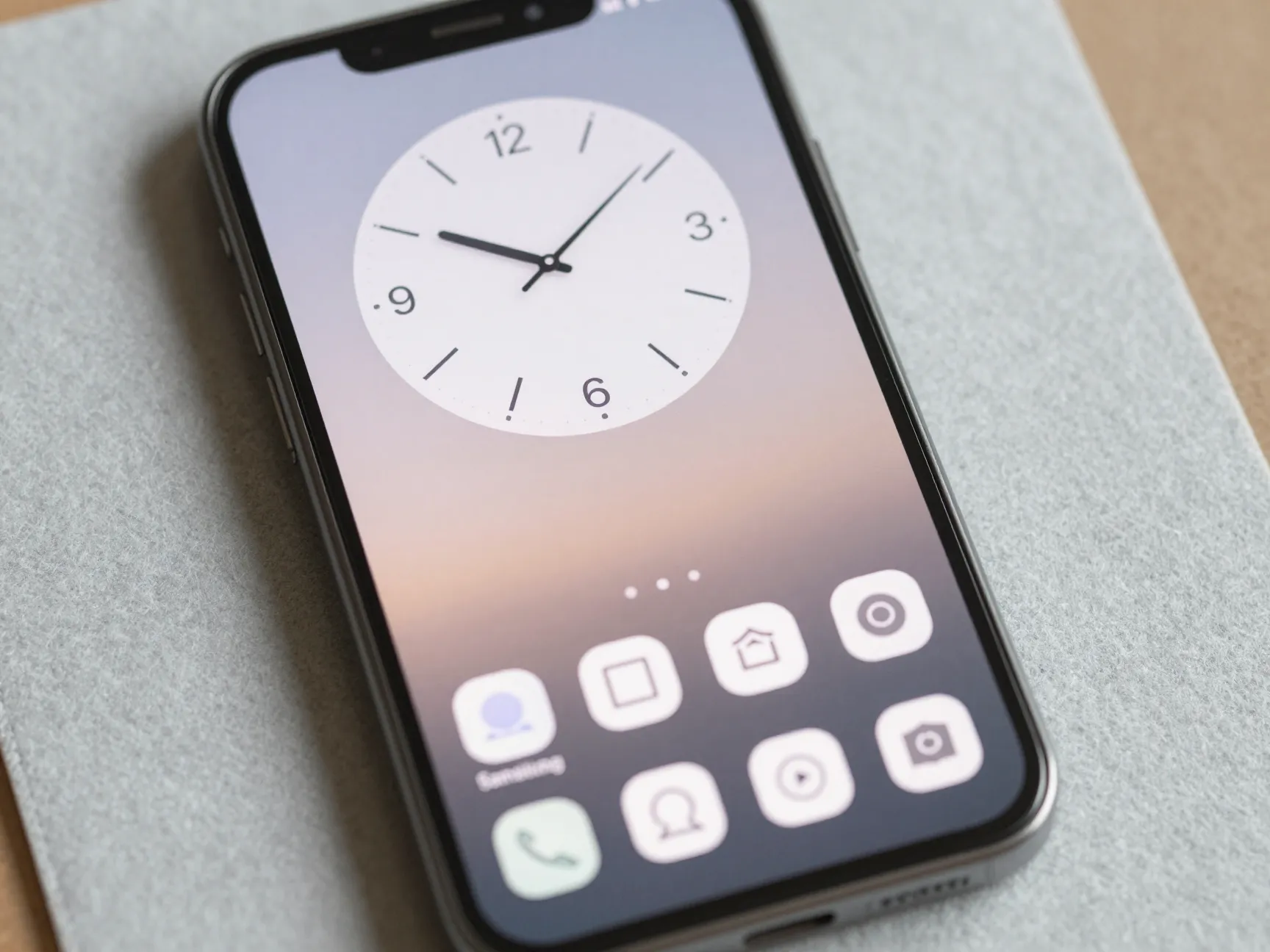
The minimalist single-page dashboard is the most-discussed aesthetic trend in Samsung customization circles in 2026 [6]. The entire home screen fits on one page: a large clock widget at the top, two or three essential app shortcuts at the bottom, and a high-quality wallpaper doing most of the visual work.
How to build it:
- Set the grid to 4×5 in Home Up (fewer slots forces discipline)
- Use a single full-width clock or date widget from KWGT or One UI’s built-in options
- Place only four to six app icons, grouped at the bottom
- Choose a wallpaper with a clear focal point and soft edges so icons do not compete visually
This layout works best for users who rely heavily on voice commands and quick-launch gestures rather than tapping through icon grids. It photographs beautifully and is the most shared style on customization forums in 2026 [8].
2. The Dense Productivity Grid
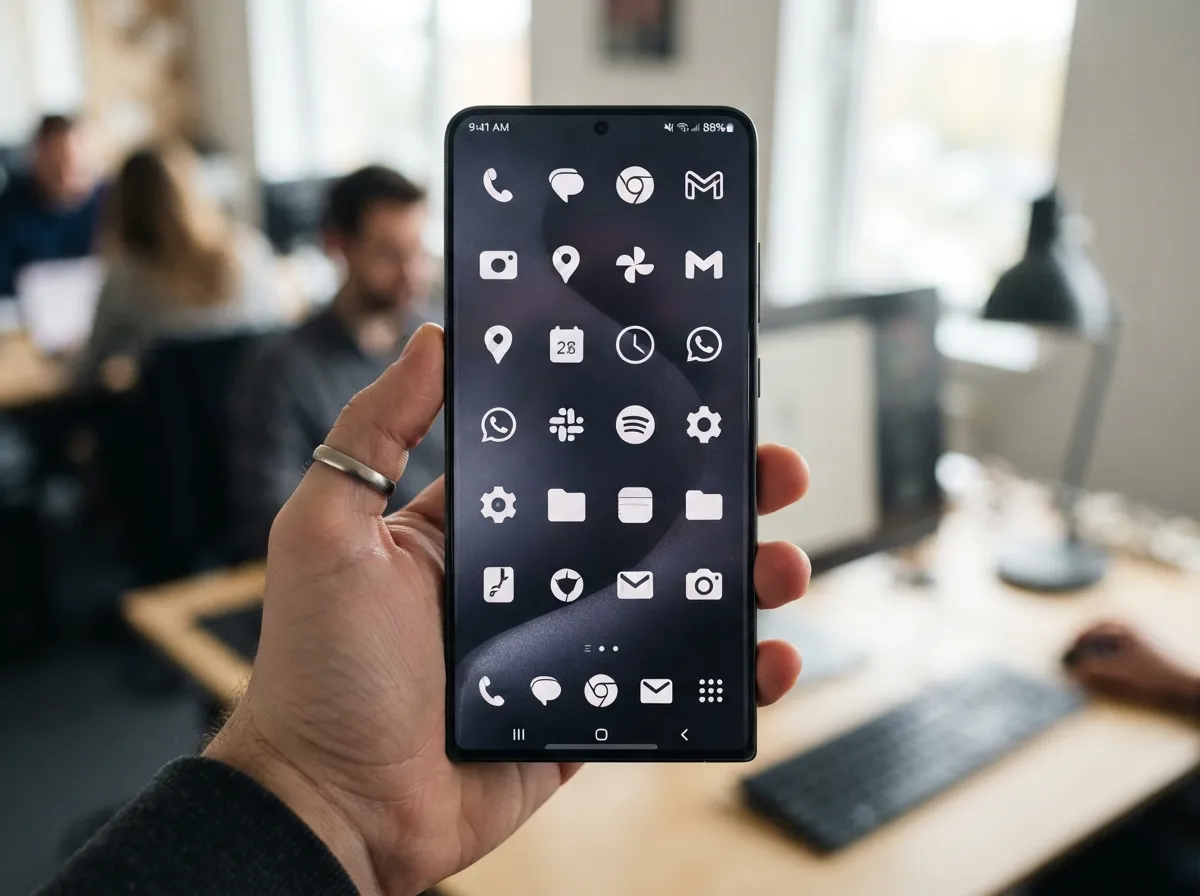
At the opposite end of the spectrum sits the dense productivity grid. For Galaxy S26 Ultra and Z Fold 6 users, a 6×6 or even 7×7 grid turns the large display into a genuine command center [4]. Every app is visible without scrolling, and the sheer density creates a satisfying sense of control.
Key setup tips:
- Enable the 6×6 or 7×7 grid option inside Good Lock’s Home Up module
- Use a consistent icon pack (Whicons, Ratio, or CandyCons are popular in 2026) to maintain visual unity across the dense layout
- Keep the wallpaper dark and low-contrast so icons remain legible
- Disable app labels if the icon pack is distinctive enough to recognize without text
“A dense grid on a large Samsung screen is not cluttered — it is curated. The difference is a consistent icon pack and a wallpaper that recedes rather than competes.”
This layout is particularly effective for power users who manage multiple projects and need instant access to dozens of apps without using an app drawer [6].
3. The Widget-Heavy Information Hub
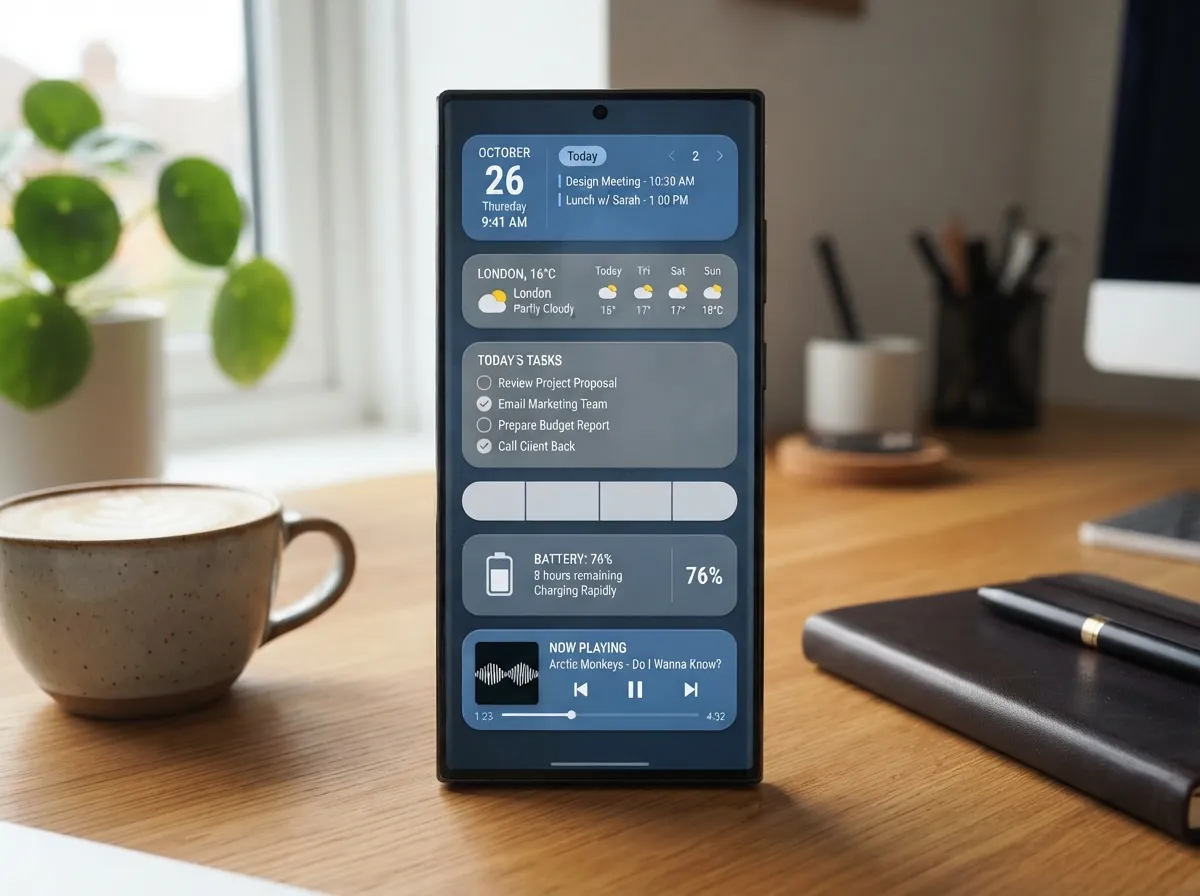
Widget-heavy layouts transform the home screen into a live dashboard that surfaces information without opening a single app. In 2026, One UI 8.5’s improved widget stacking and resizing make this layout more practical than ever [7].
Recommended widget stack for this layout:
| Widget Type | Suggested App | Size |
|---|---|---|
| Calendar overview | Google Calendar / Samsung Calendar | 4×2 |
| Weather forecast | One UI Weather / Weather Widget Maker | 4×1 |
| Task list | TickTick / Microsoft To Do | 4×2 |
| Battery status | KWGT custom widget | 2×1 |
| Music controls | Spotify / Samsung Music | 4×1 |
The visual challenge with widget-heavy layouts is preventing them from looking chaotic. The solution is to use widgets that share a color family and to leave at least one full row of empty space as a visual separator [2].
4. The Color-Coordinated Theme
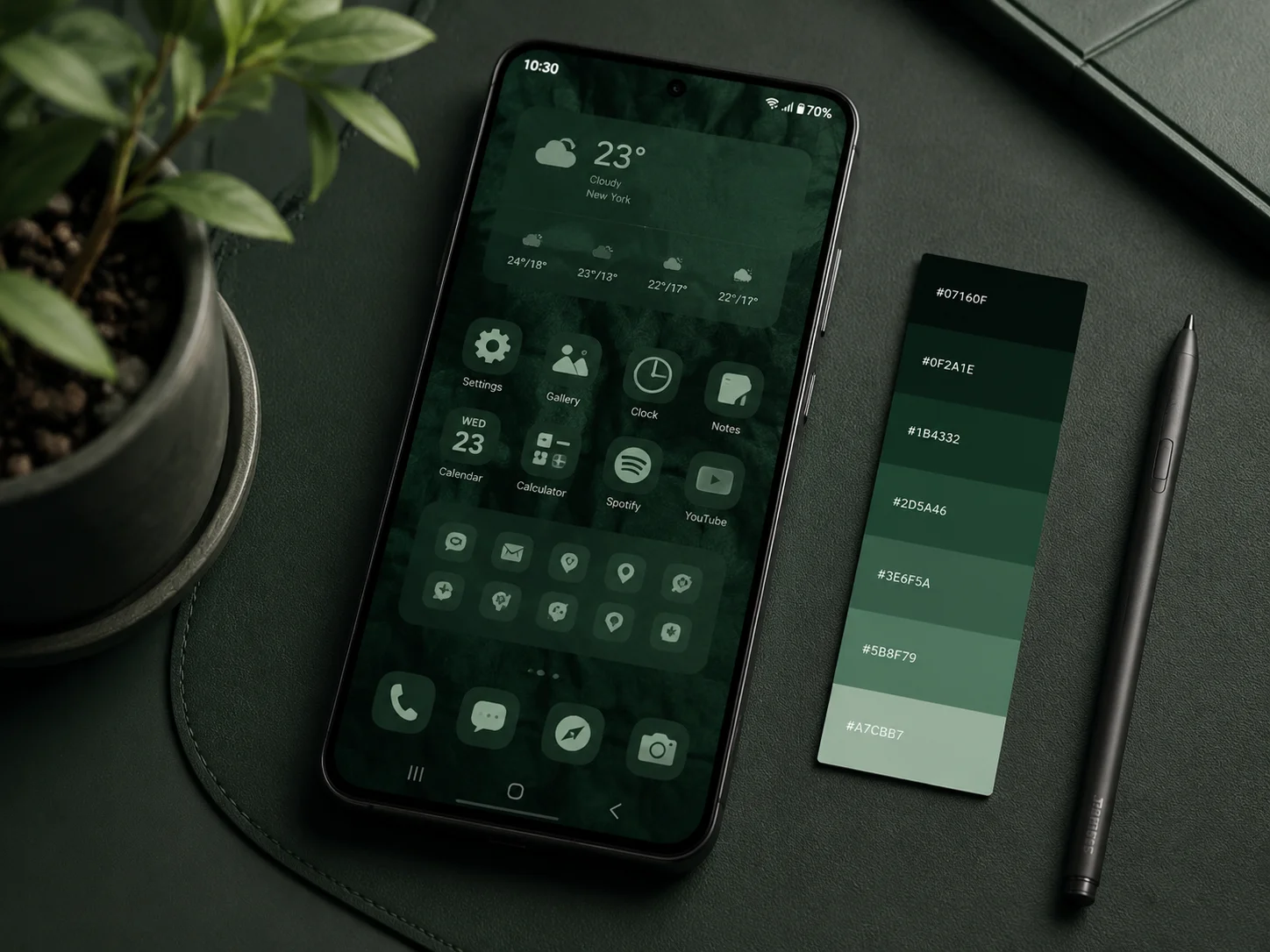
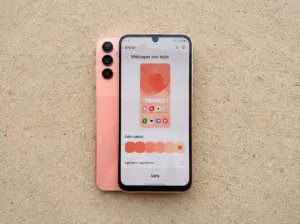
Color-coordinated themes are one of the defining aesthetic movements of 2026 Samsung customization [5]. The concept is straightforward: every element on the home screen — wallpaper, icons, widgets, and even the folder colors — belongs to a single curated palette.
Step-by-step palette setup:
- Choose a wallpaper with a dominant color (deep forest green, warm terracotta, or cool slate blue are trending in 2026)
- Open Settings, then Wallpaper and Style, and let One UI generate a matching dynamic palette
- Apply the palette to system colors, which automatically tints widgets and folders
- Install an icon pack that offers color variants matching the chosen palette
- Use KWGT or Widgetsmith to create custom widgets in the exact hex values of the wallpaper’s accent colors
The result is a home screen that looks like a single designed object rather than a collection of unrelated apps [7]. This approach requires the most upfront effort but produces the most visually striking results.
5. The Dark Mode Cinematic Layout
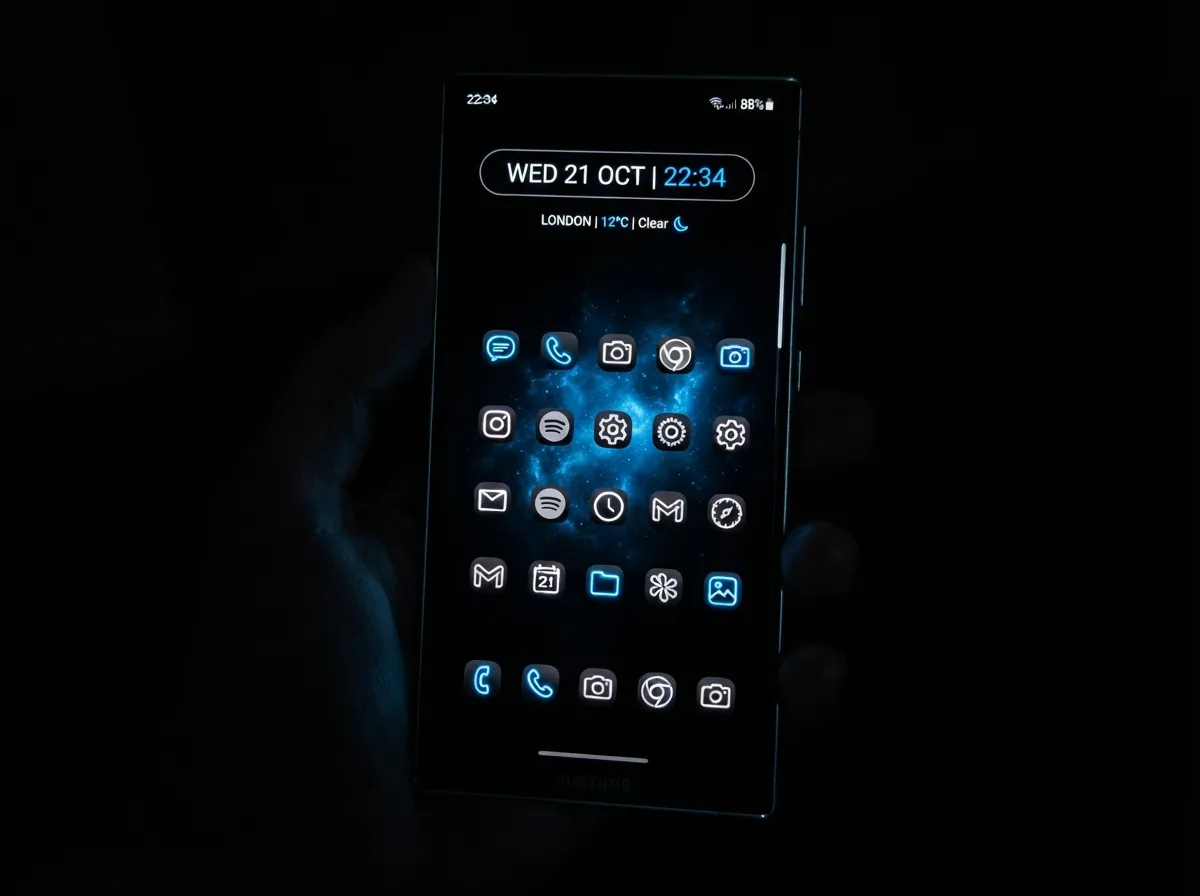
Dark mode layouts have evolved well beyond simply flipping the system toggle. The cinematic dark layout uses deep black or near-black wallpapers — often still frames from films or abstract digital art — combined with monochrome or neon-accent icon packs to create a dramatic, high-contrast aesthetic [9].
Core elements:
- Wallpaper: Deep black with a single light source or subtle texture (avoid busy patterns)
- Icons: White or silver monochrome pack, or a neon-accent pack in one color (electric blue, acid green)
- Widgets: Minimal — a slim clock and a single weather line at most
- Grid: 5×5 or 5×6 to keep density moderate without overwhelming the dark canvas
This layout also has a practical benefit: AMOLED screens on Galaxy devices consume significantly less battery when displaying true black pixels, making the cinematic dark layout one of the few aesthetic choices that actively improves device performance [4].
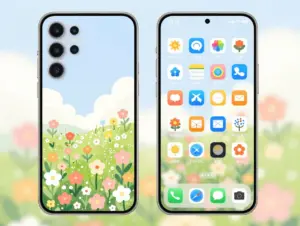
6. The Nature and Botanical Aesthetic
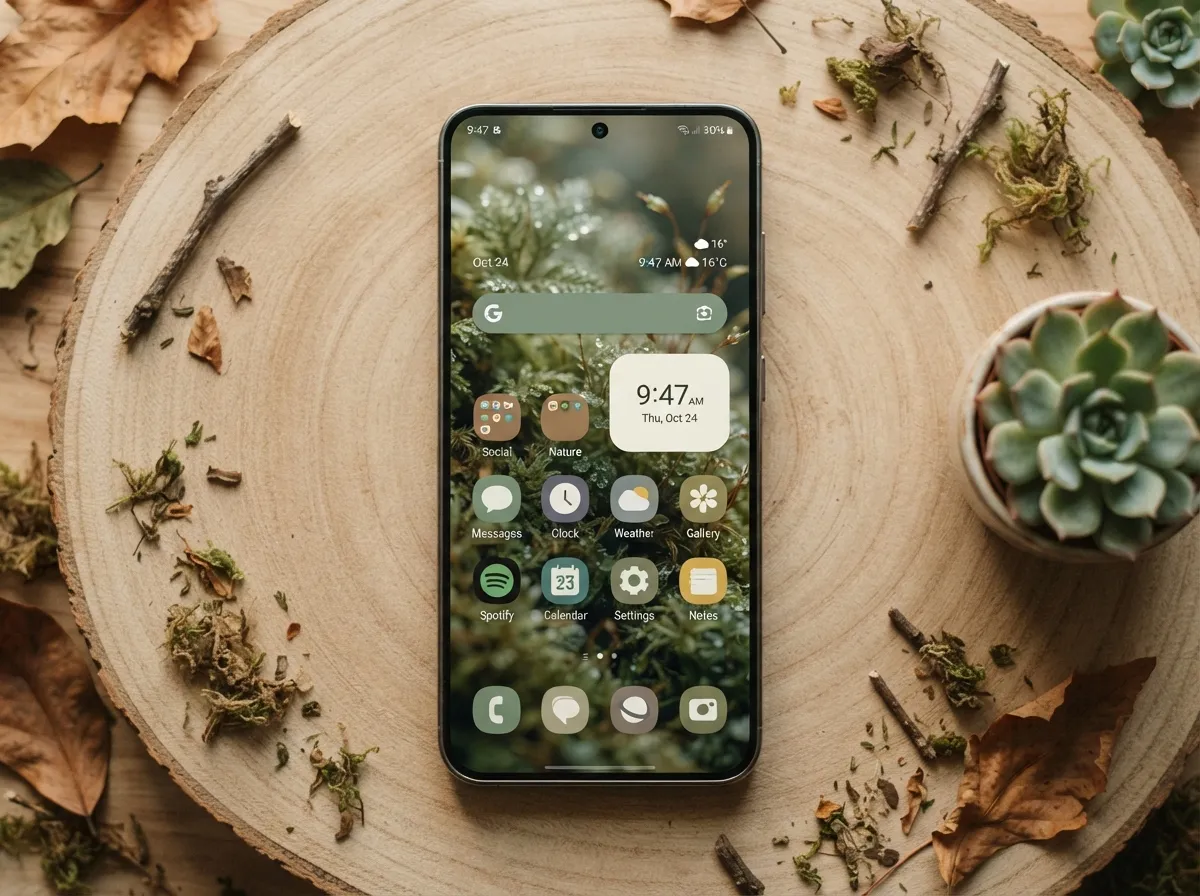
The nature-inspired home screen pairs organic wallpapers (macro photography of leaves, moss textures, or aerial forest shots) with earthy, muted icon packs and soft green or brown widget palettes. This style has grown steadily through 2026 as users seek calmer, less stimulating digital environments [8].
What makes it work:
- Use a wallpaper with fine natural texture rather than a single bold image
- Choose an icon pack with rounded shapes and desaturated tones (Moss, Pastel, or Outline packs)
- Limit widgets to one or two, styled in cream or sage green
- Set folder backgrounds to match leaf or bark tones using One UI’s folder color options
The botanical aesthetic is particularly effective on the Galaxy S26’s 6.2-inch display, where the wallpaper texture has enough resolution to remain crisp [5].
7. The Productivity Folder System
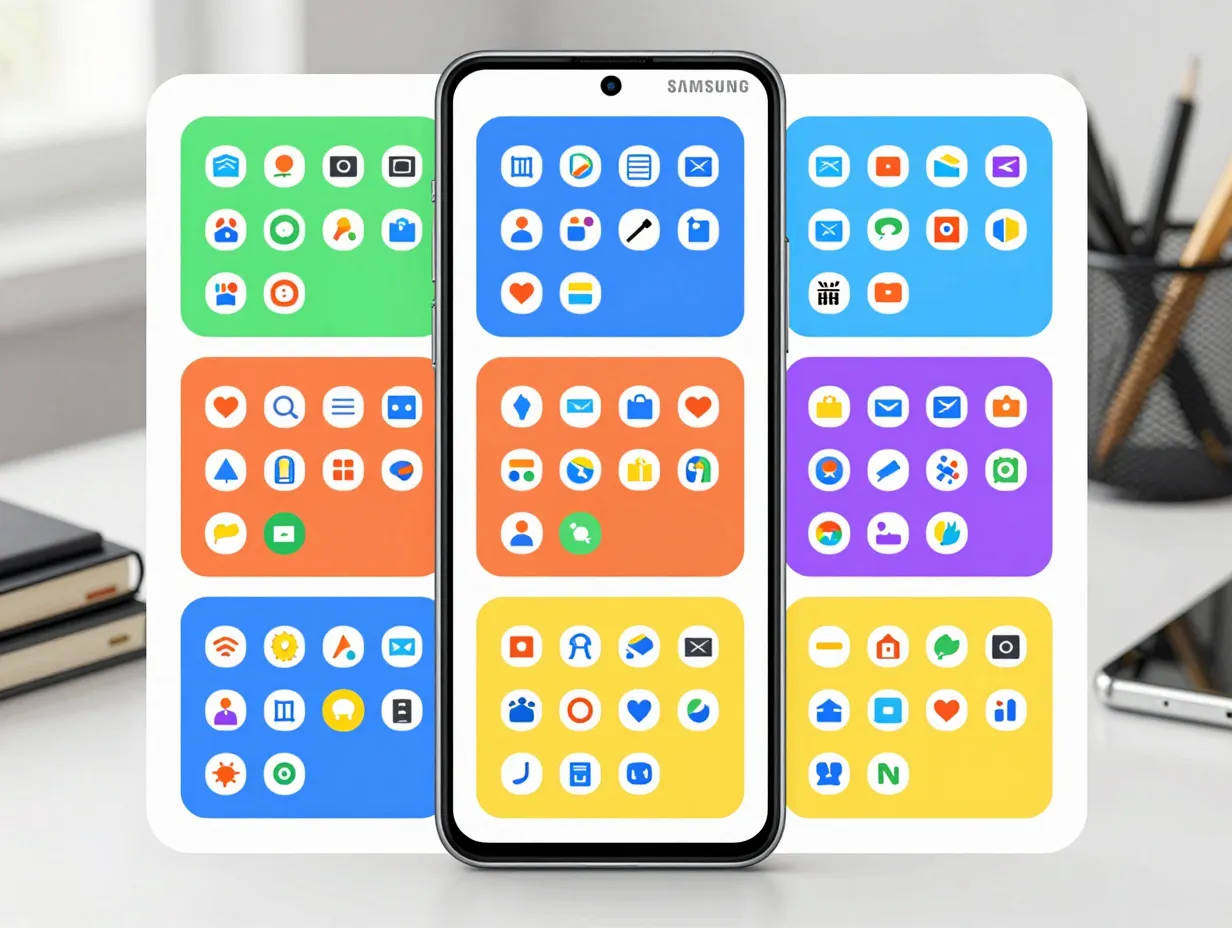
Not every aesthetic home screen needs to be sparse. The folder system layout organizes every app into labeled, color-coded folders arranged in a clean grid, creating a home screen that is both comprehensive and visually orderly [2].
Folder organization framework:
- Work — email, calendar, Slack, document editors
- Create — camera, editing apps, note-taking tools
- Connect — messaging, social, video calls
- Learn — reading apps, podcasts, courses
- Life — banking, health, navigation, shopping
Each folder uses a distinct color from a coordinated palette, and the folder icons are set to display the same number of app previews for visual consistency. This layout suits users who want every app accessible from the home screen without the visual noise of individual icons [6].
8. The Hidden Interaction and Room-Style Layout
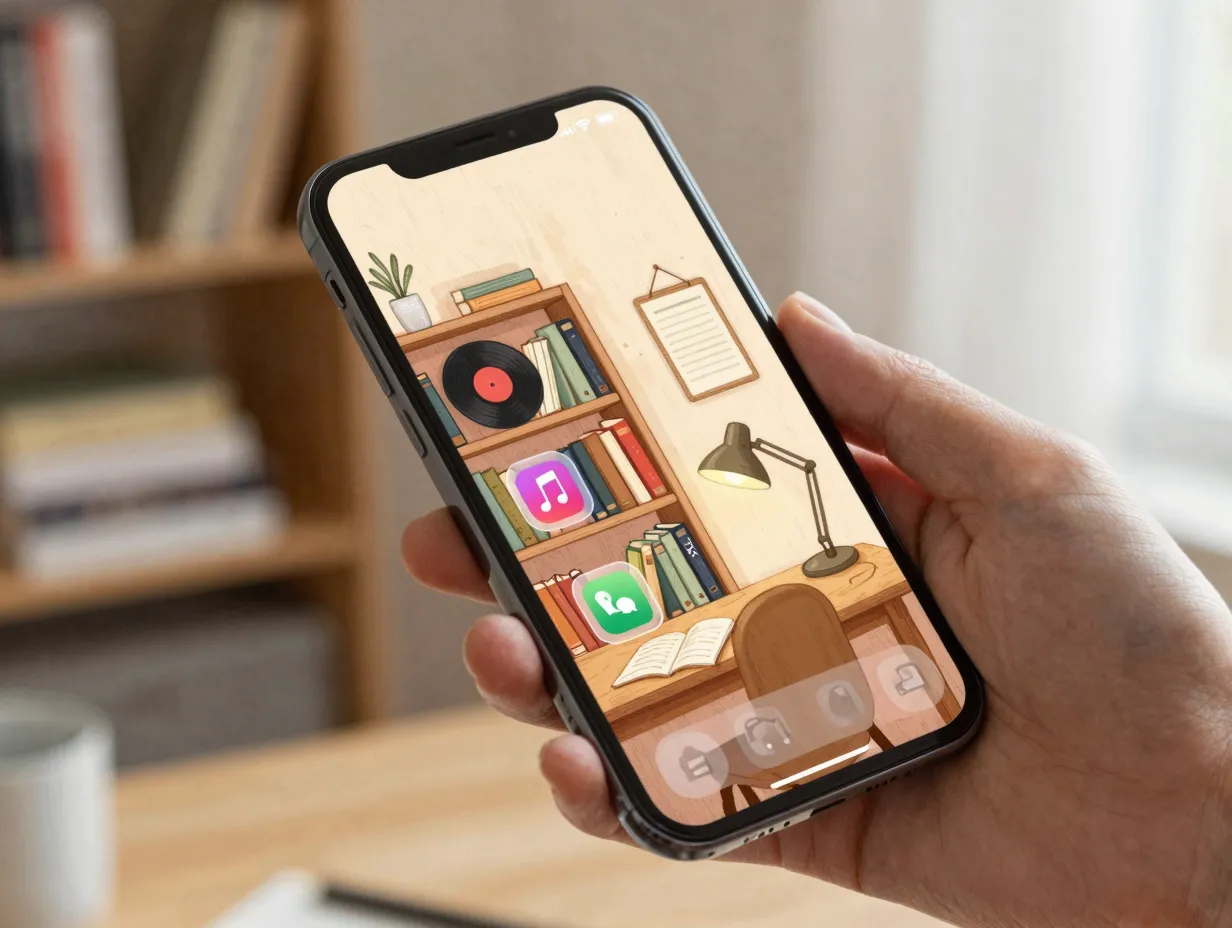
This is the most niche of the 9 aesthetic Samsung home screen ideas for a beautifully organized phone, but it is also the most visually inventive. The hidden interaction layout uses illustrated or photographic room-style wallpapers — a cozy desk scene, a bookshelf wall, a coffee shop corner — and places app shortcuts behind objects in the scene using transparent icon stickers [10].
How it works:
- Find or commission a detailed room illustration or use a high-resolution interior photograph
- Use an icon customization app (Zedge, Phonetography, or Good Lock’s Theme Park) to create transparent or near-transparent icon overlays
- Position app shortcuts so they appear to “live” inside the scene (a music app behind a vinyl record, a reading app on a bookshelf spine)
- The result is a home screen that looks like a piece of art until the user interacts with it
This layout requires significant setup time but generates strong visual impact and a genuinely unique feel [10]. It is best suited for users who rarely change their app lineup and value the home screen as a personal creative expression.
9. The AI-Ready Context-Aware Layout
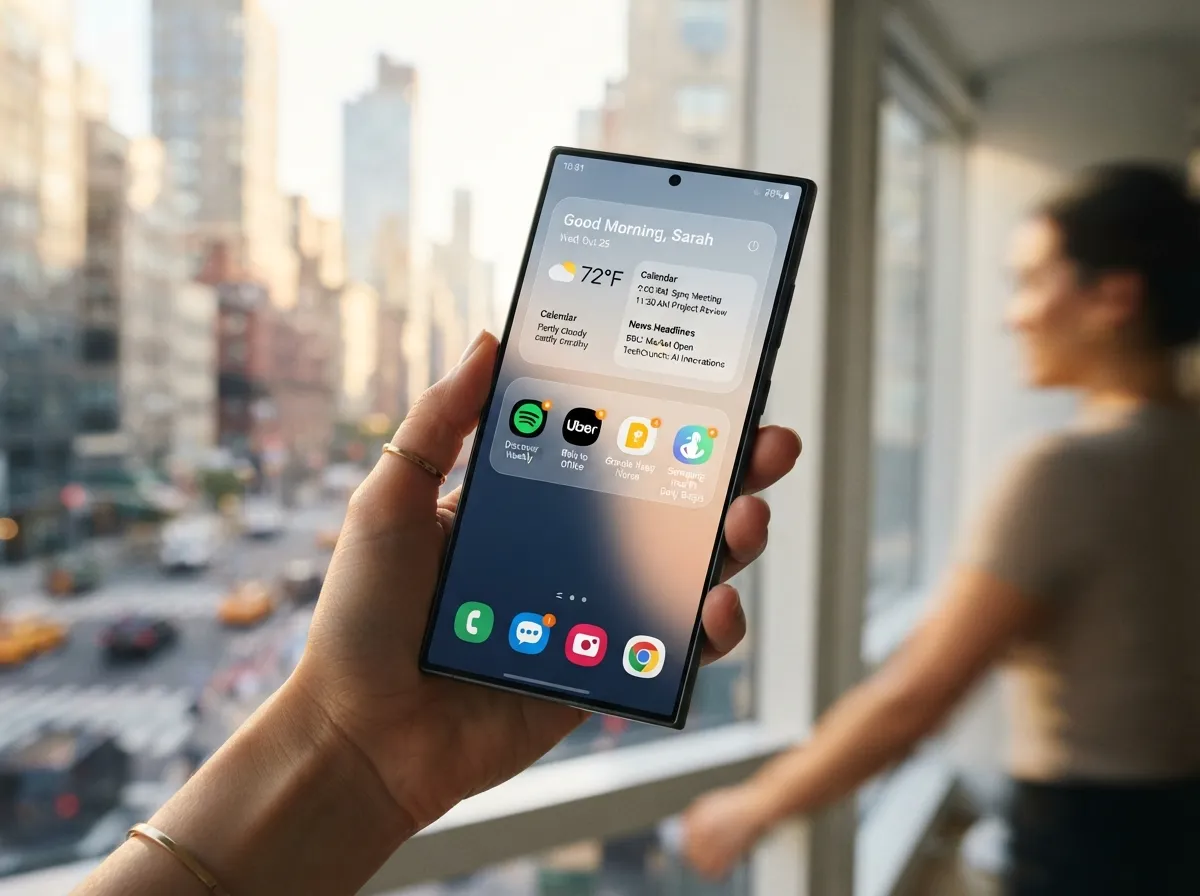
The ninth and most forward-looking of the 9 aesthetic Samsung home screen ideas for a beautifully organized phone is the AI-ready context-aware layout. One UI 8.5 introduced smarter widget behavior that adapts content based on time of day, location, and usage patterns [7]. This layout is built around those dynamic elements.
Structure of the AI-ready layout:
- Top zone: A large adaptive widget that changes between a morning briefing (weather, calendar, news) and an evening summary (step count, battery, reminders)
- Middle zone: Four to six pinned app shortcuts that Galaxy AI suggests based on the current context
- Bottom zone: A persistent dock with the four apps used most across all contexts (phone, messages, camera, browser)
The aesthetic appeal of this layout comes from its apparent simplicity — it looks like a minimalist dashboard — but its content is always relevant to the current moment [7]. As Samsung continues to expand Galaxy AI capabilities through 2026 and beyond, this layout will only become more powerful.
How to Set Up Any of These Layouts: A Practical Workflow
Regardless of which of the nine styles appeals most, the setup process follows a consistent workflow that applies across all of them [2].
Step 1: Install Good Lock from the Galaxy Store
Good Lock is Samsung’s official customization suite and is free for all Galaxy devices. The Home Up module within Good Lock unlocks grid size options, custom icon spacing, and advanced widget behavior that the default launcher does not expose.
Step 2: Choose and apply a wallpaper first
Every strong aesthetic home screen starts with the wallpaper, not the icons. The wallpaper sets the color temperature, mood, and visual weight of everything placed on top of it. Apply the wallpaper before placing a single widget or icon.
Step 3: Set the grid size in Home Up
Open Good Lock, navigate to Home Up, and set the grid to match the chosen layout style. Minimalist layouts benefit from 4×5 or 4×6. Dense productivity grids work best at 5×6, 6×6, or 7×7 on large screens.
Step 4: Apply a matching icon pack
Download an icon pack from the Galaxy Store or Google Play that matches the wallpaper’s palette and mood. Apply it through the home screen’s long-press menu under Themes or directly through Good Lock’s Theme Park module.
Step 5: Add and resize widgets
Place widgets one at a time, resizing each to fit the grid cleanly. One UI 8.5 allows widgets to snap to grid lines, which makes alignment much easier than in previous versions [7].
Step 6: Test for performance and battery impact
This step is frequently skipped but increasingly recommended by expert customizers. Live wallpapers, always-on widgets, and animated icon packs all draw battery power. After building a layout, monitor battery usage for 24 hours and check for any apps or widgets consuming unusual background resources [4].
Common Mistakes to Avoid
Even experienced users make these errors when building aesthetic Samsung home screens:
- Mixing too many icon styles — using three different icon packs creates visual noise that undermines any aesthetic
- Ignoring the dock — the persistent dock appears on every page and should be treated as the most important design real estate on the screen
- Choosing wallpapers with busy centers — text-heavy or face-heavy wallpaper centers compete with icons and widgets for attention
- Skipping the app drawer — moving every app to the home screen defeats the purpose of a curated layout; the app drawer exists for a reason
- Never updating the layout — the best home screens evolve with the user’s changing app habits and aesthetic preferences [6]
Conclusion
The 9 aesthetic Samsung home screen ideas for a beautifully organized phone covered in this guide represent a full spectrum of styles, from the stripped-back minimalist dashboard to the AI-driven context-aware layout. Each one is achievable with the tools already available on Galaxy devices in 2026, primarily through One UI 8.5 and Good Lock’s Home Up module.
Actionable next steps:
- Install Good Lock from the Galaxy Store today if it is not already on the device
- Pick one layout style from this list that matches the current workflow and aesthetic preference
- Start with the wallpaper, then build the grid, icons, and widgets outward from that foundation
- Run a 24-hour battery and performance check after completing the layout
- Revisit and refine the layout every 30 to 60 days as app habits change
A beautifully organized Samsung home screen is not a luxury — it is a daily quality-of-life improvement that takes an afternoon to build and pays dividends every time the phone is unlocked.
References
[1] Watch – https://www.youtube.com/watch?v=-hImKNiEfg0
[2] 6 Tricks To Customize The Home Screen Of A Samsung Galaxy – https://wadenva.com/2026/06/20/6-tricks-to-customize-the-home-screen-of-a-samsung-galaxy/
[3] mudidi.tistory – https://mudidi.tistory.com/4039
[4] gadgetken – http://gadgetken.com/?p=30654
[5] Samsung Phone Layout Ideas – https://www.chapinparkselfstorage.com/all1/samsung-phone-layout-ideas/
[6] Best Samsung Phone Layout Ideas – https://thebetterwebmovement.com/best-samsung-phone-layout-ideas/
[7] One Ui Customization Samsung Guide – https://www.samuelbeckman.com/article/one-ui-customization-samsung-guide
[8] 2026 Galaxy Home Screen Customization Guide – https://gadgetzamurai.jp/2026/01/03/%E3%80%902026%E5%B9%B4%E7%89%88%E3%80%91galaxy%E3%81%AE%E3%83%9B%E3%83%BC%E3%83%A0%E7%94%BB%E9%9D%A2%E3%82%92%E3%81%8A%E3%81%97%E3%82%83%E3%82%8C%E3%81%AB%E3%81%99%E3%82%8B%E8%B6%A3%E5%91%B3%E3%82%AB/
[9] Watch – https://www.youtube.com/watch?v=O3ghxm-UuQE
[10] Watch – https://www.youtube.com/watch?v=4GjIlkBR82g&vl=en