8 iPhone Apps Organization Strategies For A Clutter-Free Device
The average smartphone user has 80 apps installed but regularly uses fewer than 10 of them, yet most iPhones look like a digital junk drawer, with icons scattered across a dozen pages and folders named “Stuff.” That gap between what people install and what they actually need is exactly where digital clutter takes root. Applying the right 8 iPhone Apps Organization Strategies For A Clutter-Free Device can close that gap, reduce cognitive load, and make every tap count.
Disclosure: This post contains affiliate links. As an Amazon Associate, we earn from qualifying purchases, and at no extra cost to you.
This guide walks through eight proven strategies, grounded in how iOS 18 and iOS 26 actually work, to help any iPhone user build a Home Screen that is clean, functional, and genuinely easy to navigate. Whether the goal is peak productivity or simply finding apps without scrolling for 30 seconds, these methods deliver measurable results.
Key Takeaways
- The App Library is one of the most underused tools for keeping the Home Screen minimal without deleting anything.
- iOS 18 and later allow icons to be placed anywhere on the screen, enabling intentional spacing and ergonomic layouts.
- Categorizing apps into functional buckets, Essential, Situational, and Distracting, is the strategic foundation of lasting organization.
- The Dock and the primary Home Screen page deserve the most curation attention, as they carry the highest daily interaction.
- Widgets and Smart Stacks can replace multiple app icons while delivering more information at a glance.
Why iPhone App Organization Matters More Than Ever
Most people treat app organization as an aesthetic exercise, a way to make their phone look tidy for a screenshot. The reality is more consequential. A disorganized Home Screen forces the brain to scan, evaluate, and choose every time the phone is unlocked. Multiply that friction across 80 to 100 daily unlocks, and the cognitive cost adds up fast.
Research into digital minimalism consistently links cluttered device interfaces to increased screen time and reduced focus. When apps that trigger distraction, social media, games, news feeds, are visible on the primary Home Screen, they compete for attention even when the user opened the phone for a completely different reason.
The good news is that iOS has evolved significantly. iOS 18 introduced the ability to place app icons anywhere on the screen, leaving intentional gaps, and paired that flexibility with improved App Library integration [8]. These tools make it easier than ever to implement the 8 iPhone Apps Organization Strategies For A Clutter-Free Device covered below.
The 8 iPhone Apps Organization Strategies For A Clutter-Free Device
1. Audit Every App Before Organizing Anything
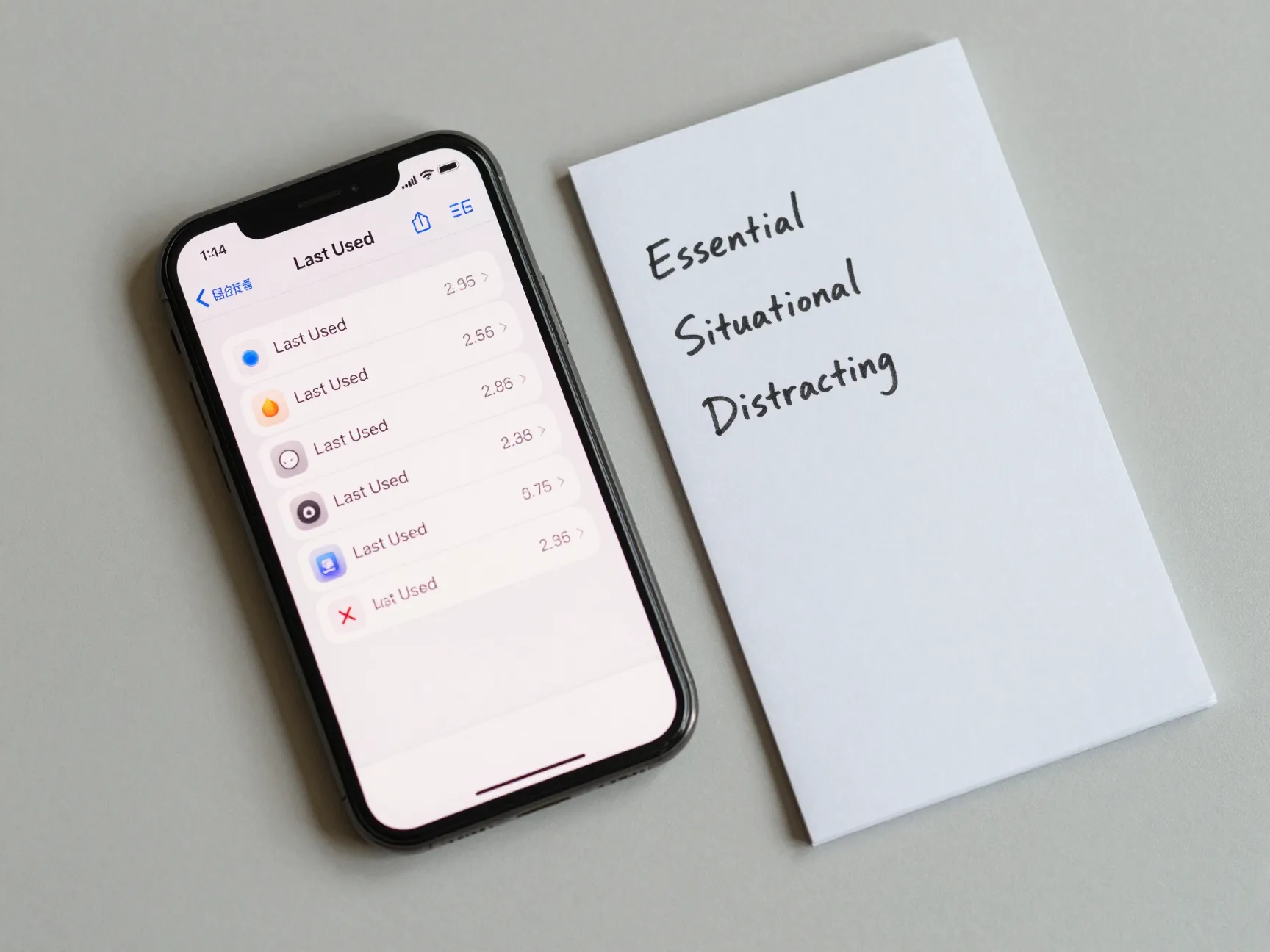
Organization without an audit is just rearranging clutter. The first step is a full inventory. Go to Settings > General > iPhone Storage to see every installed app, how much space it uses, and when it was last opened. Any app not opened in the past 30 days is a candidate for deletion.
Sort apps mentally into three buckets [10]:
- Essential: Apps used daily that directly support core goals (calendar, maps, banking, messaging).
- Situational: Apps used occasionally for specific contexts (travel booking, a fitness tracker for a current training block, a conference app).
- Distracting: Apps that consume time without delivering proportional value (casual games, redundant social platforms, apps installed on impulse).
Delete Distracting apps outright. Offload Situational apps using iOS’s “Offload App” feature, which removes the app but keeps its data. Keep Essential apps and proceed to the next strategy. This audit is not a one-time task, scheduling a quarterly review prevents the clutter from returning [1].
“The goal is not a beautiful Home Screen. The goal is a Home Screen that makes the right action easier and the wrong action harder.”
2. Use the App Library as Your Primary App Storage
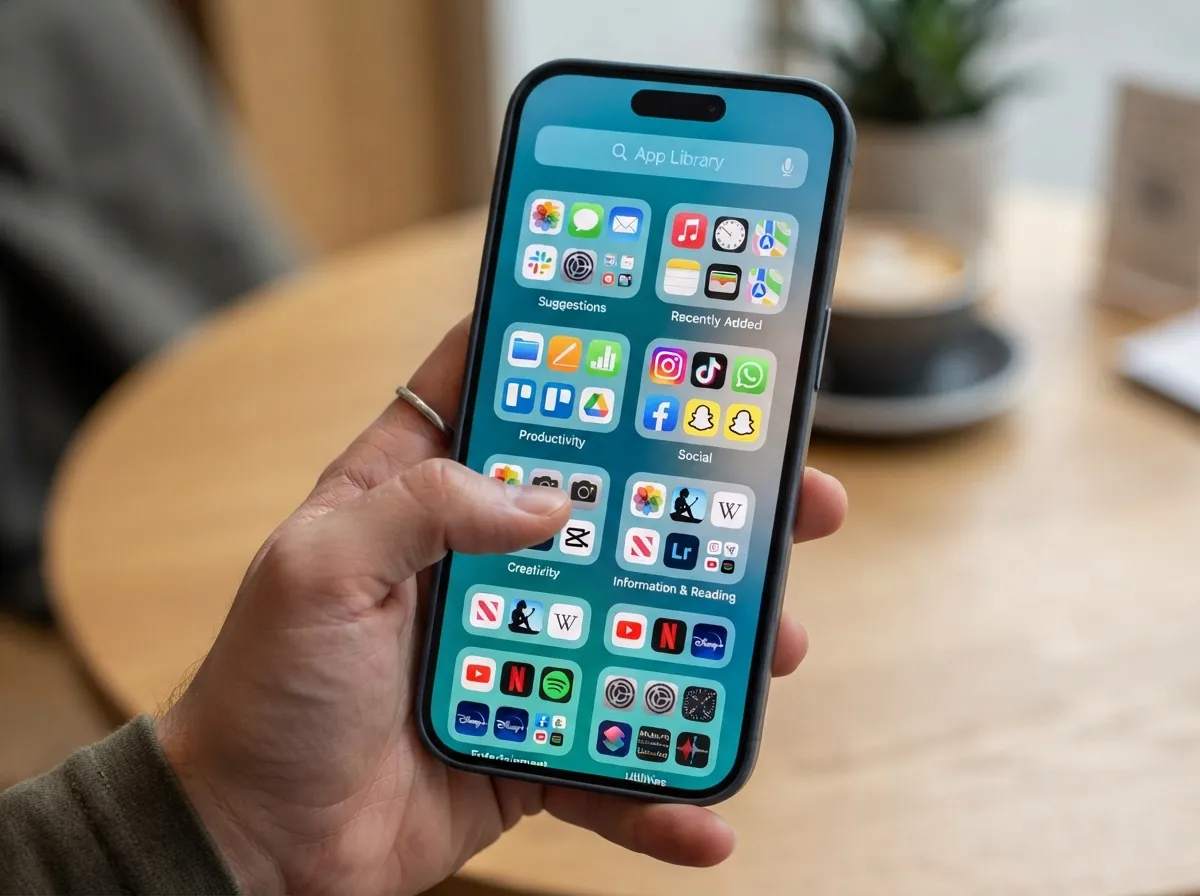
The App Library, introduced in iOS 14 and refined in subsequent updates, automatically organizes every installed app into categorized folders at the end of the Home Screen pages [2]. Most users scroll past it. The smarter move is to treat it as the default location for all but the most critical apps.
Here is how to shift to an App Library-first approach:
- Go to Settings > Home Screen.
- Under “Newly Downloaded Apps,” select “App Library Only.”
- New apps will no longer clutter the Home Screen automatically.
This single change stops the accumulation of new icons on the Home Screen. For apps already installed, long-press any icon, tap “Remove App,” and choose “Remove from Home Screen”, the app stays in the App Library and remains fully functional [9].
The App Library’s search bar at the top allows instant access to any app by name, making the concern about “not finding apps” essentially obsolete. Swiping left past all Home Screen pages lands directly in the App Library [7].
3. Build a Minimal Primary Home Screen
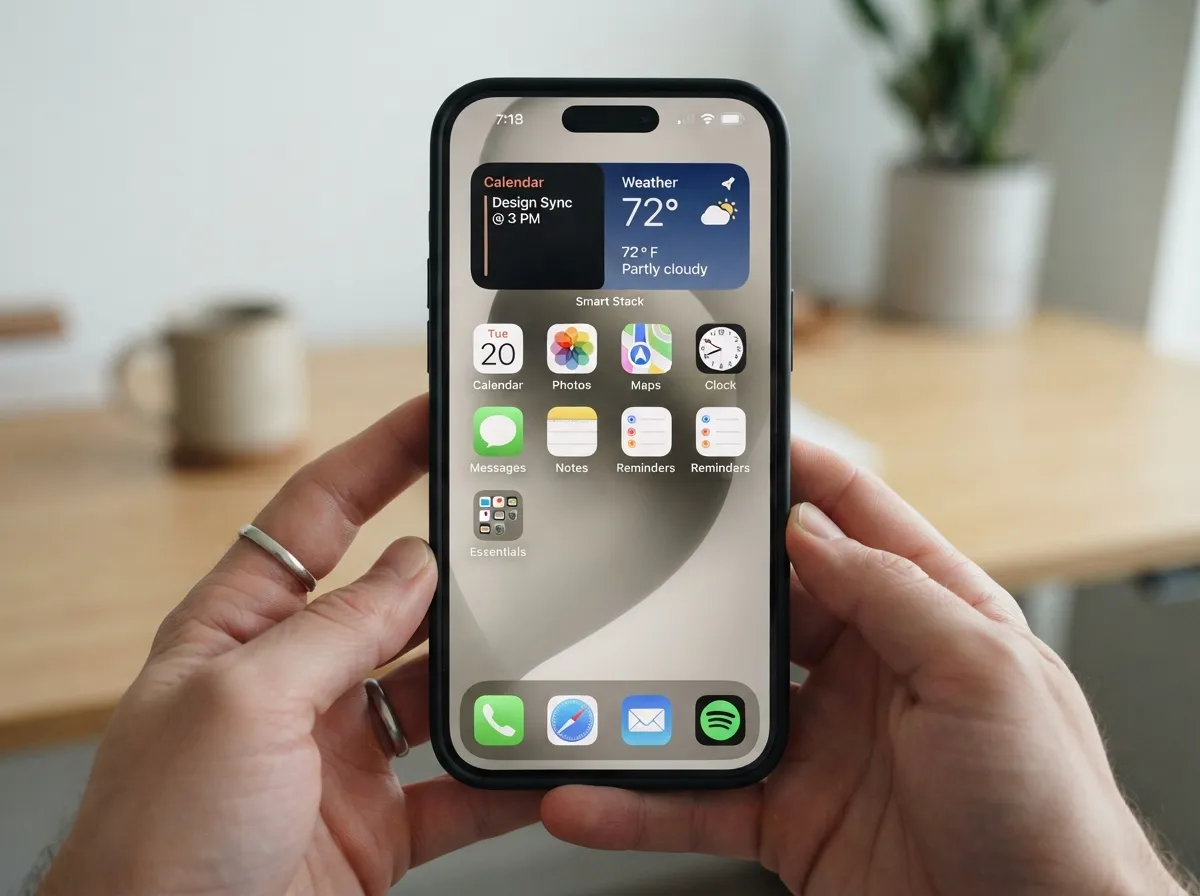
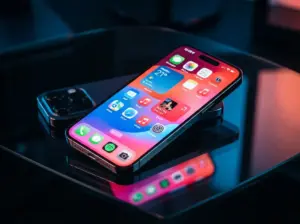
With the App Library handling storage, the primary Home Screen page becomes premium real estate. The guiding principle here is restraint. Most productivity-focused guides recommend keeping the primary screen to a maximum of 8 to 12 apps, ideally fewer [3].
A practical layout for the primary Home Screen:
| Zone | Content | Purpose |
|---|---|---|
| Top rows | 1-2 widgets or a Smart Stack | At-a-glance information |
| Middle rows | 4-8 core app icons | Daily essentials only |
| Bottom row (above Dock) | One folder of secondary apps | Overflow without clutter |
| Dock | 4 apps | Highest-frequency access |
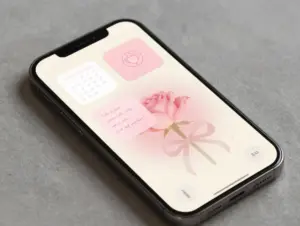
iOS 18’s flexible icon placement means icons do not have to fill every grid position [8]. Leaving intentional gaps between app groups creates visual breathing room and makes the screen faster to scan. This is not wasted space, it is intentional design.
4. Optimize the Dock for Maximum Efficiency
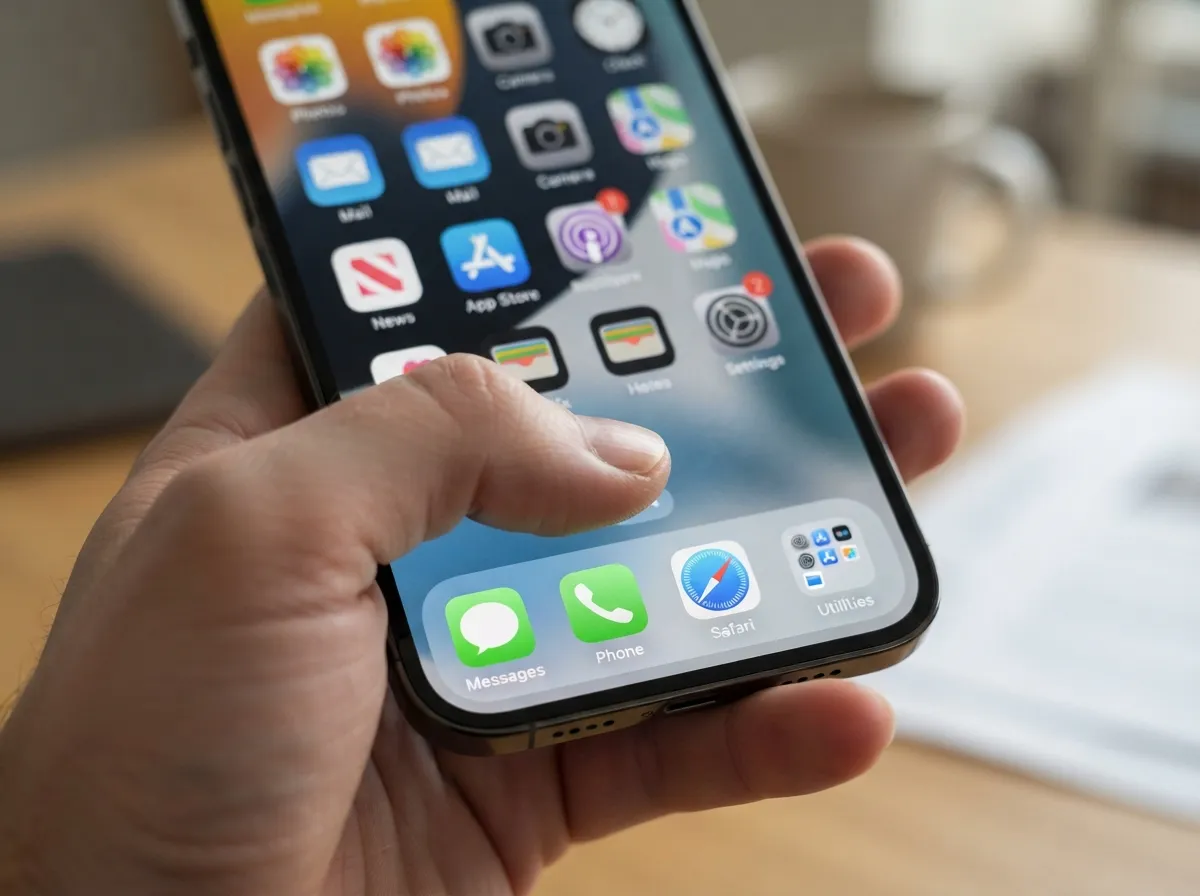
The Dock is the most ergonomically accessible area of the iPhone. It persists across every Home Screen page and is the first target for a thumb swipe. Yet many users fill it with apps they rarely open, or leave it with Apple’s default selections.
The Dock holds up to four apps (plus a folder or the App Library shortcut on some configurations). Those four slots should be occupied by the four apps opened most frequently throughout the day, typically a messaging app, a phone or communication tool, a browser, and one personal productivity app [5].
To customize the Dock:
- Long-press any app in the Dock until icons jiggle.
- Drag unwanted apps out of the Dock onto the Home Screen (or let them go to the App Library).
- Drag the four highest-frequency apps into the Dock.
A folder in the Dock is also a legitimate strategy. A folder can hold up to 12 apps per page and can span multiple pages, making it possible to store an entire category, say, all communication apps, in a single Dock slot [9]. This keeps the Dock tidy while expanding its functional capacity.
5. Create a Logical Folder Structure
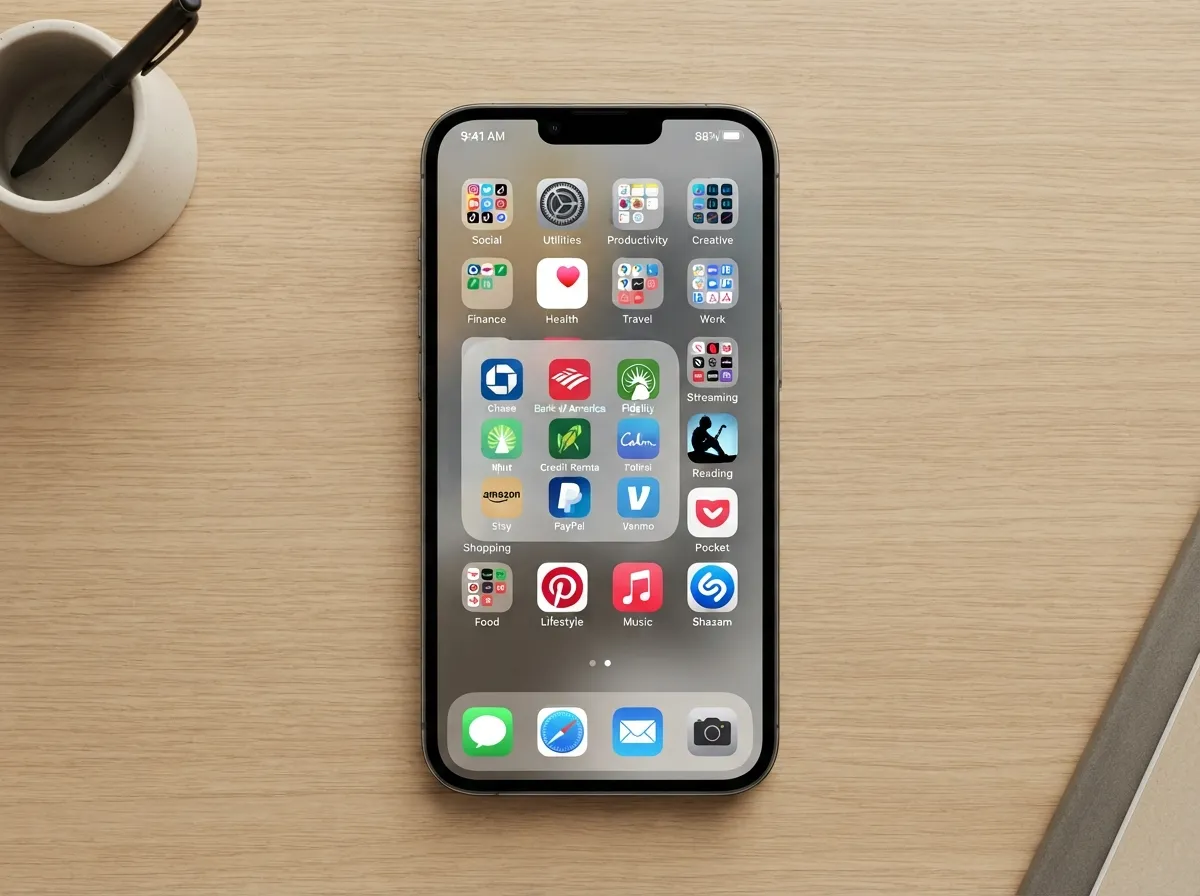
Folders remain one of the most powerful tools in the 8 iPhone Apps Organization Strategies For A Clutter-Free Device toolkit, but only when they are named and structured deliberately. Folders named “Misc” or “Other” are the digital equivalent of a junk drawer.
Effective folder naming follows the user’s mental model, not arbitrary categories. Common high-performing folder structures include [1][10]:
- Work: Productivity suites, project management tools, communication platforms.
- Health: Fitness trackers, meditation apps, nutrition logs, pharmacy apps.
- Finance: Banking, investment, budgeting, receipt-scanning apps.
- Travel: Maps, ride-sharing, airline, hotel, and currency apps.
- Learn: Podcasts, e-readers, language learning, online course platforms.
- Create: Photo editing, video tools, design apps, writing tools.
Each folder should contain only apps that fit its label without ambiguity. If an app does not fit cleanly into any folder, that is a signal to reconsider whether it belongs on the device at all. Folders with more than two pages (24+ apps) are a sign that the category is too broad and should be split [2].
6. Use Multiple Home Screen Pages Strategically
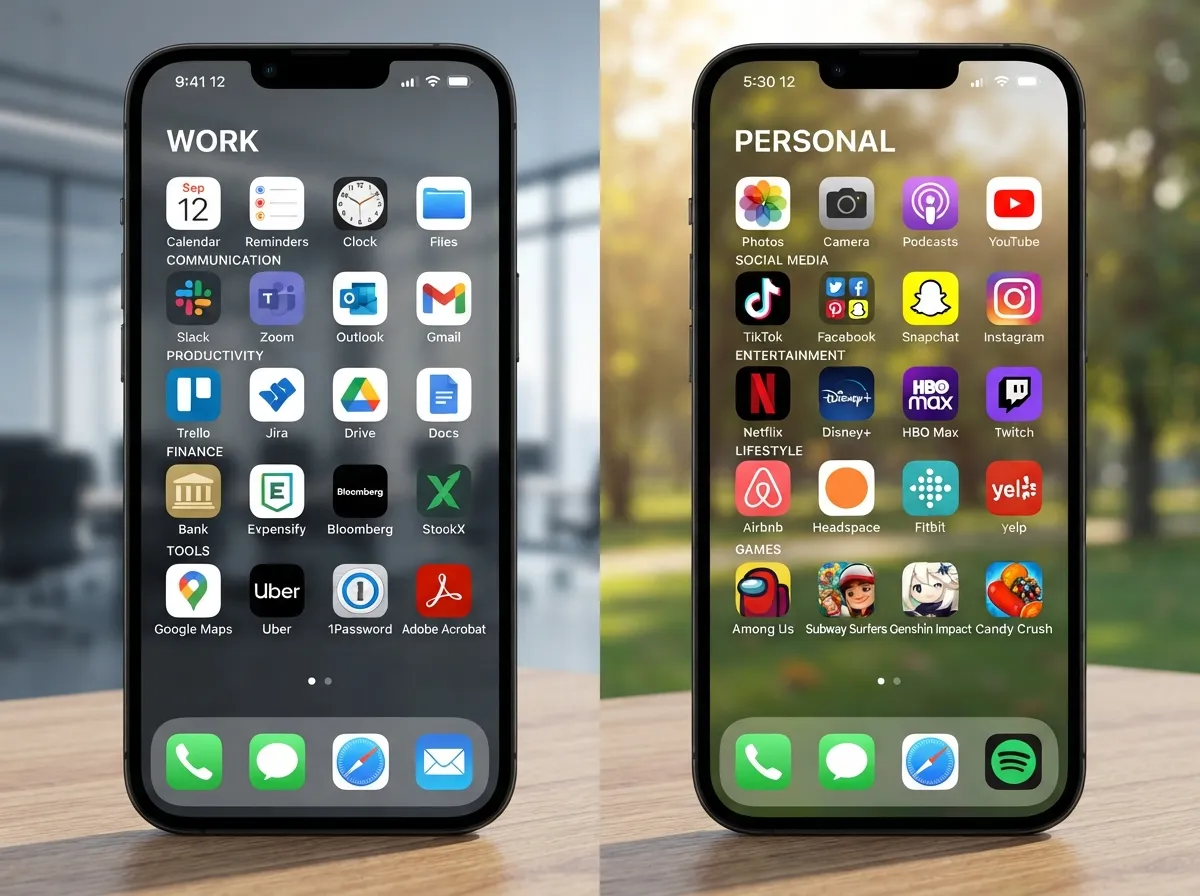
iOS allows multiple Home Screen pages, and hiding or rearranging them is a feature most users overlook. Rather than scrolling through five pages of random icons, a strategic page structure creates a context-based navigation system.
A recommended page structure [5][6]:
- Page 1 (Primary): Minimal layout with widgets and daily essentials (see Strategy 3).
- Page 2 (Work): Apps and folders used specifically during work hours.
- Page 3 (Personal): Entertainment, social, and lifestyle apps.
Pages not currently needed can be hidden. Long-press on the Home Screen, tap the row of dots at the bottom, and deselect any page to hide it. Hidden pages still exist and can be re-enabled at any time, the apps remain accessible through the App Library [9].
This approach means the phone adapts to context. During a workday, only work-relevant pages are visible. In the evening, personal pages are restored. The friction of seeing distracting apps during focused work periods drops to zero.
7. Leverage Widgets and Smart Stacks to Replace Icons
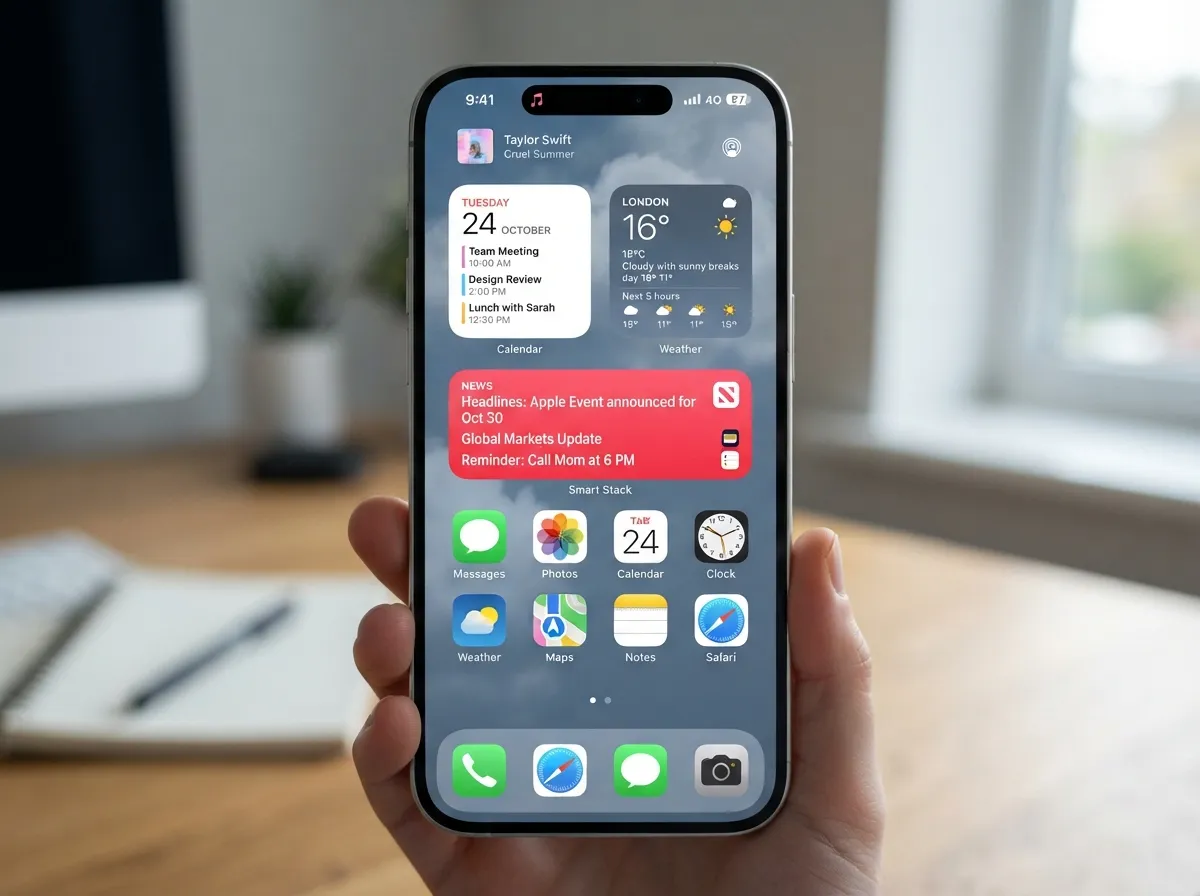
A widget delivers information without requiring an app to be opened. A Smart Stack rotates through multiple widgets automatically based on time of day and usage patterns. Together, they allow one Home Screen slot to do the work of several app icons.
iOS 18 and iOS 26 have expanded widget flexibility significantly, including interactive widgets that allow actions, like checking off a task or playing a podcast, directly from the Home Screen without opening the app [4].
Practical widget placements that reduce icon count:
- A calendar widget replaces the need to open the Calendar app for daily schedule checks.
- A weather widget eliminates the need for a weather app icon.
- A Smart Stack combining news, reminders, and battery status consolidates three information needs into one slot.
- A music or podcast widget provides playback controls without opening the app.
The goal is to answer the question “Why did I unlock my phone?” before the user even taps an icon. When widgets handle information delivery, the Home Screen needs fewer icons, which directly supports a clutter-free layout [2][4].
8. Establish a Maintenance Routine to Prevent Clutter Creep
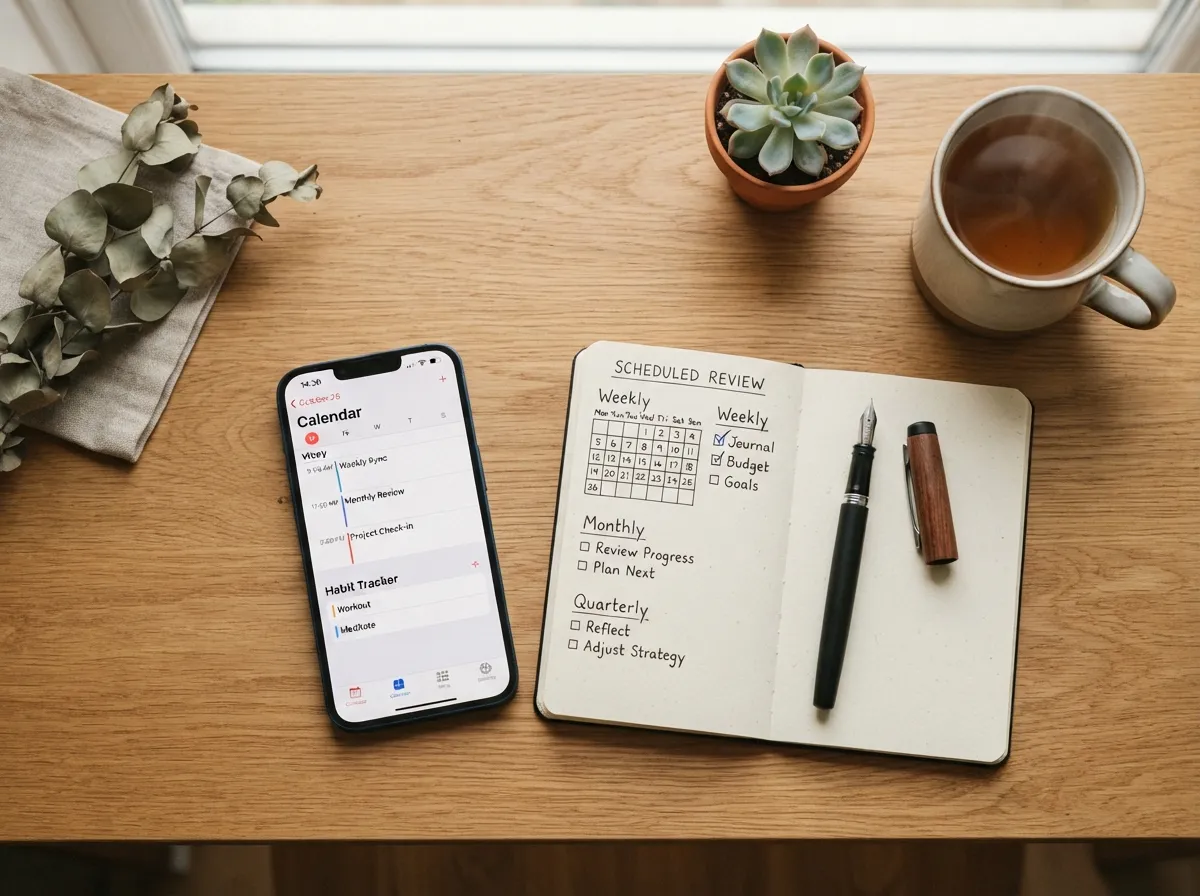
The most overlooked aspect of iPhone organization is sustainability. Every strategy above will degrade over time without a maintenance routine. Apps accumulate. Folders drift. Widgets get added impulsively. Within three months of a thorough organization session, most iPhones revert to a cluttered state without deliberate upkeep.
A simple maintenance schedule:
Weekly (2 minutes):
- Move any new apps from the Home Screen to the App Library or an appropriate folder.
- Remove any app downloaded impulsively that has not been opened since download.
Monthly (10 minutes):
- Review the iPhone Storage screen for apps not opened in 30 days.
- Reassess whether any folder has grown too large and needs splitting.
- Check that the Dock still reflects the four highest-frequency apps.
Quarterly (20 minutes):
- Full audit using the three-bucket framework (Essential, Situational, Distracting).
- Reassess widget relevance, seasonal changes often make certain widgets more or less useful.
- Hide or reorder Home Screen pages to reflect current priorities [1][10].
Building this routine into an existing habit, such as a monthly phone bill review or a Sunday evening reset, dramatically increases the likelihood it will stick.
Advanced Tips for Power Users
Combine Focus Modes With Home Screen Pages
iOS Focus Modes (Work, Personal, Sleep, Do Not Disturb) can each be linked to a specific Home Screen layout. When Work Focus activates, only the Work Home Screen page appears. When it turns off, the full layout returns. This automates the context-switching described in Strategy 6 without any manual page hiding [4][8].
To set this up: Settings > Focus > select a Focus mode > Customize Screens > choose the Home Screen pages to display during that Focus.
Use Shortcuts to Reduce App Icon Count
The Shortcuts app allows the creation of custom icons that trigger specific in-app actions rather than just opening an app to its default screen. A shortcut can open a specific playlist in a music app, start a timer, or navigate directly to a specific note. This reduces the need for multiple app icons when one shortcut covers the most common use case.
Name Folders With Nouns, Not Verbs or Adjectives
Folder naming conventions matter for retrieval speed. Nouns (“Finance,” “Health,” “Travel”) are faster to scan than verbs (“Manage Money,” “Stay Fit”) or vague adjectives (“Important,” “Useful”). The brain processes category nouns faster than descriptive phrases when scanning a grid [10].
Common Mistakes That Undermine iPhone Organization
Even users who follow the 8 iPhone Apps Organization Strategies For A Clutter-Free Device framework sometimes undermine their own system with predictable errors.
Mistake 1: Organizing by app color or aesthetic instead of function.
Color-coded Home Screens look appealing in screenshots but fail in daily use. When looking for the banking app under stress, the brain searches by function, not by whether the icon is blue.
Mistake 2: Creating too many folders.
More than eight to ten folders on a single Home Screen page creates the same scanning problem as having too many loose icons. Consolidate aggressively.
Mistake 3: Keeping social media apps on the primary Home Screen.
Visibility drives usage. Social media apps on the primary screen increase passive, habitual opening. Moving them to a secondary page or into a folder adds just enough friction to make the behavior more intentional [6].
Mistake 4: Never deleting, only hiding.
The App Library is not a substitute for deletion. Apps that are genuinely no longer needed should be deleted. They consume storage, receive background updates, and contribute to a sense of digital accumulation even when not visible.
Conclusion
A clutter-free iPhone is not a luxury, it is a practical tool for reclaiming attention and reducing the low-level friction that accumulates across dozens of daily interactions. The 8 iPhone Apps Organization Strategies For A Clutter-Free Device outlined here form a complete system: starting with an honest audit, leveraging the App Library, building a minimal primary screen, optimizing the Dock, creating logical folders, using pages strategically, deploying widgets intelligently, and maintaining the system over time.
The most important next step is to start with the audit. Open iPhone Storage today, identify the apps that have not been opened in 30 days, and delete or offload them. That single action, completed in under 10 minutes, will immediately reduce visual clutter and create the foundation for everything else.
From there, implement one strategy per day over the next week. By the end of eight days, the iPhone will look, feel, and function like a purpose-built tool rather than a cluttered digital drawer. The goal is not perfection, it is a device that consistently supports the user’s intentions rather than working against them.
References
[1] Sort Apps On Iphone – https://kalynbrooke.com/digital/sort-apps-on-iphone/
[2] Organize Iphone Apps – https://www.simplymac.com/apps/organize-iphone-apps
[3] Mobile Apps Organize – https://mashable.com/article/mobile-apps-organize
[4] Ios 26 Tricks 2026 – https://www.geeky-gadgets.com/ios-26-tricks-2026/
[5] A Better Way Organizing Your Apps In Ios F539d1b12feb – https://medium.com/@mattmajewski/a-better-way-organizing-your-apps-in-ios-f539d1b12feb
[6] 5 Simple Tips For Organizing Apps On Your Iphone – https://www.inc.com/jason-aten/5-simple-tips-for-organizing-apps-on-your-iphone.html
[7] Watch – https://www.youtube.com/watch?v=gU3-KDAsXjQ
[8] Ios 18 Introducing New Home Screen Features App Organization – https://www.simplymac.com/ios/ios-18-introducing-new-home-screen-features-app-organization
[9] support.apple – https://support.apple.com/guide/iphone/organize-your-apps-in-folders-iph822ece7dd/ios
[10] 057421cc416d177aa9bd1fba5299ecbc – https://www.oreateai.com/blog/taming-your-iphone-a-friendly-guide-to-app-organization-for-clarity-and-focus/057421cc416d177aa9bd1fba5299ecbc