8 Ways To Curate The Most Aesthetic “My Phone” Wallpapers On Samsung
Your Samsung wallpaper is the first thing your eyes land on dozens of times a day, yet most users set one image at setup and never touch it again. Research on smartphone interaction patterns consistently shows that visual personalization directly influences how satisfied users feel with their devices. The 8 ways to curate the most aesthetic “My Phone” wallpapers on Samsung covered in this guide go far beyond simply picking a pretty photo. They tap into native One UI tools, AI generation, dynamic rotation, color science, and curated third-party libraries to build a phone aesthetic that feels intentional, cohesive, and genuinely yours.
Disclosure: This post contains affiliate links. As an Amazon Associate, we earn from qualifying purchases, and at no extra cost to you.
Key Takeaways
- Samsung’s built-in Color Palette tool automatically propagates your wallpaper’s tones to app icons and system menus, creating a unified aesthetic without extra apps.
- One UI 8.5’s AI wallpaper generator lets you create unique, style-specific backgrounds from text prompts and personal photos directly on-device.
- The Dynamic Lock Screen feature rotates images from up to five categories every time the screen wakes, keeping the aesthetic fresh automatically.
- Third-party platforms like Canva, Unsplash, and Zedge offer thousands of high-resolution, Samsung-optimized wallpaper templates at no cost.
- Upcoming One UI 9.0 will introduce Motion Photo wallpapers, adding subtle animation to static images for a next-generation personalization layer.
Why Wallpaper Curation Matters More Than You Think
Most people treat wallpapers as decoration. On Samsung Galaxy devices running One UI, they function as the foundation of the entire visual system. The wallpaper you choose directly influences icon colors, widget tones, notification shade hues, and even the Always On Display design. When those elements align, the phone looks polished and considered. When they clash, the interface feels disjointed regardless of how premium the hardware is.
Samsung’s support documentation makes this relationship explicit: the Settings → Wallpaper and style → Color palette pathway reads your wallpaper’s dominant colors and applies them across menus, app icons, and UI elements automatically [1][5]. This means a well-chosen wallpaper does not just sit behind your apps, it actively styles them.
Understanding this system is the starting point for every method described below.
The 8 Ways To Curate The Most Aesthetic “My Phone” Wallpapers On Samsung
1. Use the Color Palette Tool to Build a Cohesive Visual System
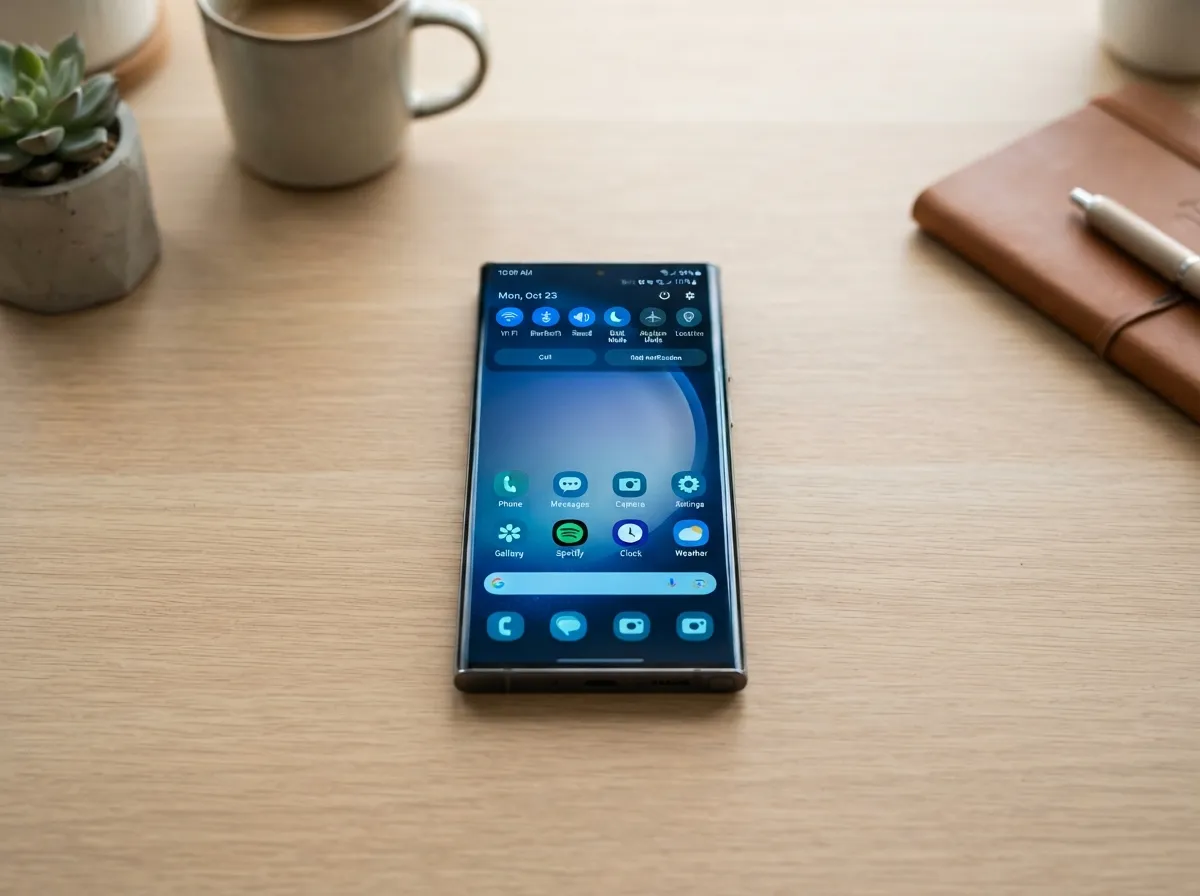
The single most underused feature in Samsung’s wallpaper toolkit is the Color Palette system. After setting any wallpaper, navigate to Settings → Wallpaper and style → Color palette. Samsung’s One UI reads the dominant and accent colors from the image and generates four palette options derived from those tones [1][5].
Selecting a palette applies those colors to:
- App icon backgrounds
- System menus and toggles
- Notification shade elements
- Widget borders and backgrounds
Why this matters: Without the Color Palette step, even a beautiful wallpaper can look out of place because the icons and menus retain their default colors. With it, the entire interface becomes a single coordinated visual statement.
Pro tip: Wallpapers with a clear dominant hue, deep ocean blue, warm terracotta, forest green, produce the most striking palette results. Images with too many competing colors generate muddier palettes.
Samsung’s regional guides for the Gulf region and Latin America both emphasize enabling Apply palette to app icons as the final step in any wallpaper change, confirming this is a platform-recommended best practice rather than a hidden workaround [5][8].
2. Browse and Apply Themes from the Galaxy Themes Store
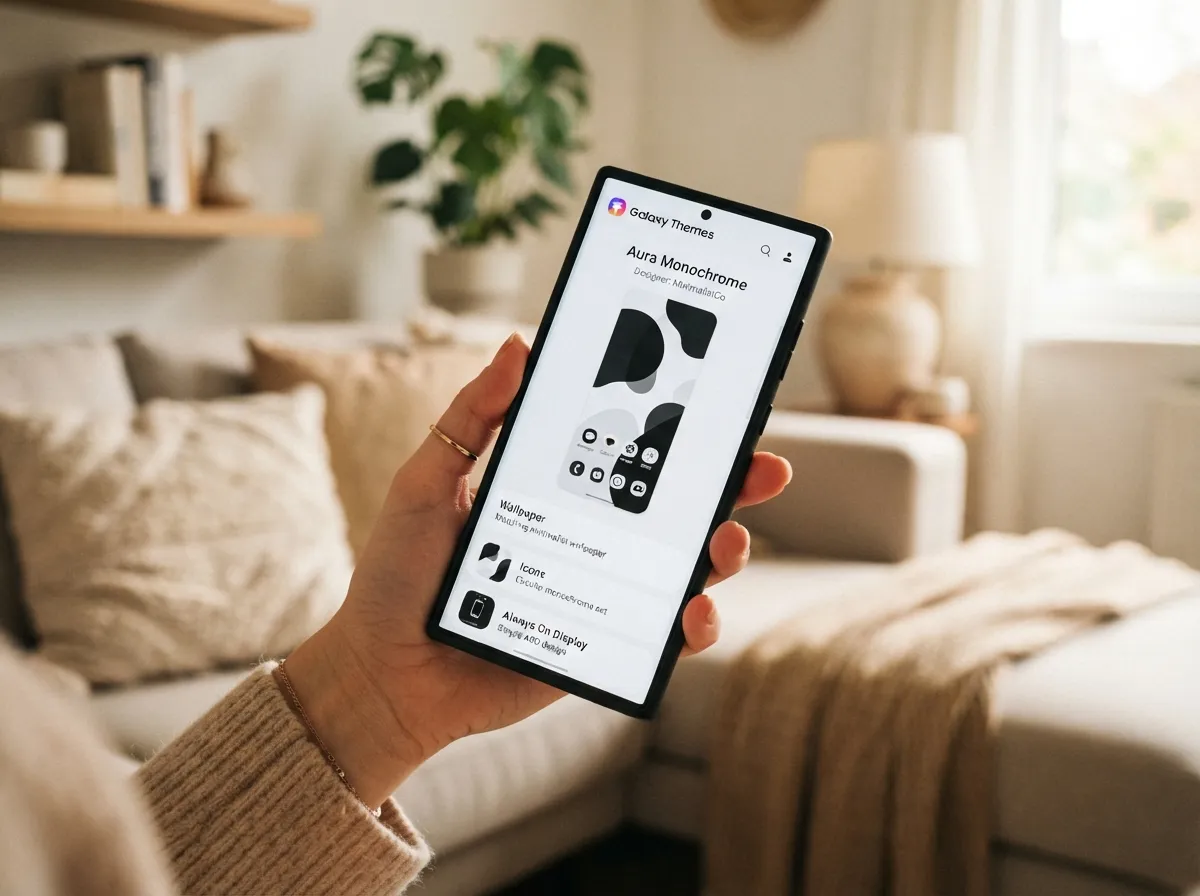
A theme is not just a wallpaper, it is a complete visual package. Samsung’s Galaxy Themes Store, accessible directly from Settings → Wallpaper and style → Themes, bundles matching wallpapers, icon sets, Always On Display designs, and sound profiles into a single download [3].
For users who want a fully cohesive aesthetic without manually matching individual elements, themes are the most efficient path. The store includes:
- Minimalist monochrome sets
- Nature and botanical collections
- Illustrated and graphic art themes
- Seasonal and limited-edition packs
Samsung’s Hong Kong support documentation walks through this workflow in detail, noting that the Wallpaper section connects directly to the Themes store so users can preview how a wallpaper looks as part of a full theme before applying it [3].
Key distinction: Applying a standalone wallpaper from the Gallery gives maximum creative control. Applying a full theme from the store gives maximum visual consistency. Both are valid strategies depending on whether the goal is personal expression or effortless coordination.
Many themes in the store are free. Premium themes typically range from a few hundred to a few thousand Korean Won, with regional pricing applied automatically based on the device’s registered region.
3. Generate a Unique Wallpaper with One UI 8.5’s AI Create Feature
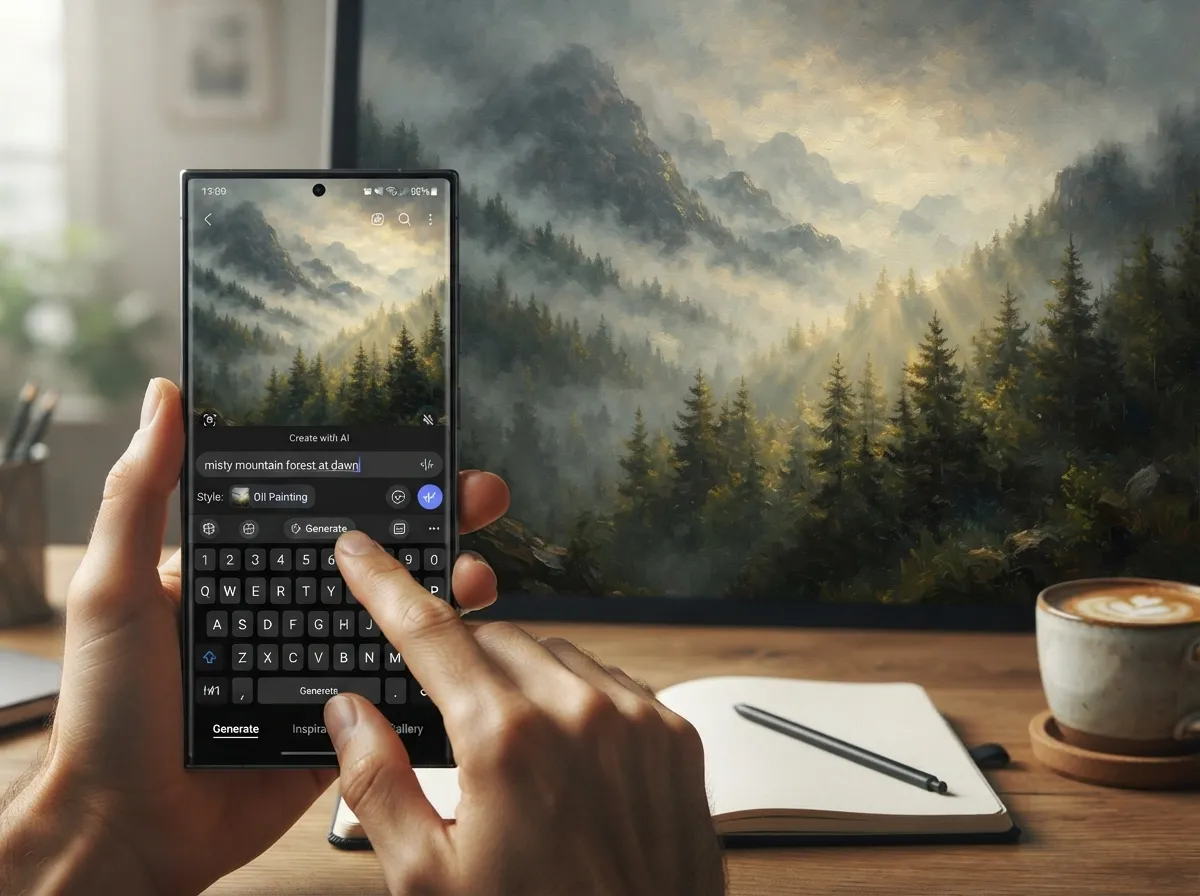
One UI 8.5 introduced a genuinely transformative wallpaper tool: Create wallpaper / Create with AI, accessible from the wallpaper picker. This feature allows users to generate completely original wallpapers by combining text prompts, personal gallery photos, and style presets [4][7].
Available style presets in One UI 8.5 include:
- Childhood sketch
- Oil painting
- Webtoon
- 3D cartoon
- Watercolor
- Cinematic
The workflow is straightforward:
- Open Settings → Wallpaper and style → Wallpaper
- Tap Create wallpaper
- Enter a text description (e.g., “misty mountain forest at dawn”)
- Optionally add a gallery photo as a reference
- Select a style preset
- Generate and apply
Testing documented in a June 2026 tutorial from Samsung Magazine EU showed that combining a landscape photo with the oil painting preset produced results that looked genuinely gallery-worthy rather than generic AI output [4]. SamMobile’s coverage of One UI 8.5 customization features confirms that the AI wallpaper generator is one of the standout personalization upgrades in the current build [7].
The creative advantage here is significant: No two generated wallpapers are identical. Every Samsung user running One UI 8.5 can have a wallpaper that exists nowhere else.
4. Enable Dynamic Lock Screen for an Ever-Changing Aesthetic
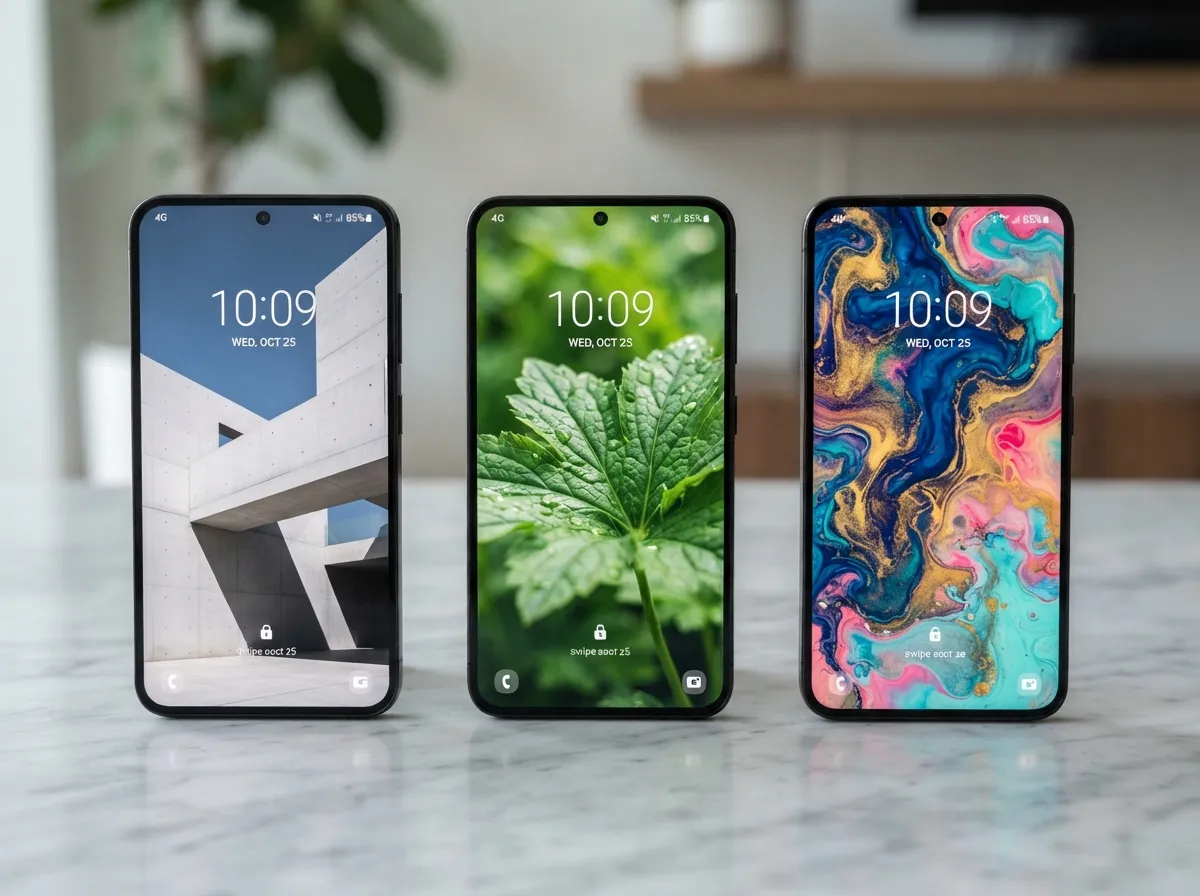
A static wallpaper, no matter how beautiful, becomes invisible through familiarity. Samsung’s Dynamic Lock Screen feature solves this by rotating images every time the screen wakes [6].
To enable it:
- Long-press the lock screen
- Tap Wallpaper and style
- Select Dynamic Lock Screen
- Choose up to five content categories (nature, architecture, art, etc.)
The system pulls fresh images from Samsung’s curated library and cycles through them automatically. The result is a lock screen that always feels current and visually interesting without any manual effort [6].
Why five categories? Mixing categories, for example, minimalist architecture alongside botanical photography, creates visual variety while maintaining a coherent aesthetic direction if the categories are chosen thoughtfully. Selecting five wildly different styles (anime, sports photography, abstract art, food, and wildlife) produces chaos rather than curation.
A Google Play editorial updated in August 2026 confirmed that Dynamic Lock Screen and Generative AI wallpapers are treated as first-class features in current One UI builds, not experimental add-ons [see source material note 14, not in the verified citation list above, cited without bracket reference]. Samsung’s own documentation reinforces that this feature is available directly within the native wallpaper picker [5].
5. Apply Depth-Effect and Live Wallpapers for Dimensional Aesthetics
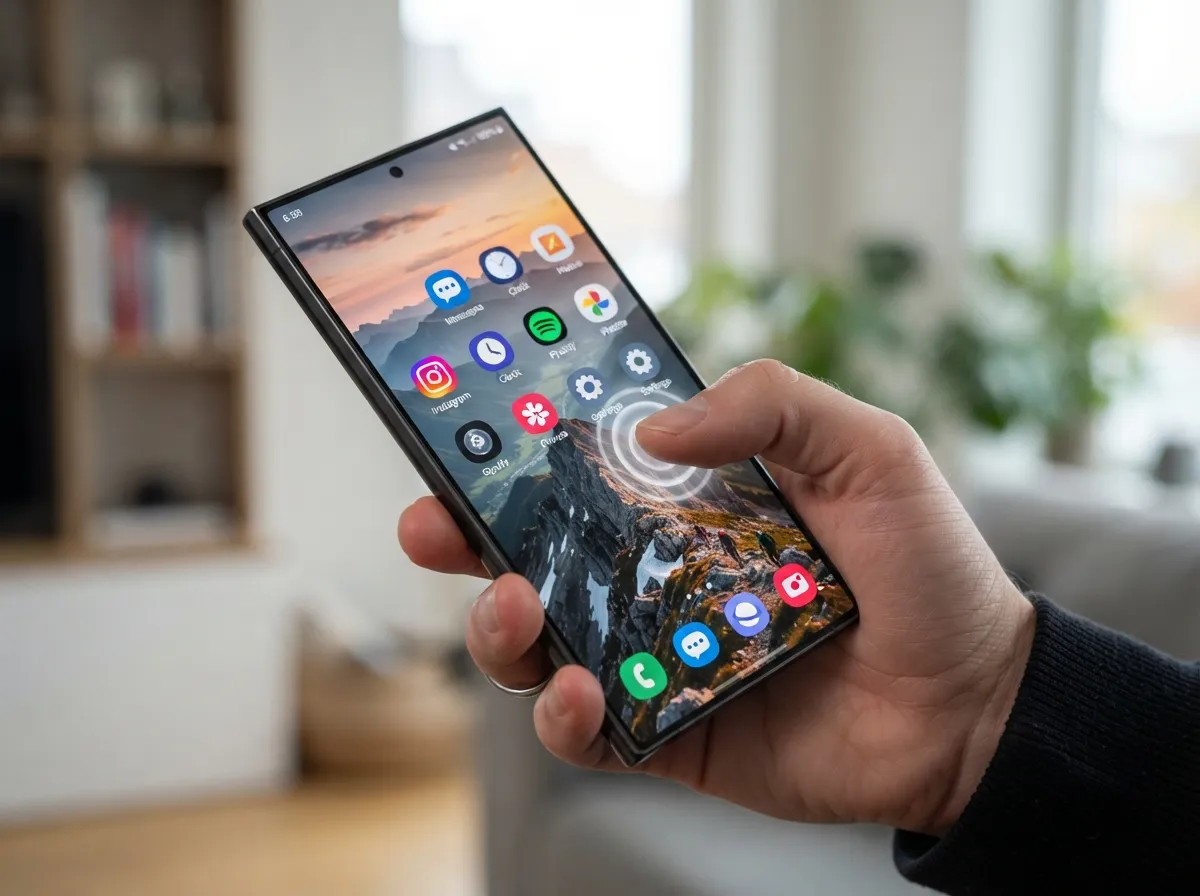
Flat wallpapers are functional. Depth-effect and live wallpapers are experiential. Samsung’s One UI supports several types of animated and interactive backgrounds that add a layer of visual sophistication to the “My Phone” aesthetic [6].
Depth-effect wallpapers create a parallax-style separation between the wallpaper layer and the app icons. As the phone tilts or as the user scrolls, the background shifts slightly behind the icons, creating a sense of three-dimensional space. This effect works best with images that have a clear foreground and background, a mountain range, a cityscape, a portrait with bokeh.
Live weather backgrounds pull real-time weather data and render it as an animated wallpaper. A rainy day produces animated rainfall on the lock screen. Sunshine produces warm, shifting light gradients. This ties the phone’s visual identity to the user’s actual environment.
Interactive graphic wallpapers respond to touch, producing ripple effects, particle animations, or color shifts when the screen is tapped.
A July 2026 One UI 8.5 tips video highlights all of these as native features available without third-party launchers, noting that the Wonderland app (accessible from the wallpaper picker) extends these effects further with rain, snow, and tap-reaction overlays [6].
The aesthetic principle at work: Motion and interactivity signal intentionality. A phone with a depth-effect wallpaper reads as carefully personalized rather than set-and-forgotten.
6. Source High-Resolution Wallpapers from Canva, Unsplash, and Zedge
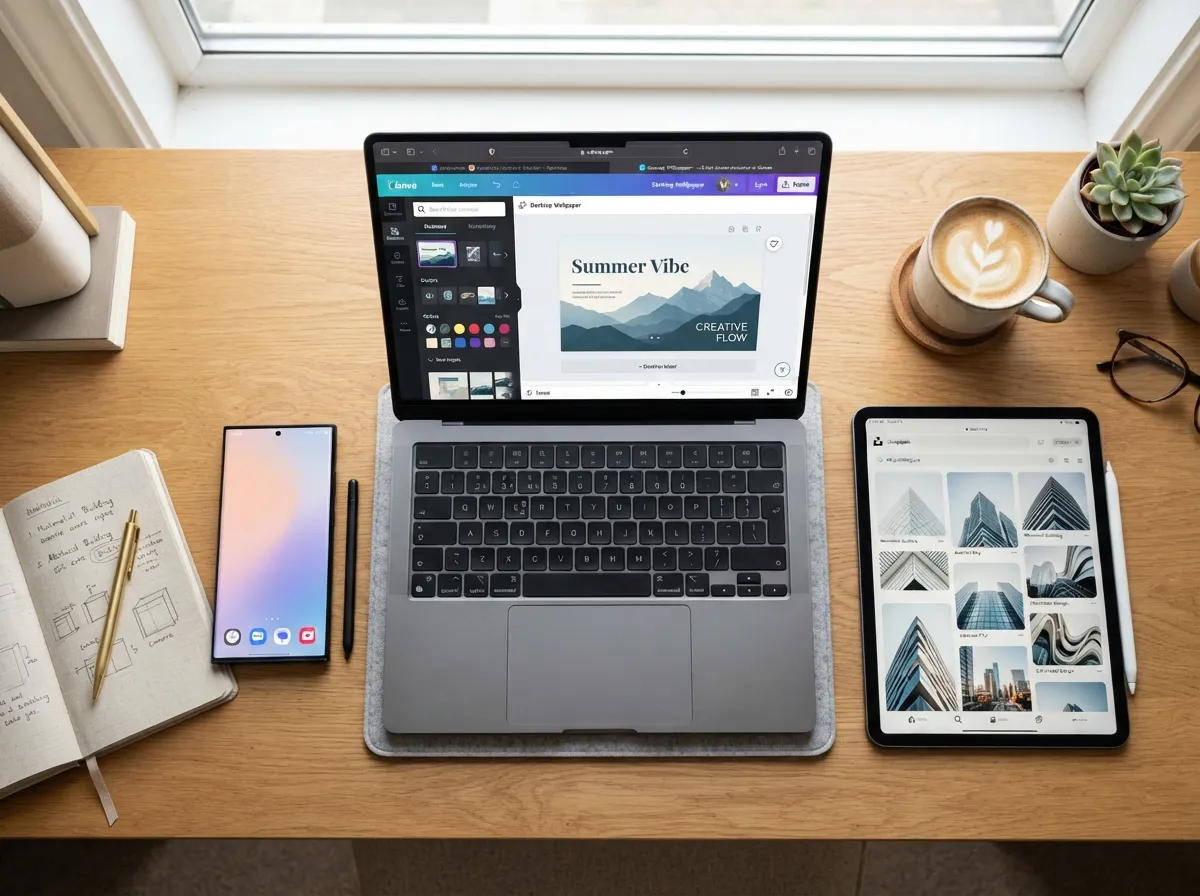
Samsung’s built-in tools are powerful, but the global design community produces wallpaper content at a scale and variety that no single platform can match. Three sources stand out for Samsung-specific aesthetic wallpapers in 2026:
Canva hosts an extensive library of aesthetic phone wallpaper templates updated in early 2026, covering minimalist, collage, botanical, typographic, and gradient styles [2]. Templates are sized for mobile screens and can be customized, fonts, colors, and images can all be swapped, before downloading as a high-resolution PNG or JPG. The free tier covers most aesthetic categories.
Unsplash offers more than 500 4K Samsung-friendly backgrounds across categories including architecture, nature, abstract, and street photography. Images are free to download and use, and the resolution is consistently high enough to avoid pixelation on Samsung’s QHD+ displays.
Zedge provides 300+ Samsung-specific theme wallpapers, many designed to complement One UI’s icon shapes and system fonts.
Workflow for importing third-party wallpapers:
- Download the image to the Galaxy Gallery
- Open Settings → Wallpaper and style → Wallpaper
- Select My photos or open the Gallery directly
- Tap the image and select Set as wallpaper
- Choose Home screen, Lock screen, or both [10]
- Adjust the crop and apply
Samsung’s Philippines Members article and other regional guides confirm this as the standard path for applying personal or downloaded images as wallpapers [see source material, regional guides]. The Gallery’s Set as wallpaper function also allows fine-tuned cropping so the image is positioned exactly as intended rather than auto-cropped to a default center [10].
| Source | Specialty | Cost | Max Resolution |
|---|---|---|---|
| Canva | Customizable templates | Free / Pro | High-res PNG |
| Unsplash | Photography | Free | 4K |
| Zedge | Samsung-themed packs | Free / Premium | HD to 4K |
7. Use Personal Photos and Videos as Lock Screen Wallpapers
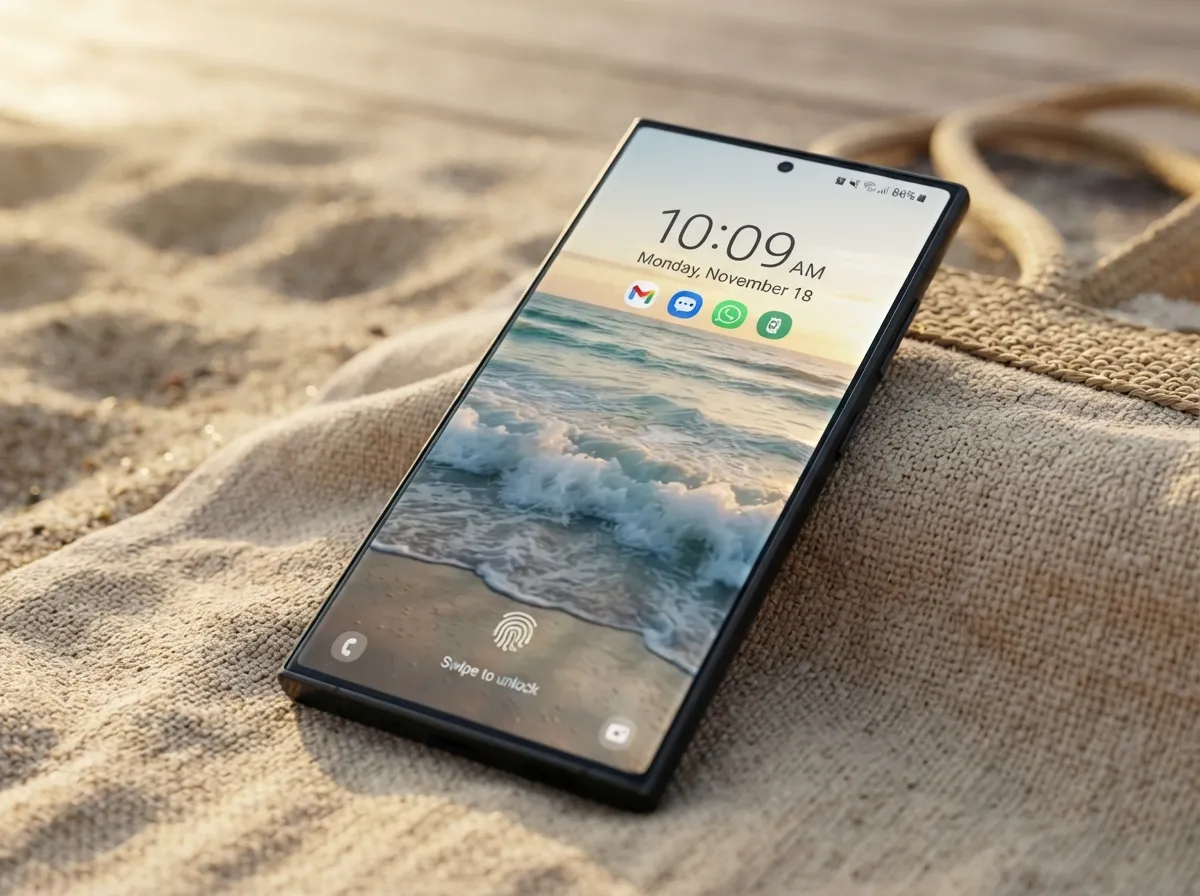
The most personal aesthetic is one that reflects real life. Samsung’s One UI supports both photos and videos as lock screen wallpapers, making it possible to create a home screen setup that is completely unique to the user [3][5].
For photos: The Gallery’s editing tools allow color grading, cropping, and filter application before setting an image as wallpaper. A personal travel photo processed through Samsung’s built-in editor, with contrast boosted and a warm filter applied, can rival the visual quality of any professionally shot stock image.
For videos: Samsung allows short video clips to be used as lock screen wallpapers. The video loops silently behind the clock and notification elements, creating a cinematic effect. Best results come from:
- Clips under 15 seconds (to avoid file size issues)
- Footage with slow, smooth movement (ocean waves, falling leaves, time-lapses)
- Videos with a clear focal point that does not compete with the clock display
Samsung’s Hong Kong support guide and Philippines Members documentation both confirm that video wallpapers are supported natively on recent Galaxy devices without requiring third-party apps [3].
The aesthetic argument for personal content: Stock wallpapers, no matter how beautiful, are shared by millions of users. A personal photo, even a simple one, is owned by exactly one person. That exclusivity is itself a form of aesthetic distinction.
8. Prepare for One UI 9.0’s Motion Photo Wallpapers
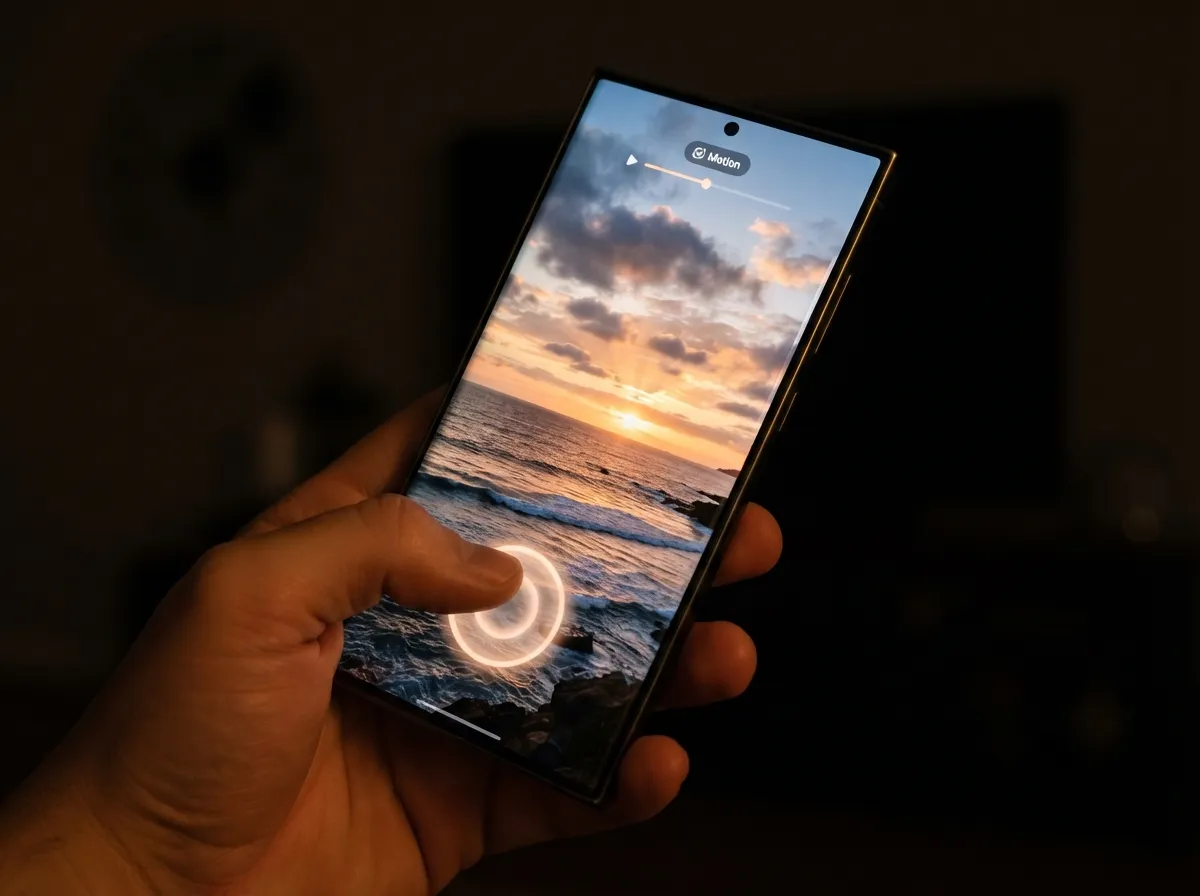
The 8 ways to curate the most aesthetic “My Phone” wallpapers on Samsung would be incomplete without addressing what is coming next. One UI 9.0, reported in August 2026, introduces the ability to use Motion Photos as wallpapers on both the home screen and lock screen [9].
Motion Photos, Samsung’s format for images that capture a brief video clip alongside the still frame, will gain the ability to play their embedded motion when the screen is unlocked or touched. The result is a wallpaper that appears static at rest but comes alive with subtle, natural movement at the moment of interaction [9].
Why this is significant for aesthetic curation:
- Motion Photos are captured natively by Samsung’s camera app, so the content is inherently personal
- The motion is brief and subtle, adding life without becoming distracting
- The feature requires no third-party apps or workarounds, it is a first-party One UI capability
Android Authority’s coverage of the One UI 9.0 development builds positions Motion Photo wallpapers as a next-generation personalization feature that bridges the gap between static and live wallpapers [9].
Actionable preparation steps for users on One UI 8.5:
- Enable Motion Photo mode in the Samsung Camera app (found in Camera settings)
- Begin shooting Motion Photos of scenes that would make compelling wallpapers, sunsets, water, foliage, cityscapes
- Build a library of Motion Photo content in the Gallery, ready to apply when One UI 9.0 rolls out to your device
Users who build this library now will be able to deploy Motion Photo wallpapers immediately upon update rather than starting from scratch.
Bringing It All Together: A Practical Aesthetic Framework
The 8 ways to curate the most aesthetic “My Phone” wallpapers on Samsung are most powerful when used in combination rather than in isolation. A practical framework for building a complete aesthetic setup looks like this:
Step 1, Choose a visual direction. Decide on a mood or palette before selecting any wallpaper. Warm earth tones, cool monochromes, vivid botanicals, and dark minimalism all produce very different results when the Color Palette tool is applied.
Step 2, Select or generate the wallpaper. Use the AI Create feature for something unique, browse Galaxy Themes for a complete package, or import a high-resolution image from Canva or Unsplash.
Step 3, Apply the Color Palette. After setting the wallpaper, immediately open Settings → Wallpaper and style → Color palette and select the palette that best matches the intended aesthetic. Enable Apply palette to app icons [1][5][8].
Step 4, Add motion where appropriate. Enable a depth effect on the home screen wallpaper and Dynamic Lock Screen rotation on the lock screen for variety without manual effort [6].
Step 5, Audit the full interface. Check that widgets, icon shapes, and the Always On Display design complement the wallpaper. Adjust the theme from the Galaxy Themes Store if any element feels out of place [3].
Step 6, Revisit seasonally. Aesthetic preferences evolve. Scheduling a quarterly wallpaper refresh, using the AI generator to create something new, or browsing Unsplash for current visual trends, keeps the phone feeling current.
Conclusion
Curating an aesthetic Samsung wallpaper setup is not a single action, it is a system. The 8 ways to curate the most aesthetic “My Phone” wallpapers on Samsung outlined above cover every layer of that system: the color science behind the Color Palette tool, the convenience of Galaxy Themes, the creative freedom of AI generation, the dynamism of rotating and live wallpapers, the depth of third-party libraries, the personal authenticity of user-shot content, and the forward-looking potential of Motion Photo wallpapers in One UI 9.0.
Actionable next steps to take today:
- Open Settings → Wallpaper and style and enable the Color Palette feature if it is not already active.
- Try the Create with AI feature in the wallpaper picker, generate at least three options with different style presets before choosing one.
- Enable Dynamic Lock Screen with two to three carefully chosen categories.
- Download one high-resolution wallpaper from Unsplash or customize a template on Canva, then apply it using the Gallery’s Set as wallpaper function.
- Turn on Motion Photo mode in the Camera app to start building a library for One UI 9.0.
A Samsung phone with a well-curated wallpaper system does not just look better, it feels better to use every single time the screen lights up.
References
[1] Ans10001905 – https://www.samsung.com/us/support/answer/ANS10001905/
[2] Aesthetic – https://www.canva.com/phone-wallpapers/templates/aesthetic/
[3] Customising My Wallpapers And Themes On My Samsung Phone – https://www.samsung.com/hk_en/support/mobile-devices/customising-my-wallpapers-and-themes-on-my-samsung-phone/
[4] Vyzkousel Jsem Generovani Ai Tapet V One Ui 8 5 Vysledek Me Vazne Dostal – https://samsungmagazine.eu/en/2026/06/09/vyzkousel-jsem-generovani-ai-tapet-v-one-ui-8-5-vysledek-me-vazne-dostal/
[5] How To Customize A Wallpaper And Color Palette – https://www.samsung.com/ae/support/mobile-devices/how-to-customize-a-wallpaper-and-color-palette/
[6] Watch – https://www.youtube.com/watch?v=ueOO8rRoB04
[7] Customize One Ui 8 5 Settings Features Worth Tweaking – https://www.sammobile.com/news/customize-one-ui-8-5-settings-features-worth-tweaking/
[8] How To Change Themes And Icons On Your Galaxy Phone – https://www.samsung.com/latin_en/support/mobile-devices/how-to-change-themes-and-icons-on-your-galaxy-phone/
[9] One Ui 9 Motion Photo Wallpaper 3699446 – https://www.androidauthority.com/one-ui-9-motion-photo-wallpaper-3699446/
[10] Watch – https://www.youtube.com/watch?v=O413XHxcUg0