8 Steps to Create the Perfect Samsung Aesthetic Homescreen Layout
Only 23% of Samsung Galaxy users ever venture beyond the default launcher settings, yet the tools to build a stunning, magazine-worthy homescreen are already installed on every device. Following the 8 steps to create the perfect Samsung aesthetic homescreen layout requires no third-party launchers, no paid apps, and no advanced technical knowledge. The entire process runs through One UI Home, Samsung’s native launcher, combined with the free Good Lock toolkit. Whether the goal is a minimalist, widget-first display or a densely organized productivity hub, this guide covers every lever worth pulling in 2026.
Disclosure: This post contains affiliate links. As an Amazon Associate, we earn from qualifying purchases, and at no extra cost to you.
Key Takeaways
- One UI Home is the authoritative base for all Samsung homescreen customization, accessible directly through Settings
- Wallpaper, color palette, and grid size are the three most powerful visual controls for an aesthetic layout
- A widget-first main screen is the current best practice for both aesthetics and productivity on One UI 7
- Good Lock’s Home Up module unlocks advanced icon placement, dock customization, and free-form layout tools
- Gesture navigation and a hidden nav bar significantly clean up the visual space without any third-party apps
Why One UI Home Is the Foundation of Every Aesthetic Layout
Before diving into the numbered steps, it helps to understand what One UI Home actually controls. One UI Home is Samsung’s default launcher, preinstalled on every current Galaxy phone and tablet [1]. It governs app icons, widgets, themes, navigation gestures, the app drawer, and every grid or layout option discussed in this guide [4]. Accessing its settings is straightforward: long-press any blank area on the homescreen, or navigate to Settings and search for “Home screen.” Everything covered in the 8 steps to create the perfect Samsung aesthetic homescreen layout flows through this single interface [1][7].
Community discussions consistently confirm that the Samsung launcher combined with Good Lock outperforms third-party launchers for Galaxy users who want deep customization without sacrificing native One UI features [4]. The result is a polished aesthetic that still feels native to the device, not a foreign skin layered on top.
Why not just use a third-party launcher?
Third-party launchers often break Samsung-specific features like Edge Panels, Bixby routines, and seamless widget integration. Staying within the One UI ecosystem preserves full compatibility while still allowing extensive personalization [4].
The 8 Steps to Create the Perfect Samsung Aesthetic Homescreen Layout
The following eight steps are drawn from Samsung’s official support documentation, One UI developer guidelines, and expert walkthroughs from 2025 and 2026. Each step builds on the last, so working through them in order produces the most cohesive result.
1. Choose a Cohesive Wallpaper
Every aesthetic layout starts with the wallpaper. It sets the entire color mood of the homescreen and directly feeds into the automatic palette system covered in Step 2. Samsung’s official One UI customization guidance identifies wallpaper selection as the first and most foundational visual lever [6].
Options for wallpaper sources:
- Preloaded Samsung wallpapers (found in Settings → Wallpaper and style)
- Personal Gallery images
- Third-party wallpaper apps like Zedge or Backdrops
For a clean aesthetic, choose images with a dominant color, minimal visual noise, and soft gradients or blurred backgrounds. Busy, high-contrast photos tend to clash with icons and widgets. Muted tones, dusty pinks, deep navies, warm creams, or desaturated greens, consistently produce the most elegant results.
“The wallpaper is not decoration, it is the design system. Every other visual choice on the homescreen should answer to it.”
Long-press the homescreen, tap “Wallpaper and style,” then select the desired image. Apply it to the Home screen only (not the Lock screen) to keep both screens independently styled [6].
2. Generate and Apply a Matching Color Palette
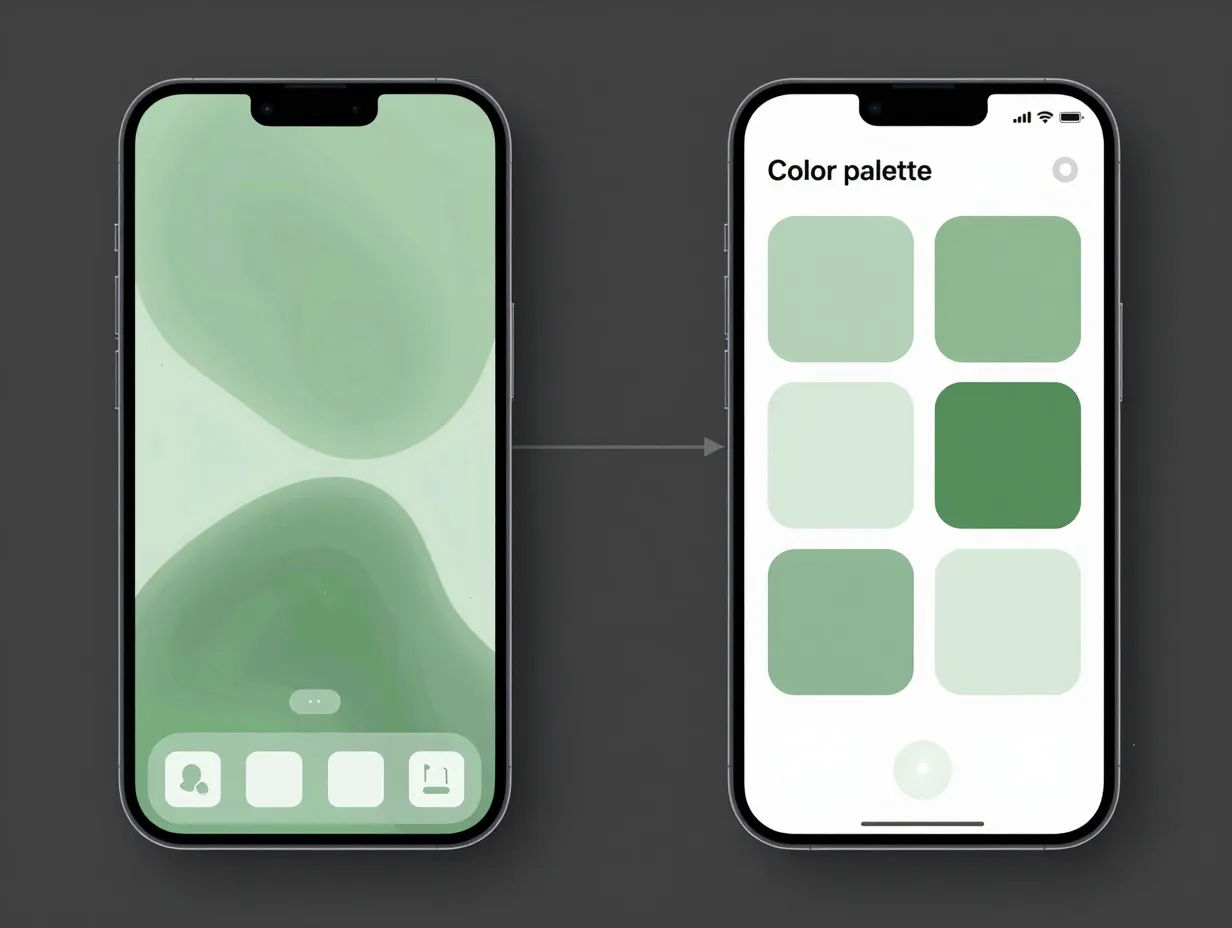
Once the wallpaper is set, One UI can automatically extract a dynamic color palette from it and apply those colors across icons, widgets, and system UI elements. This feature, part of Samsung’s “Color palette” system within Wallpaper and style settings, is highlighted in official Samsung UK documentation as a primary aesthetic control [6].
How to apply the palette:
- After setting the wallpaper, remain in the “Wallpaper and style” menu
- Tap “Color palette”
- One UI will display several palette options derived from the wallpaper’s dominant hues
- Select the palette that best matches the desired mood
- Toggle on “Apply color palette” to push those colors across compatible system elements
This step alone transforms a generic homescreen into a visually unified experience. Icons, folders, and even some widgets will shift to reflect the chosen palette, creating a sense of intentional design without manually recoloring anything.
3. Choose a Grid Size That Fits the Style
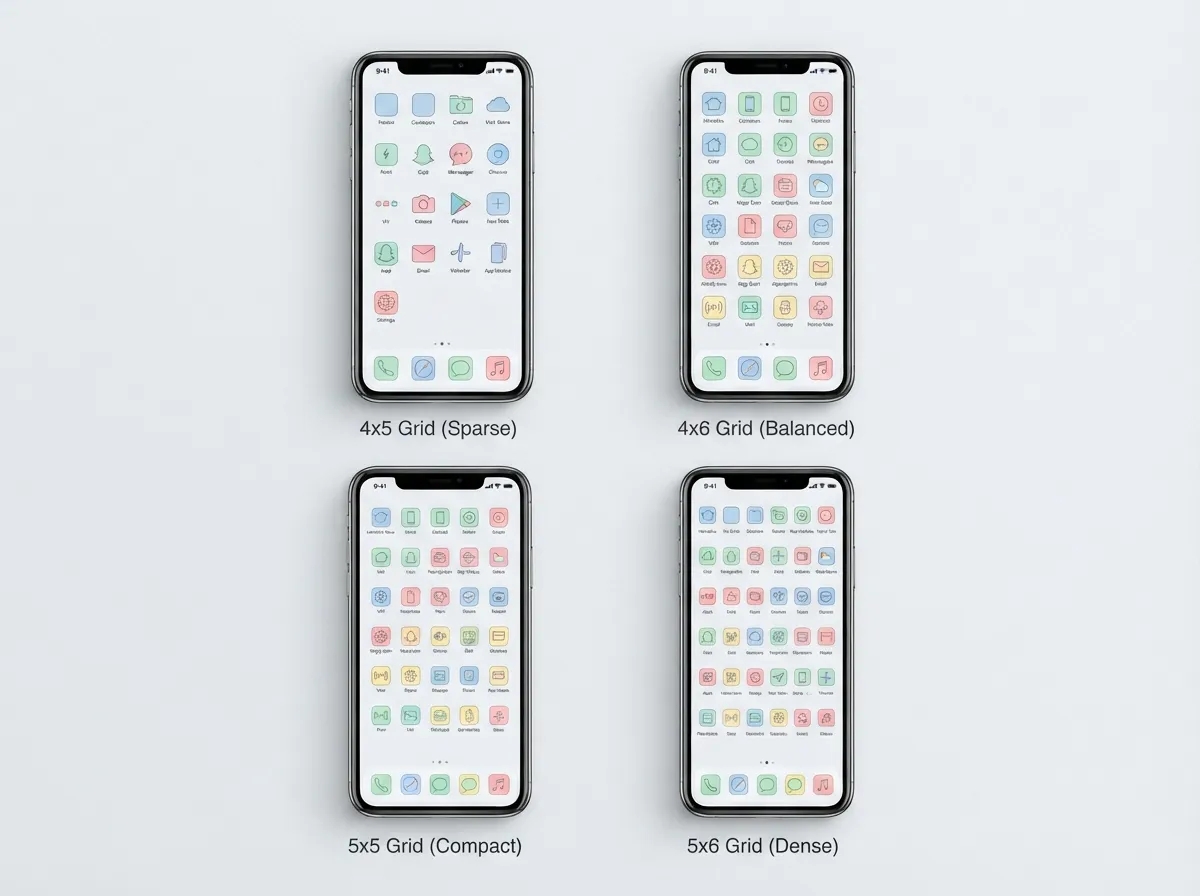
Grid size controls how many app icons appear on each homescreen page and how much breathing room exists between them. Samsung offers four standard grid options: 4×5, 4×6, 5×5, and 5×6 [6]. The choice here has a dramatic impact on the overall aesthetic.
| Grid Size | Icons Per Page | Best For |
|---|---|---|
| 4×5 | 20 | Minimalist, spacious aesthetic |
| 4×6 | 24 | Balanced look with moderate spacing |
| 5×5 | 25 | Compact, productivity-focused |
| 5×6 | 30 | Maximum density, power users |
To change the grid: long-press a blank homescreen area, tap “Settings,” then select “Home screen grid.” For a clean aesthetic, 4×5 or 4×6 is the most common expert recommendation, as the extra spacing makes each widget and icon feel deliberate rather than crowded [6][9].
4. Build a Widget-First Main Screen
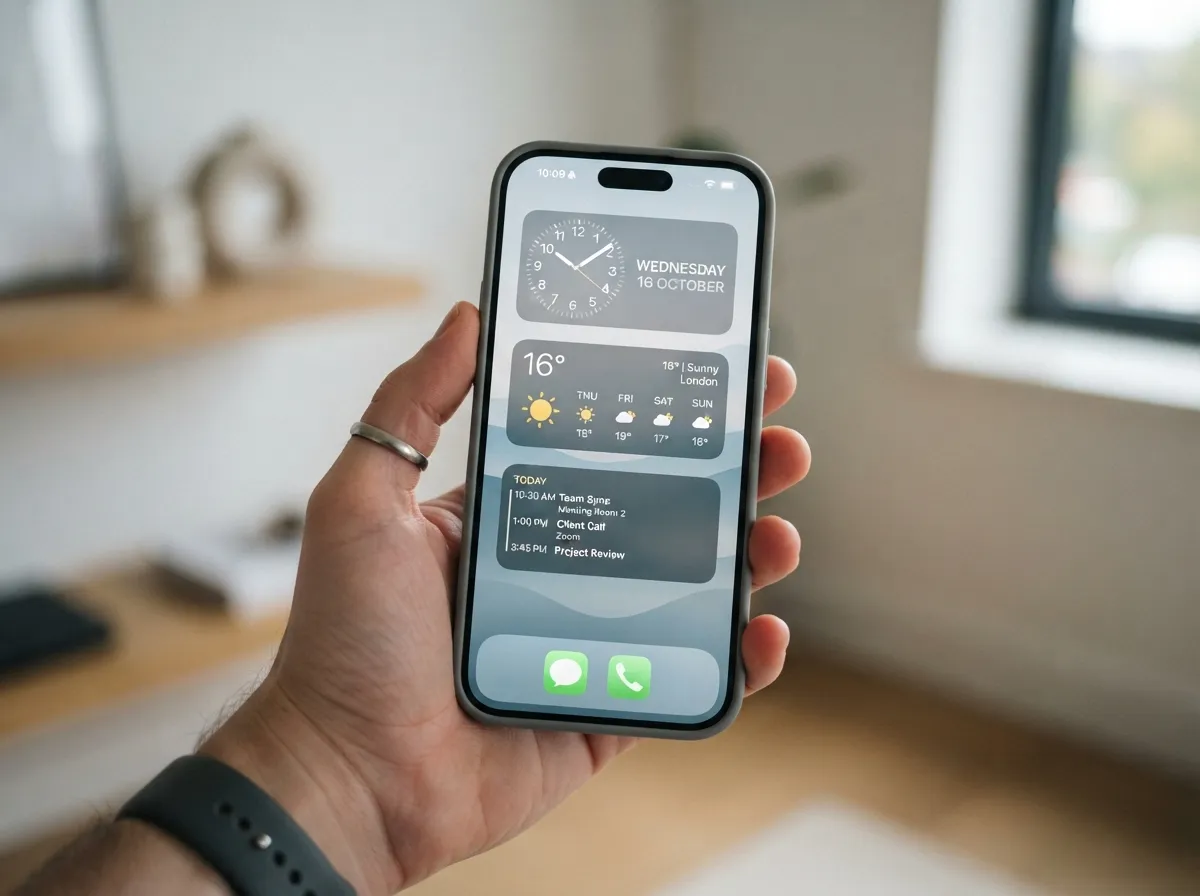
This is the step that most dramatically separates an aesthetic homescreen from a default one. Rather than filling the main screen with rows of app icons, the current best practice for One UI 7 is to make the primary screen almost entirely composed of widgets [10].
Why widgets work better than icons on the main screen:
- Widgets display glanceable information (time, weather, calendar, music) without requiring an app to be opened
- Large widgets fill visual space elegantly, reducing the cluttered feel of icon grids
- A widget-first layout communicates intentional design at a glance [3][10]
Recommended widget types for an aesthetic layout:
- Clock widgets (Samsung’s native analog or digital options)
- Weather widgets (Samsung Weather or third-party options like 1Weather)
- Calendar or agenda widgets
- Music player widgets
- Battery or system widgets for utility
To add a widget: long-press the homescreen, tap “Widgets,” browse by app category, then drag the desired widget onto the screen. Resize it by long-pressing the placed widget and dragging its edges. App icons can then be moved to secondary homescreen pages or the app drawer entirely [3].
5. Organize Icons onto Secondary Pages or the App Drawer
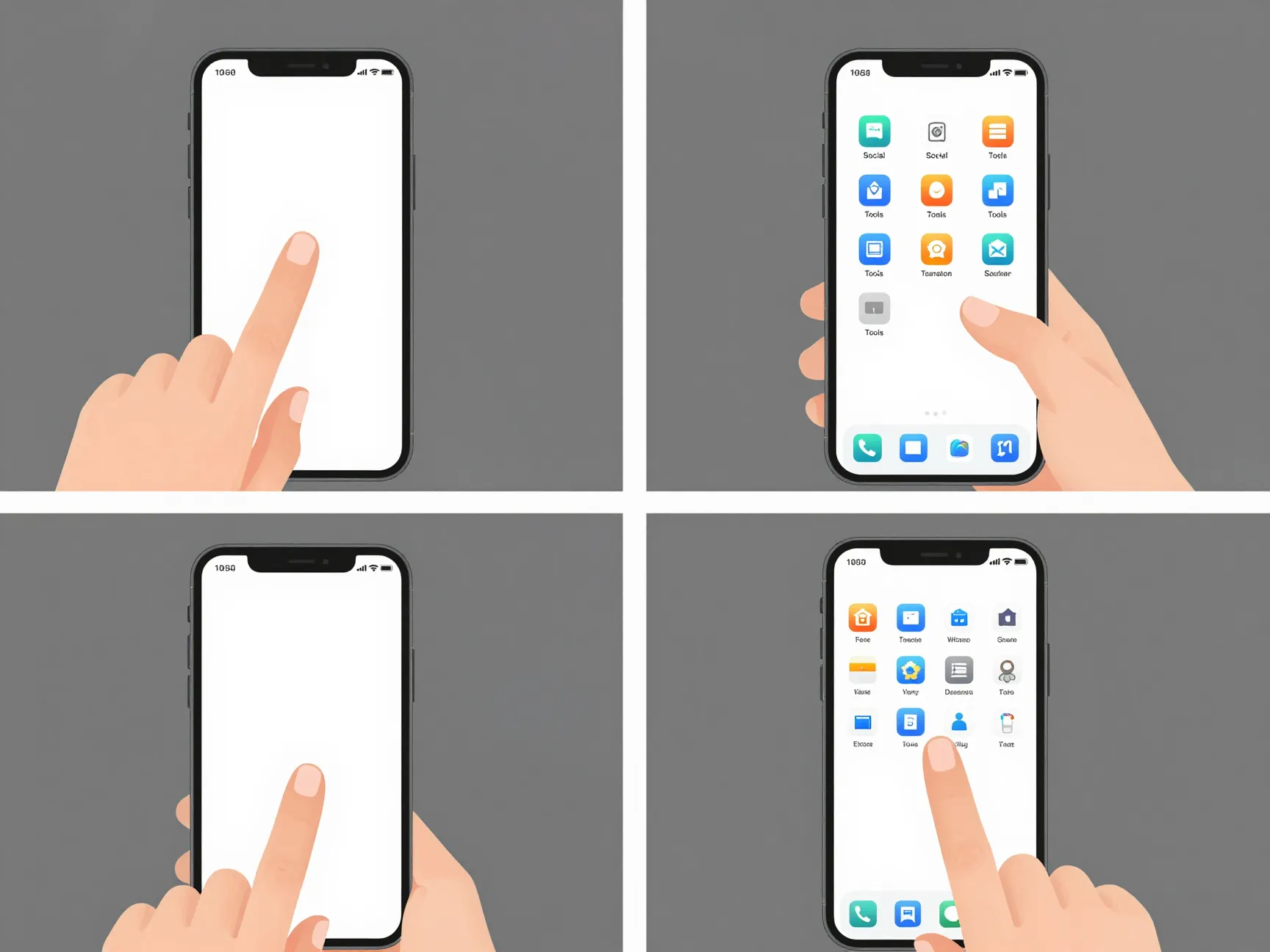
Once the main screen is dominated by widgets, the next step is deciding where app icons actually live. Samsung’s official support guidance emphasizes intentional organization as the foundation of a clean layout [5]. The two main options are secondary homescreen pages and the app drawer.
Setting a main Home screen panel:
Long-press a blank homescreen area and tap the small house icon that appears above any panel to designate it as the main screen [5]. This ensures the widget-first layout is always the first thing seen when unlocking the phone.
App drawer vs. secondary pages:
- The app drawer (accessed by swiping up) keeps all apps accessible without cluttering the homescreen
- Secondary homescreen pages work well for categorized icon groups (social, productivity, entertainment)
- A hybrid approach, drawer for most apps, one secondary page for frequently used ones, is the most common expert recommendation [5][10]
Folder strategy:
Group related apps into folders on secondary pages. Name folders with single words or short phrases that match the overall aesthetic. Avoid default folder names like “Social” in favor of something more personal or minimal.
6. Enable Gesture Navigation and Hide the Navigation Bar
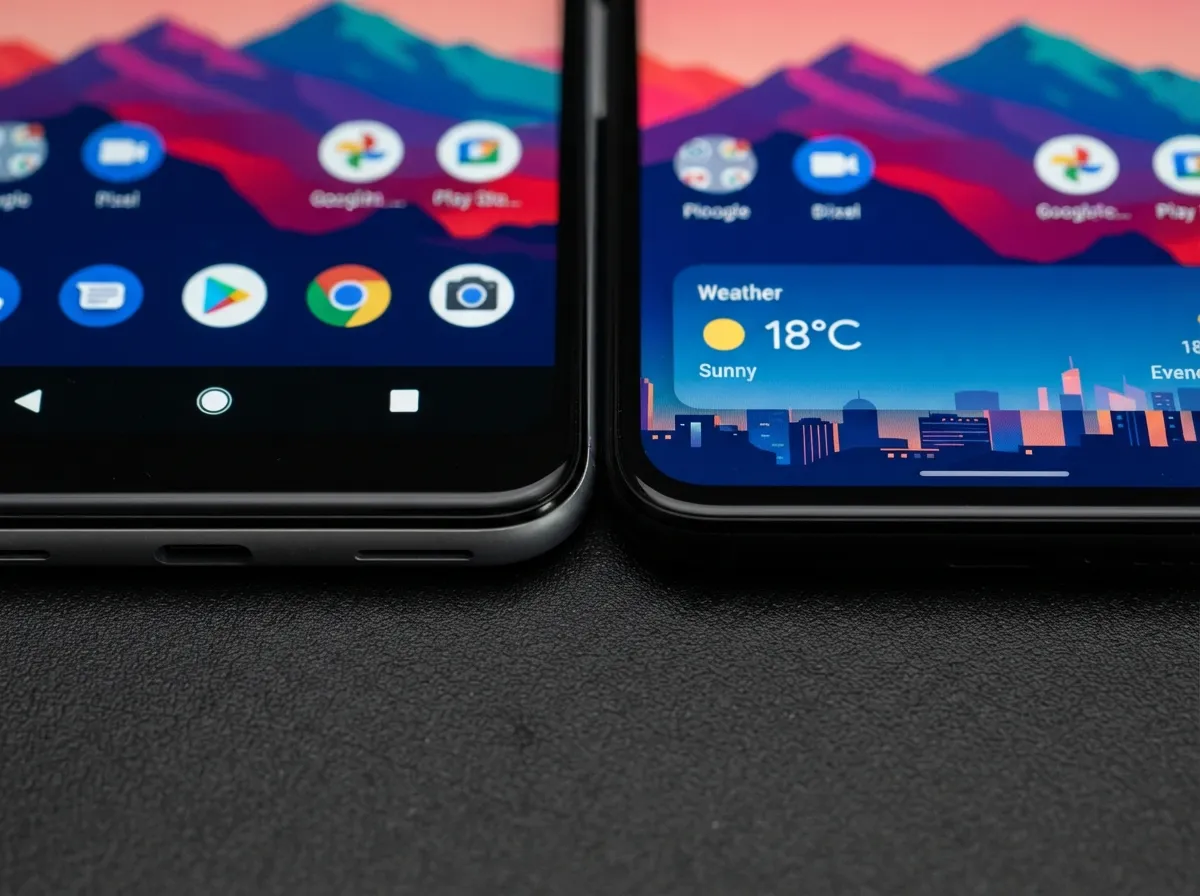
The navigation bar at the bottom of the screen, containing the Back, Home, and Recents buttons, takes up valuable visual real estate and breaks the immersive quality of a well-designed wallpaper. Switching to gesture-based navigation removes this bar entirely [2].
How to enable gesture navigation:
- Open Settings
- Navigate to Display → Navigation bar
- Select “Swipe gestures”
- Optionally adjust the gesture hint (the thin bar at the bottom) or hide it entirely for a fully clean look
With gesture navigation active, the wallpaper and widgets extend to the very bottom of the screen. This single change makes a homescreen feel significantly more polished and modern [2][7]. Edge-to-edge widget layouts, in particular, look dramatically better without the navigation bar interrupting the composition.
Additional navigation refinements:
- Under Home screen settings, consider switching the layout to “Home screen only” if the app drawer is not desired, or keep “Home + Apps screen” for drawer access [9]
- Disable the media page (the panel accessed by swiping right from the main screen) to reduce visual noise, this is found in Home screen settings under “Swipe right to open media page” [9][15]
7. Refine the Dock and Favorites Using Good Lock’s Home Up
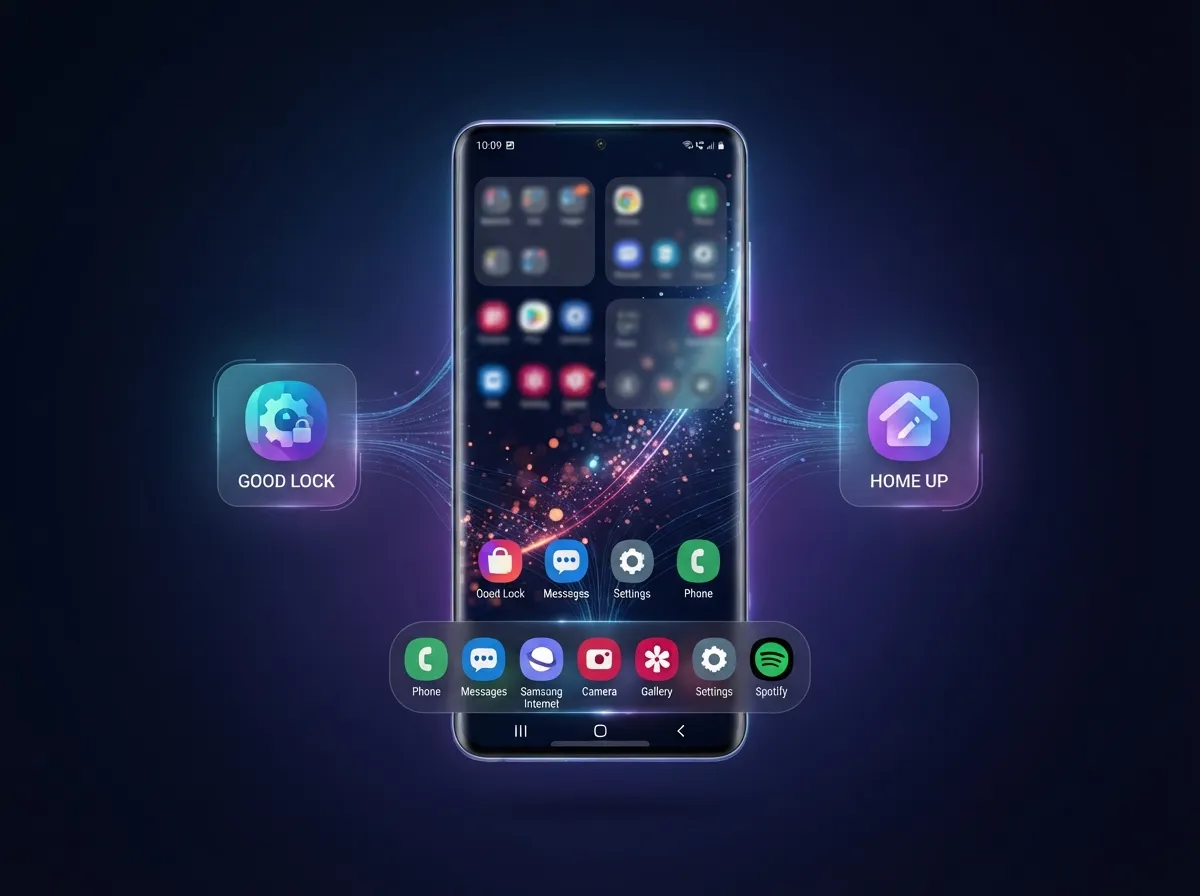
The dock, the row of icons pinned at the bottom of every homescreen page, is one of the most visible elements of the layout. By default, it holds four or five icons. Good Lock’s Home Up module allows this count to be increased and the dock’s behavior to be customized far beyond stock options [11][13].
Installing Good Lock and Home Up:
- Open the Galaxy Store and search for “Good Lock”
- Install Good Lock (free, Samsung Galaxy devices only)
- Inside Good Lock, find and install the “Home Up” module
- Open Home Up to access its settings
Key Home Up customizations for the dock:
- Increase the “Favorite max count” from the default (typically 4-5) up to 7, 8, or even 9 icons [13][15]
- This allows more apps to stay accessible in the dock while maintaining symmetry
- Combine a higher dock count with a larger grid (5×5 or 5×6) for a productivity-focused aesthetic
- Or keep a lower dock count (4 icons) with a 4×5 grid for a minimalist, spacious look
Recommended dock icons for a clean aesthetic:
Choose apps that are used multiple times daily. Common choices include Phone, Messages, a browser, a music app, and a notes or calendar app. The goal is utility with visual balance, every icon in the dock should earn its place.
8. Use DIY Home Screen for Free-Form Icon and Sticker Placement
The final step in the 8 steps to create the perfect Samsung aesthetic homescreen layout is also the most advanced. Good Lock’s Home Up module includes a feature called “DIY Home Screen” that breaks away from the rigid grid entirely, allowing icons, widgets, and decorative stickers to be placed anywhere on the screen [11][15].
How to enable DIY Home Screen:
- Open Good Lock and navigate to Home Up
- Toggle on “DIY Home Screen”
- Return to the homescreen, icons can now be freely dragged to any position
- Long-press any icon to access rotation and resize options
- Inside Home Up, explore the sticker library to add decorative elements
What DIY Home Screen enables:
- Asymmetric icon layouts that feel artistic rather than mechanical
- Large empty spaces used intentionally as part of the design
- Stickers and decorative elements that complement the wallpaper’s color palette
- Rotated icons for a creative, editorial feel
A word of caution: DIY Home Screen is powerful but can quickly become chaotic. The most effective aesthetic layouts using this feature still maintain a visual anchor, typically a large clock or weather widget, and use free-form placement only for secondary icons and accents. Restraint is the difference between a curated aesthetic and a cluttered experiment.
Advanced Tips for Maintaining the Aesthetic Long-Term
Achieving a beautiful homescreen is one thing. Keeping it that way as new apps are installed and habits change is another challenge entirely. These practices help maintain the layout over time.
Manage new app installations deliberately. When a new app is installed, One UI automatically places its icon on the homescreen. In Home screen settings, toggle off “Add new apps to Home screen” to send all new installs directly to the app drawer instead [1][7]. This prevents the layout from being disrupted every time something new is downloaded.
Revisit the color palette seasonally. Changing the wallpaper and regenerating the color palette every few months keeps the homescreen feeling fresh without requiring a full redesign. The widget-first structure and grid settings can stay the same while the visual mood shifts [6].
Use icon packs sparingly. While One UI supports icon packs through the Themes store, heavy icon packs can clash with the dynamic color palette system. If using an icon pack, choose one with a neutral or monochromatic style that complements rather than overrides the palette [4].
Back up the layout. Samsung’s Smart Switch and Samsung Cloud can back up homescreen layouts. Before making major changes, create a backup so the current aesthetic can be restored if an experiment goes wrong.
Common Mistakes to Avoid
Even experienced users make these errors when building a Samsung aesthetic homescreen:
Overloading the main screen. The main screen should feel intentionally sparse. If it takes more than two seconds to visually process, there are too many elements competing for attention.
Ignoring icon label visibility. Icon labels (the text names under app icons) can be hidden in Home screen settings for a cleaner look. However, hiding them entirely can make navigation harder. A middle-ground approach: hide labels on the main widget screen, keep them on secondary icon pages [7][9].
Mismatching widget styles. A Samsung clock widget next to a Google calendar widget next to a third-party weather widget often creates a visually incoherent mix of design languages. Sticking to one widget family, either Samsung’s native widgets or a consistent third-party set, produces a more unified result.
Skipping gesture navigation. This is the single most underutilized step. The visual impact of removing the navigation bar is immediate and significant. There is no aesthetic reason to keep the traditional button bar visible [2].
Conclusion
The 8 steps to create the perfect Samsung aesthetic homescreen layout are not about chasing trends, they are about building a system that reflects intentional design choices. Starting with a cohesive wallpaper and letting the color palette flow from that decision creates visual unity from the ground up. Choosing the right grid size, committing to a widget-first main screen, and organizing icons deliberately transforms a cluttered default layout into something genuinely elegant. Enabling gesture navigation, refining the dock through Good Lock’s Home Up, and optionally using DIY Home Screen for free-form placement complete the transformation.
Actionable next steps:
- Start with Step 1 today: open Wallpaper and style and choose a wallpaper with a dominant, muted color
- Install Good Lock from the Galaxy Store before attempting Steps 7 and 8
- Disable “Add new apps to Home screen” immediately to protect the layout from future clutter
- Revisit the layout after one week and remove anything that has not been used, a clean aesthetic is maintained through subtraction, not addition
The tools are already on the device. The only remaining step is to use them with intention.
References
[1] Ans10003678 – https://www.samsung.com/us/support/answer/ANS10003678/
[2] Details – https://play.google.com/store/apps/details?id=com.sec.android.app.launcher&hl=en_US
[3] Basic – https://developer.samsung.com/one-ui/structure/basic.html
[4] What Is One Ui Home 3210576 – https://www.androidauthority.com/what-is-one-ui-home-3210576/
[5] Ans10001898 – https://www.samsung.com/us/support/answer/ANS10001898/
[6] What Is One Ui – https://www.samsung.com/uk/mobile-phone-buying-guide/what-is-one-ui/
[7] Samsung One Ui Home Guide – https://www.androidpolice.com/samsung-one-ui-home-guide/
[9] Watch – https://www.youtube.com/watch?v=gKXkJVtcuzM
[10] One Ui 7 Home Setup 3564030 – https://www.androidauthority.com/one-ui-7-home-setup-3564030/