6 Powerful Phone Photo Editing Apps and Techniques You Need to Try
Smartphone cameras now shoot in RAW format, rival entry-level DSLRs in dynamic range, and feed a global content economy worth over $250 billion, yet most people still hand their images to a single auto-enhance button and call it done. That gap between what modern phone cameras capture and what most users actually produce is where the 6 powerful phone photo editing apps and techniques you need to try come in. Whether the goal is gallery-quality landscapes, polished portrait work, or a consistent social media aesthetic, the right combination of app and technique can close that gap in minutes.
Disclosure: This post contains affiliate links. As an Amazon Associate, we earn from qualifying purchases, and at no extra cost to you.
This guide covers the six most effective tools and methods dominating mobile editing in 2026, drawn from expert roundups and hands-on testing. Each entry explains not just what the app does, but how to use it for maximum results.
Key Takeaways
- Adobe Lightroom Mobile and Snapseed lead all 2026 expert rankings for serious and casual phone editing respectively
- A structured five-step editing workflow, crop, exposure, white balance, HSL grading, texture, consistently produces professional results
- Selective and local adjustments are the single biggest quality upgrade over basic global slider edits
- AI-powered one-tap tools have matured enough to deliver dramatic results for non-experts, but restraint is essential
- Choosing between a free stack (Snapseed plus Google Photos) and one or two paid pro apps is the most important decision a mobile editor will make
The 6 Powerful Phone Photo Editing Apps and Techniques You Need to Try
Understanding which tools to use, and why, saves time and produces better results than experimenting blindly. The six options below are ranked from most comprehensive to most accessible, covering every skill level and workflow type.
1. Adobe Lightroom Mobile, Professional RAW Editing in Your Pocket
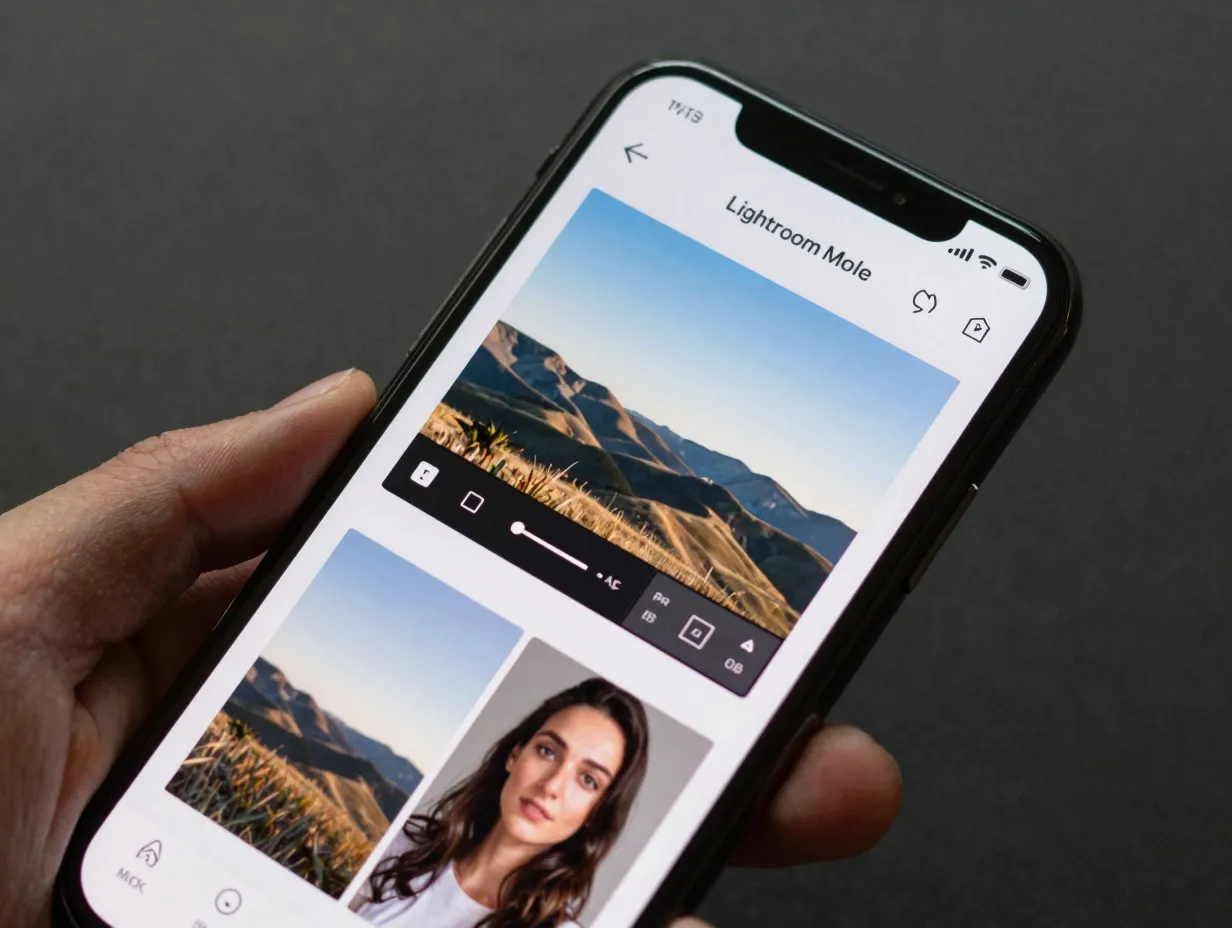
Adobe Lightroom Mobile holds the “best overall” position in virtually every major 2026 roundup, and the reasons are straightforward [1][8][13]. It is the only mobile app that offers full RAW file support, a complete HSL (Hue, Saturation, Luminance) color grading panel, precise local masking for subjects and skies, and seamless two-way sync with desktop Lightroom, all within a single subscription.
What makes it stand out:
- Full RAW and RAW+JPEG support on both iOS and Android
- Subject, sky, and brush masking for targeted local adjustments
- HSL panel for controlling individual color channels
- Cloud sync that keeps edits consistent across phone, tablet, and desktop
- Preset import and export for building a signature look
The subscription runs approximately $9.99 to $11.99 per month depending on region and bundle, which includes cloud storage and the desktop version [1][3][14]. For photographers who already use Lightroom on a computer, the mobile app is essentially a free addition to an existing plan.
Core technique, masking for sky and foreground balance: The most powerful move in Lightroom Mobile is using the sky mask and subject mask together. Select the sky, lower its highlights by 20 to 30 points, and add a slight blue tint to the temperature slider. Then select the subject, lift shadows by 15 to 20 points, and add a touch of warmth. The result is a balanced image that looks like it was shot with professional lighting rather than a phone [1][5][13].
“Lightroom Mobile’s masking tools bring a level of local control to phone editing that was simply impossible on mobile just three years ago.”, techwench.com [8]
2. Snapseed, The Best Free Editor for Almost Everyone
Snapseed remains the default recommendation for casual and enthusiast editors in 2026, and its staying power is rooted in one simple fact: it is 100% free with no ads and no in-app purchases, while rival apps increasingly push subscriptions [1][8][12][13].
The app offers approximately 29 tools, including selective adjustment points, a healing brush, perspective correction, and a curves panel, a toolkit that would have required a desktop application a decade ago.
Snapseed’s standout tools:
- Selective adjustment points that apply brightness, contrast, saturation, and structure to a specific area of the image
- Healing brush for removing distracting objects
- Perspective tool for correcting converging lines in architecture
- Curves panel for precise tonal control
- “Stacks” feature that saves every edit step and allows non-destructive re-editing
Core technique, selective adjustment points: Place a selective point on a bright sky and drag down to reduce exposure without affecting the foreground. Place a second point on a shadowed face and drag up to lift brightness. This approach separates sky, midground, and subject into independent zones without any masking, making it one of the fastest ways to balance a complex scene on a phone [1][5][8].
Snapseed’s selective adjustment system is particularly effective for landscape and portrait photography, where sky and skin tones need completely different treatment. Expert guides in 2026 consistently describe this feature as the biggest quality upgrade available to casual phone editors who have never used local adjustments before [13].
3. VSCO, Film-Inspired Presets and a Built-In Creative Community
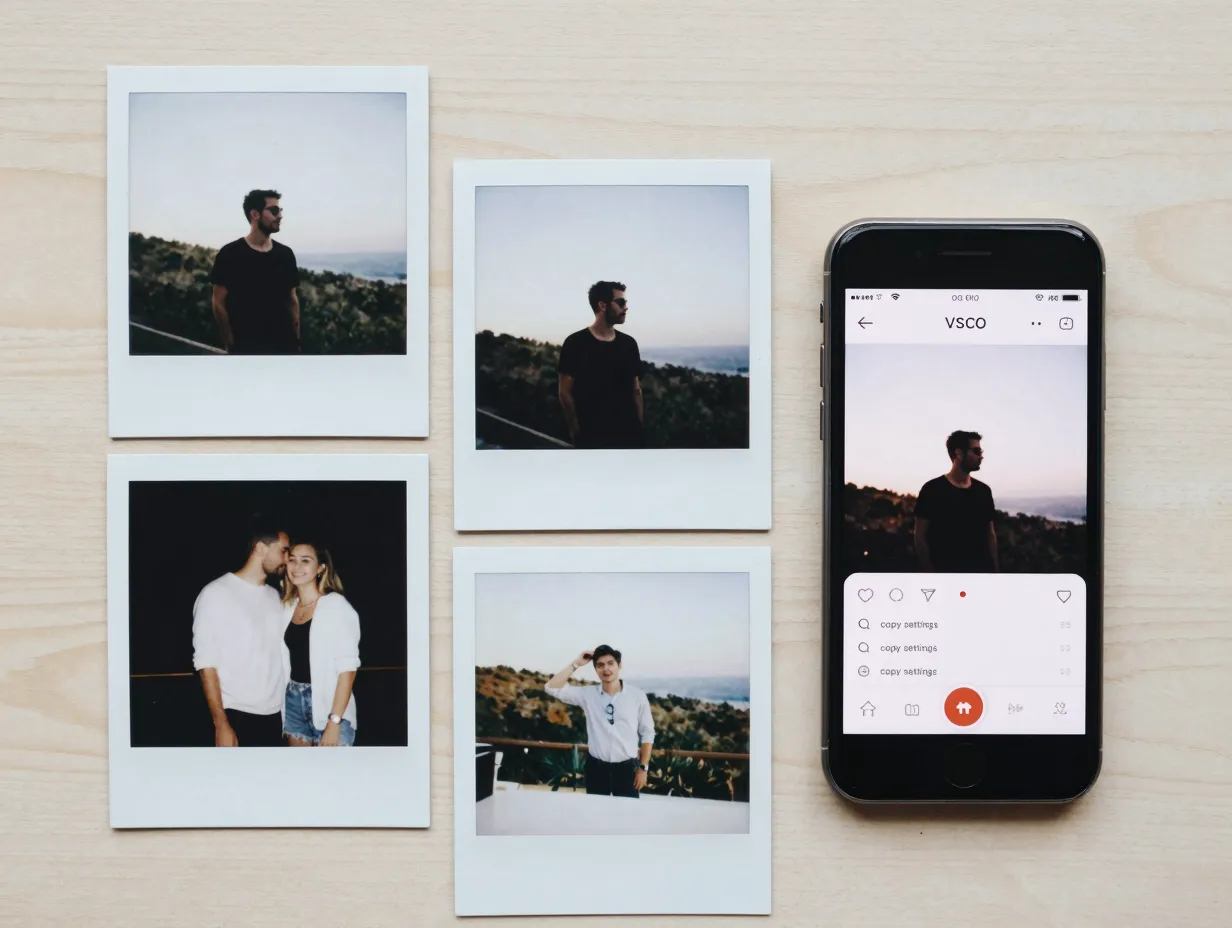
VSCO is the go-to app for creators who want a consistent, mood-driven aesthetic across their entire feed without manually color-grading every image from scratch [2][3][8][13]. Its catalog of more than 200 presets covers everything from faded 1970s film stock to high-contrast black and white, and its built-in community allows users to share work and discover new styles.
VSCO pricing and access:
| Tier | Access | Best For |
|---|---|---|
| Free | Basic presets, standard editing tools | Occasional use, testing the app |
| VSCO Membership | 200+ presets, advanced tools, community | Consistent feed aesthetic, creators |
Annual membership is typically reported at $29.99 to $59.99 per year [2][3][8][6]. For creators who publish daily to Instagram or TikTok and need every image to feel cohesive, that cost is justified by the time saved over manual grading.
Core technique, preset-driven batch styling: Apply a single VSCO preset to one image, then use the “copy settings” function to paste the same look across an entire batch of photos from the same shoot. Adjust the preset intensity slider (called “fade” in VSCO) between 8 and 12 to keep the film look natural rather than heavy-handed. This is the fastest way to build a recognizable visual identity on social media without touching individual color sliders [2][3][8].
Vintage and film aesthetics remain a dominant trend in 2026, with apps like 1998 Cam and Colorize also cited in expert guides as complementary tools for achieving retro looks [2][3].
4. Darkroom, Deep Curve Editing for iPhone Users
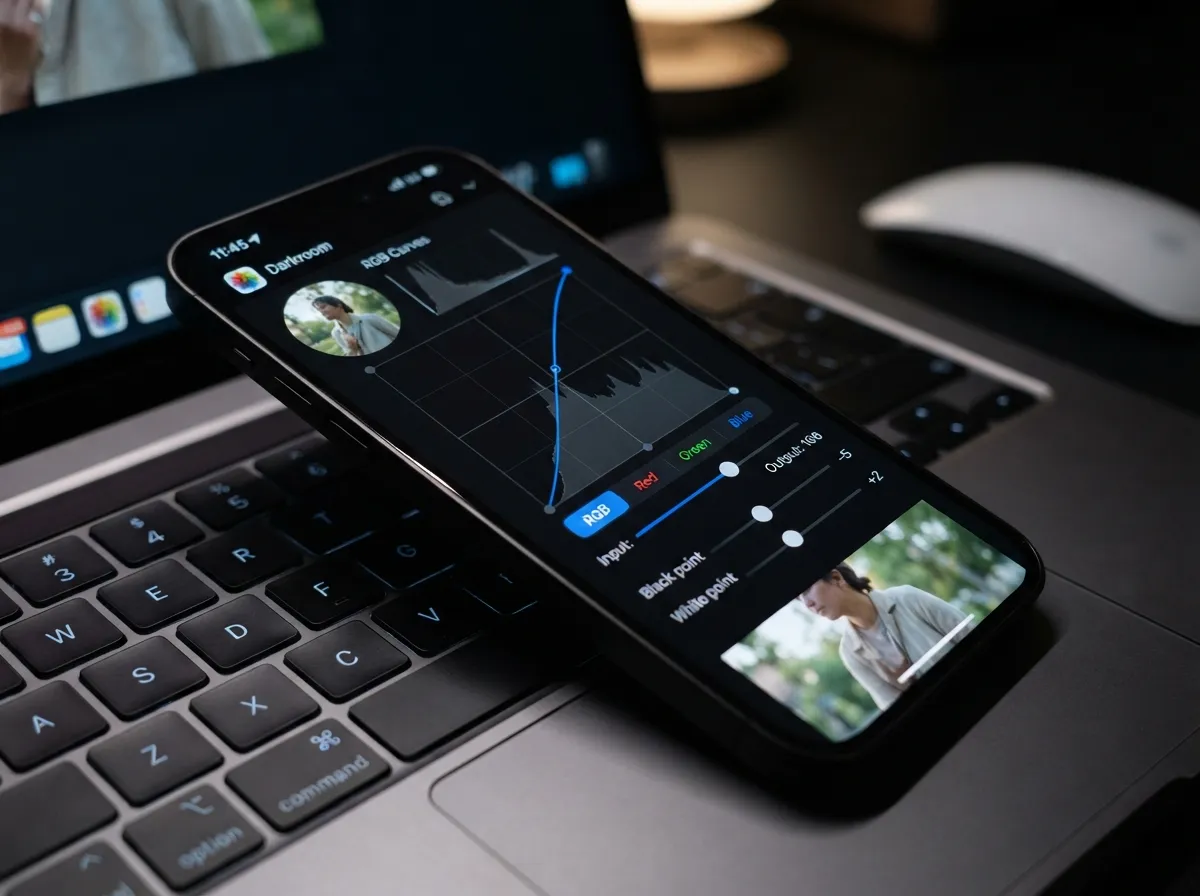
Darkroom is the strongest choice for iPhone users who want professional-grade curve editing, batch processing, and unified color control for both photos and video, all within the Apple Photos ecosystem [1][3][4][8][14].
Unlike Lightroom, which operates as a standalone library, Darkroom works directly inside the Apple Photos library. Every edit is non-destructive and syncs automatically through iCloud. This makes it the most seamless option for iPhone users who do not want to manage a separate photo library.
Key Darkroom features:
- Full RGB and individual channel curve editing
- Batch editing across multiple photos simultaneously
- Video color grading using the same tools as photo editing
- Deep integration with Apple Photos and iCloud
- Optional lifetime license in addition to annual subscription
Pricing is a free tier plus approximately $49.99 per year, with a one-time lifetime license available as an alternative [1][3][4][14]. The free tier is generous enough for casual use, but the annual plan unlocks curves, RAW support, and video tools.
Core technique, RGB curve S-curve for contrast: Open the curves panel and add a gentle S-curve: lift the highlights slightly, pull the shadows down slightly, and leave the midtones untouched. This classic photographic technique adds punch and depth to flat-looking phone images without blowing out highlights or crushing shadows. Darkroom’s per-channel curves also allow precise color casts to be removed, for example, pulling down the blue channel in shadows to remove the cold tint common in indoor phone photography [1][4][8].
Darkroom’s video color grading capability is a genuine differentiator in 2026, as more creators need consistent color across both photo and video content for Reels and short-form platforms [4][8].
5. Picsart and Photomator, AI-Powered Creative Editing for Social Content
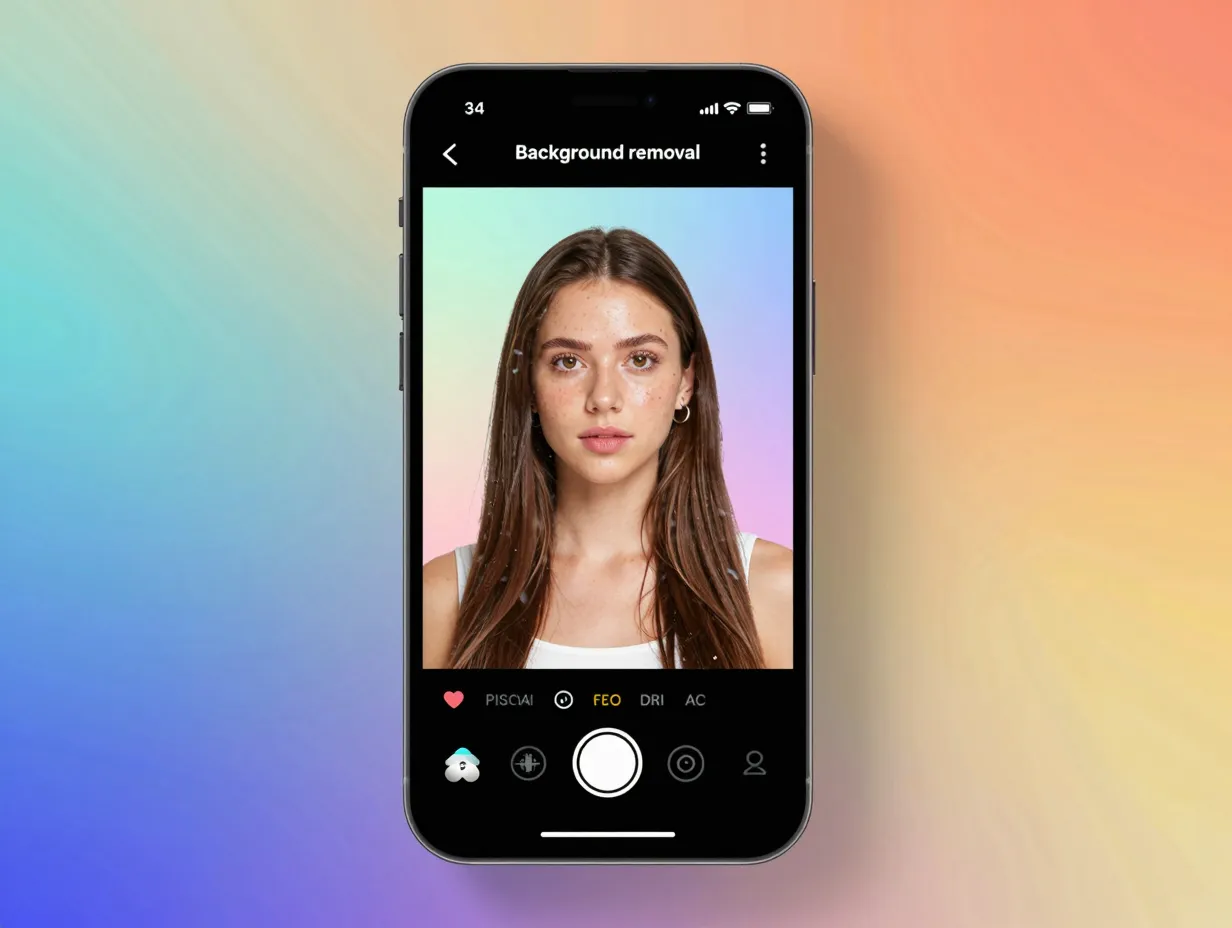
For creators focused on Reels, TikTok, and Stories rather than fine-art photography, Picsart and Photomator represent a different philosophy: mobile-first, template-driven, and AI-accelerated [1][2][4][7][8].
These apps combine background removal, AI filters, collage tools, text overlays, and graphic elements into a single workflow designed for vertical content. Picsart in particular has built a large creator community around its template library, making it easy to produce eye-catching social posts in under two minutes.
What these apps do best:
- One-tap background removal and replacement
- AI art filters and style transfer (Prisma-style effects)
- Collage and multi-image layouts for Stories
- Text and graphic overlay tools for branded content
- Template libraries optimized for specific platform dimensions
Subscriptions for full access run approximately $11.99 per month [1][2][4][7][8]. This positions them as mid-tier in cost but high in output speed for social-first creators.
Core technique, AI background replacement for product and portrait shots: Use Picsart’s background removal tool to isolate a subject, then replace the background with a clean gradient or a contextually relevant scene. Keep the replacement subtle, a slightly blurred, color-matched background looks far more professional than a dramatic composite. AI relighting tools in Luminar Neo’s mobile edition take this further by adjusting the light direction on the subject to match the new background [1][6][7].
Industry roundups in 2026 stress that AI enhancement tools work best when used with restraint. One-tap filters applied at full strength consistently produce over-processed results that undermine credibility, particularly for portrait and product photography [1][7][8].
6. Google Photos, Fotor, and Remini, Accessible AI Enhancement for Everyday Editing
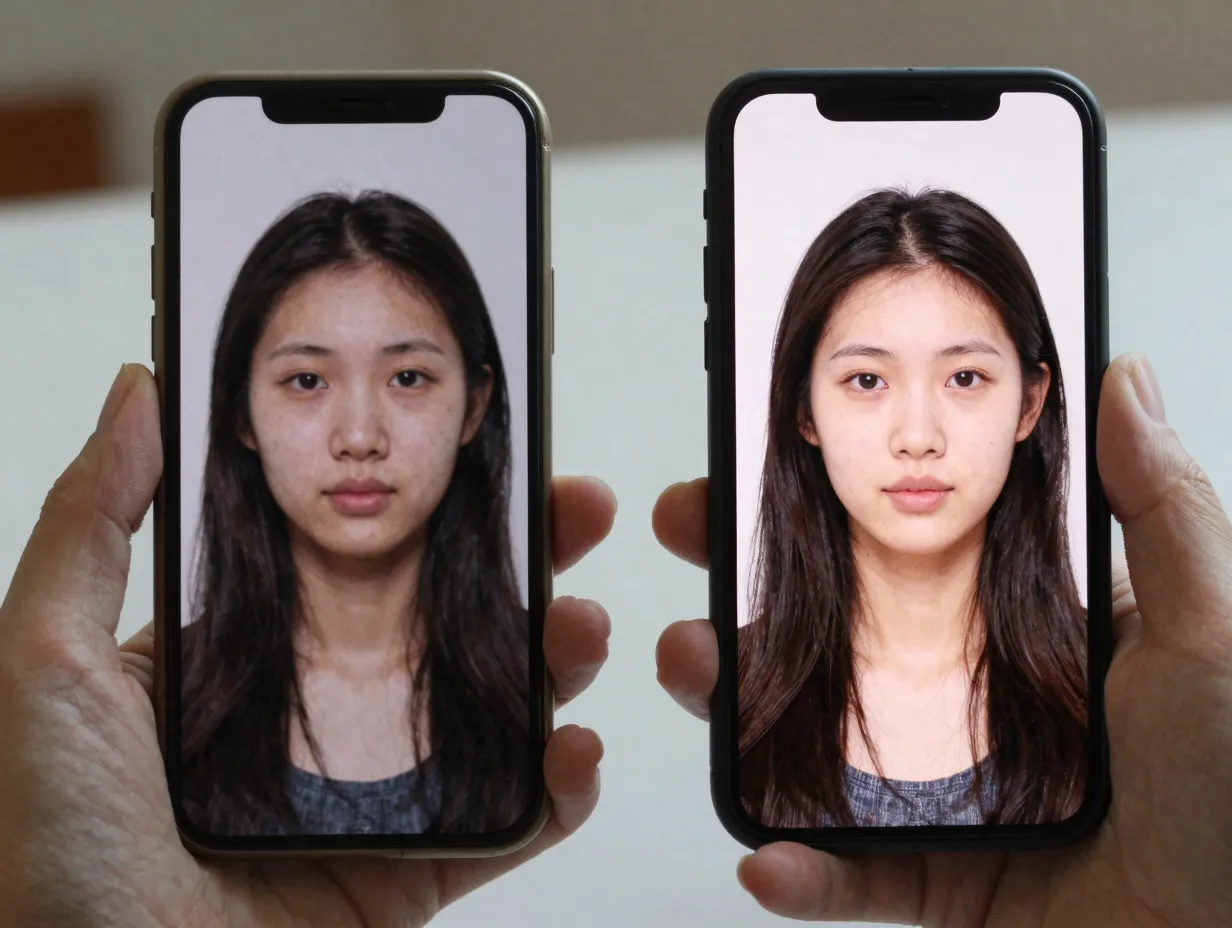
The sixth category covers the most accessible tier of mobile editing: AI-powered tools that require little to no manual adjustment and are free or nearly free to use [9][11].
Google Photos is named one of the best free Android photo editors in 2026, offering auto-enhance, sky suggestions, portrait lighting adjustments, and a magic eraser for object removal, all without leaving the default gallery app [9]. For casual users who want better-looking photos without learning any editing concepts, Google Photos is the starting point.
Fotor and Remini are highlighted in August 2026 lists as popular choices for one-tap retouching, AI upscaling of low-resolution images, and AI-based photo restoration [9][11]. Remini in particular is widely used for enhancing old or blurry photos, using AI to reconstruct fine detail that the original image lacked.
Comparison of the three accessible AI tools:
| App | Best Use Case | Platform |
|---|---|---|
| Google Photos | Auto-enhance, object removal, sky edits | iOS and Android |
| Fotor | One-tap retouching, portrait beauty tools | iOS and Android |
| Remini | AI upscaling, photo restoration, sharpening | iOS and Android |
Core technique, AI upscaling before sharing: Before posting an older or lower-resolution image, run it through Remini’s AI enhance function. The algorithm reconstructs fine detail, particularly in faces and textures, that compression and age have degraded. The result is a sharper, more printable image that holds up well on high-resolution screens [9][11].
For users who want a completely free editing stack, expert roundups in 2026 recommend combining Snapseed for manual control with Google Photos for AI enhancements and cloud backup [1][8][9]. This pairing covers the full range of editing needs without any subscription cost.
The 5-Step Editing Workflow That Ties All Six Apps Together
Knowing which apps to use is only half the equation. The other half is following a structured editing workflow that produces consistent, professional results regardless of which app is open. A detailed 2026 mobile editing guide lays out a five-step process that expert editors apply across all of the apps covered above [13].
Step 1. Crop and Straighten First
Before adjusting any tonal or color values, fix the composition. Straighten the horizon, apply the rule of thirds to reframe the subject, and remove distracting elements at the edges of the frame. Cropping first prevents wasted effort on areas that will be removed later [13].
Step 2. Adjust Exposure and Dynamic Range
Lower highlights by approximately 10 to 30 points to recover blown-out sky detail. Lift shadows by 10 to 25 points to open up dark areas without introducing noise. Adjust overall exposure last, after highlights and shadows are balanced, to set the final brightness [13].
Step 3. Correct White Balance
Warm sunsets by adding 3 to 8 points of temperature. Cool cityscapes and blue-hour shots slightly to enhance their natural mood. Correct indoor shots by reducing the yellow-green cast that artificial lighting typically introduces [13].
Step 4. Apply Selective HSL Color Grading
Use the HSL panel (available in Lightroom Mobile and Darkroom) to refine individual colors. Boost the saturation of blues in skies, shift the hue of greens toward teal for a cinematic look, or desaturate orange tones slightly for a cleaner skin tone in portraits. This step separates amateur edits from professional ones [1][13].
Step 5. Add Modest Texture and Fine Grain
Add texture between 5 and 10 points to restore the micro-detail that phone processing algorithms soften. Add grain between 5 and 10 points to give the image a natural, film-like quality that avoids the plastic look of over-processed phone photos [13].
This five-step sequence works in Lightroom Mobile, Snapseed, Darkroom, and even VSCO. Applying it consistently across every image builds both skill and a recognizable personal style.
Choosing the Right App Stack for Your Needs
The pricing landscape in 2026 shows a clear split between free and paid tools, and the right choice depends entirely on workflow and goals [1][3][8][14].
Free stack (zero cost): Snapseed for manual editing plus Google Photos for AI enhancements and backup. This combination covers the full range of editing needs for casual users, enthusiasts, and creators on a budget.
Pro stack (one subscription): Adobe Lightroom Mobile for photographers who shoot in RAW, work across multiple devices, and need the most precise color and masking tools available on mobile.
Creative/social stack (one subscription): VSCO for preset-driven aesthetics plus Picsart for social content creation. This pairing suits creators who prioritize speed, consistency, and platform-optimized output over technical precision.
iPhone-specific stack: Darkroom for deep editing within the Apple Photos ecosystem, supplemented by Snapseed for free selective adjustments.
Expert roundups consistently advise against subscribing to multiple pro apps simultaneously. Mastering one tool deeply produces better results than spreading attention across three or four [1][8][14].
Conclusion
The 6 powerful phone photo editing apps and techniques you need to try in 2026 cover every skill level, workflow type, and budget. Adobe Lightroom Mobile leads for technical precision and RAW control. Snapseed delivers professional-grade tools at no cost. VSCO builds cohesive film-inspired aesthetics across an entire feed. Darkroom gives iPhone users deep curve editing without leaving the Apple Photos ecosystem. Picsart and Photomator accelerate social content creation with AI-powered templates. Google Photos, Fotor, and Remini make AI enhancement accessible to anyone with a smartphone.
Actionable next steps:
- Download Snapseed today and practice the five-step workflow on three recent photos before spending money on any paid app.
- If shooting in RAW or editing across multiple devices, start a Lightroom Mobile trial and import one shoot to test the masking tools.
- Identify whether the primary goal is technical quality (Lightroom, Darkroom), aesthetic consistency (VSCO), or social content speed (Picsart), then commit to one paid app rather than several.
- Apply selective local adjustments to every image going forward. This single habit, more than any app or preset, is what separates polished mobile photography from average snapshots.
The tools exist. The techniques are proven. The only remaining step is to open an app and start editing.
References
[1] Best Photo Editing Apps 2026 – https://clippingexpertasia.com/blog/best-photo-editing-apps-2026/
[2] Best Photo Apps For Phones – https://amateurphotographer.com/round-ups/best-photo-apps-for-phones/
[3] The Best Photo Editing Apps To Use Right Now – https://themframes.com/features/the-best-photo-editing-apps-to-use-right-now/
[4] Best Photo Editing Apps Iphone Android 2026 – https://lovable.dev/guides/best-photo-editing-apps-iphone-android-2026
[5] Best Android Photography Apps 2026 Top Camera Editing Apps – https://theappwhisperer.com/2026/03/best-android-photography-apps-2026-top-camera-editing-apps/
[6] Top 10 Mobile Apps For Photographers In 2026 – https://www.snapsign-app.com/blog/articles/top-10-mobile-apps-for-photographers-in-2026/
[7] Best Photo Editing Apps – https://www.imagine.art/blogs/best-photo-editing-apps
[8] Best Mobile Photo Editing Apps 2026 – https://www.techwench.com/best-mobile-photo-editing-apps-2026/
[9] Free Photo Editing App Ios Android – https://www.cyberlink.com/blog/photo-editing-best-software/322/free-photo-editing-app-ios-android
[10] Best Photo Editing Apps – https://www.designrush.com/agency/mobile-app-design-development/trends/best-photo-editing-apps