9 Aesthetic Call Background Wallpaper Ideas For Your Samsung Phone
Samsung Galaxy users collectively spend billions of hours on phone calls every year, yet most never change the default grey call screen that ships out of the box. That blank, generic interface is a missed opportunity, because One UI gives every Galaxy owner a surprisingly powerful set of tools to make the incoming call screen look just as polished as the rest of their phone.
Disclosure: This post contains affiliate links. As an Amazon Associate, we earn from qualifying purchases, and at no extra cost to you.
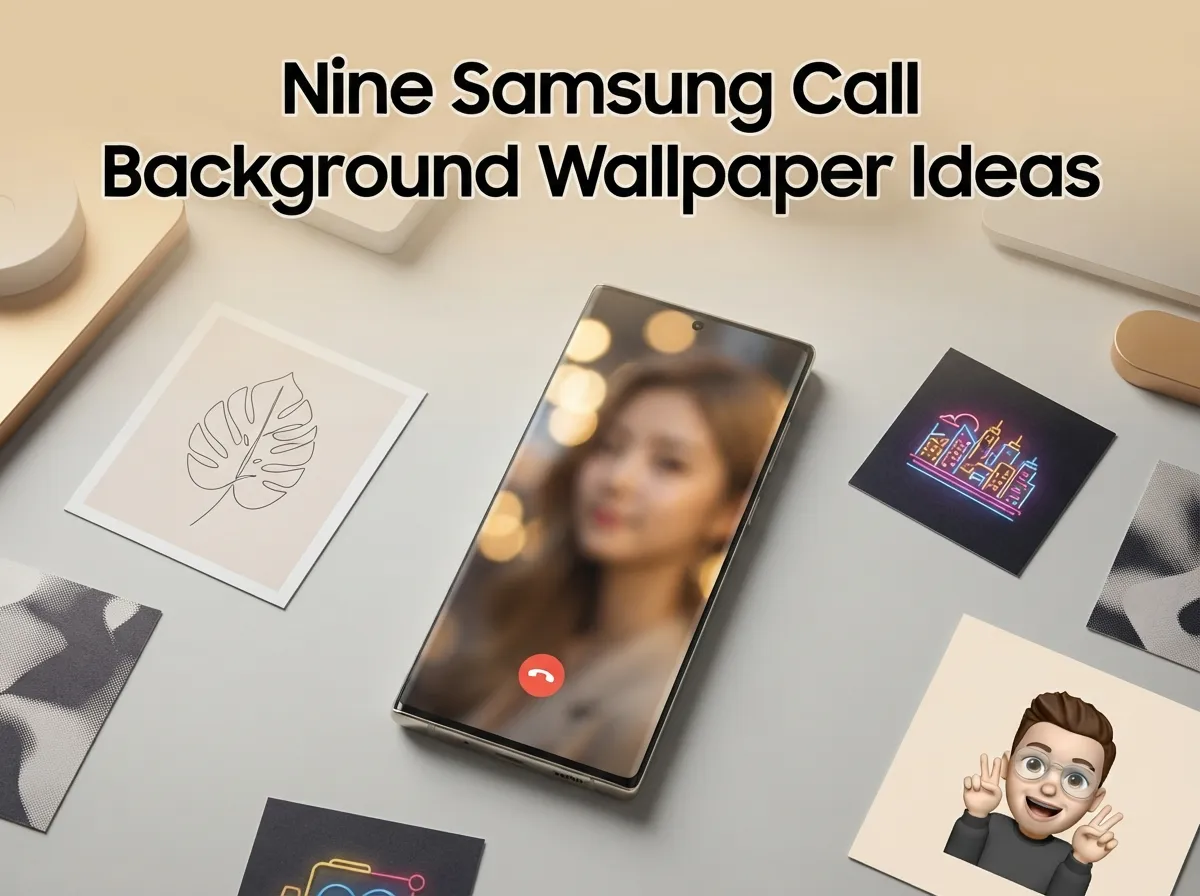
This guide covers 9 Aesthetic Call Background Wallpaper Ideas For Your Samsung Phone, walking through each concept, the visual style it creates, and exactly how to apply it. Whether the goal is a serene minimalist look, a bold cyberpunk vibe, or a seasonal rotating gallery, there is an option here for every taste and every Galaxy model running a recent version of One UI.
Key Takeaways
- Samsung’s call background feature is accessible via Phone app, More options (three dots), Settings, Call background, and works on most modern Galaxy devices including mid-range models
- Both photos and short videos (under approximately 15 seconds, vertical format) can be used as call backgrounds, with zoom and crop controls for fine-tuning
- AR Emoji can be animated and used as a call background for a fully personalized, stylized look
- Per-contact call backgrounds let users assign different wallpapers to family, friends, and work contacts separately
- Dual-SIM users can differentiate their personal and work lines visually using distinct call background styles
How to Set a Call Background on Your Samsung Galaxy Phone
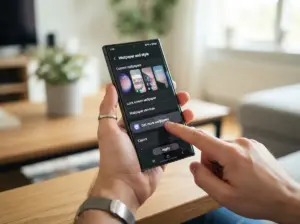
Before diving into the nine ideas themselves, it helps to know the exact steps for applying any of them. The process is consistent across modern Galaxy devices, including the S26, S26+, and S26 Ultra running One UI with Android 16. [2]
Step-by-step path:
- Open the Phone app
- Tap the three-dot menu (More options) in the top-right corner
- Select Settings
- Tap Call background
- Tap Background
- Choose a featured image, a video, or any item from your Gallery
- Use the zoom and crop controls to adjust framing
- Tap Set as call background
Samsung’s official support documentation confirms this path works across its modern Galaxy lineup [2], and the same flow has been demonstrated in tutorials for the Galaxy S26 series published through mid-2026. [1] [5] The feature has also been stable across multiple One UI generations, meaning a wallpaper set today is likely to remain usable through future OS updates. [3]
Quick reference table: What you can use as a call background
| Type | Format | Max Length | Notes |
|---|---|---|---|
| Photo | Any Gallery image | N/A | Zoom and crop available |
| Video | Vertical, Gallery | ~15 seconds | Can use audio as ringtone |
| AR Emoji | Animated avatar | N/A | Multiple animation styles |
| Featured image | Pre-loaded by Samsung | N/A | Gradients and abstracts |
9 Aesthetic Call Background Wallpaper Ideas For Your Samsung Phone
The nine ideas below range from simple and timeless to creative and highly personalized. Each one works within the tools One UI already provides, no third-party apps required.
1. Soft Bokeh Portrait Wallpaper
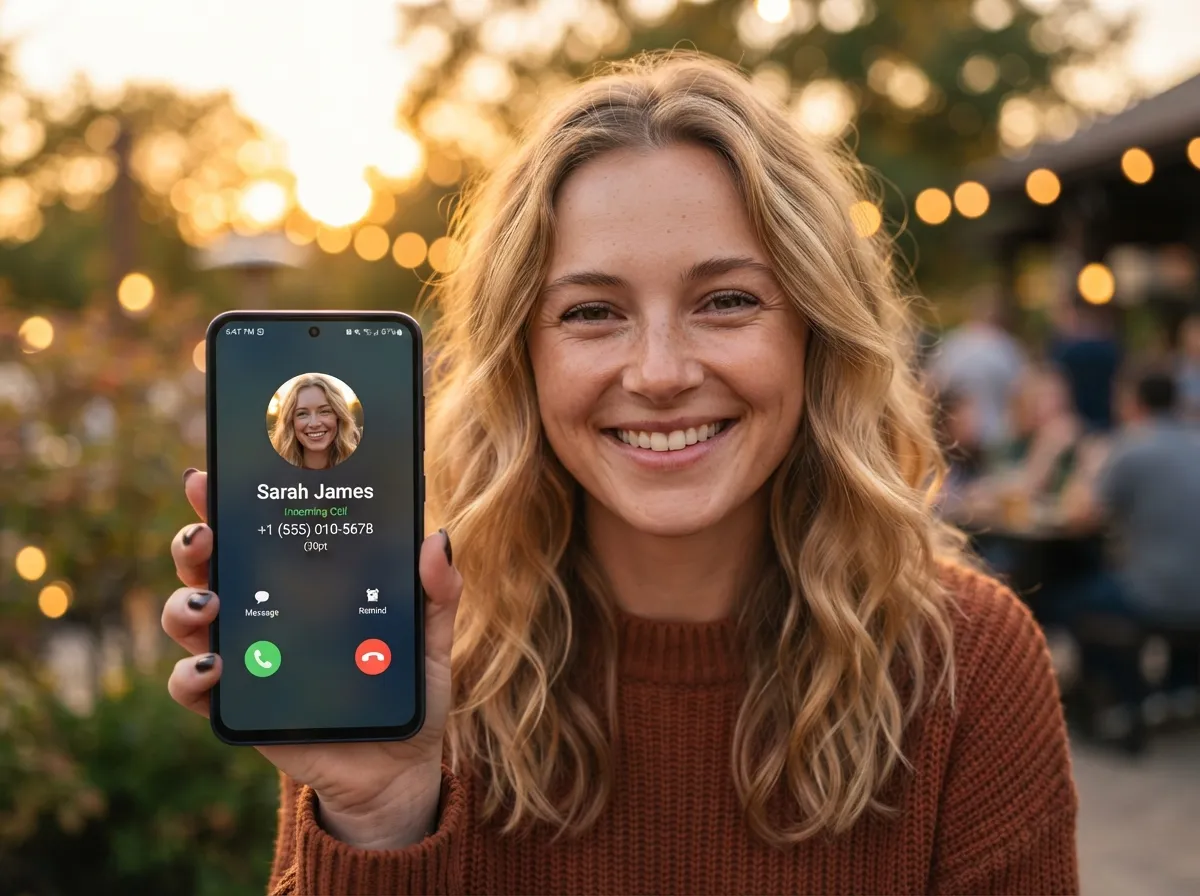
A soft bokeh background, where the subject is in sharp focus and the background melts into smooth, blurred circles of light, is one of the most universally flattering aesthetics for a call screen. The blurred areas create natural breathing room around the caller’s name and number, keeping the UI text readable at a glance.
To execute this look, choose a Gallery photo taken in Portrait mode or one with a naturally shallow depth of field. When setting it as the call background, use the zoom controls to center the in-focus subject and let the blurred edges frame the screen. [5] Soft bokeh works especially well with warm tones, golden-hour light, candle glow, or autumn leaves, because these palettes feel welcoming when an incoming call interrupts the day.
Best for: General use, any contact group
2. Minimalist Botanical Line Art
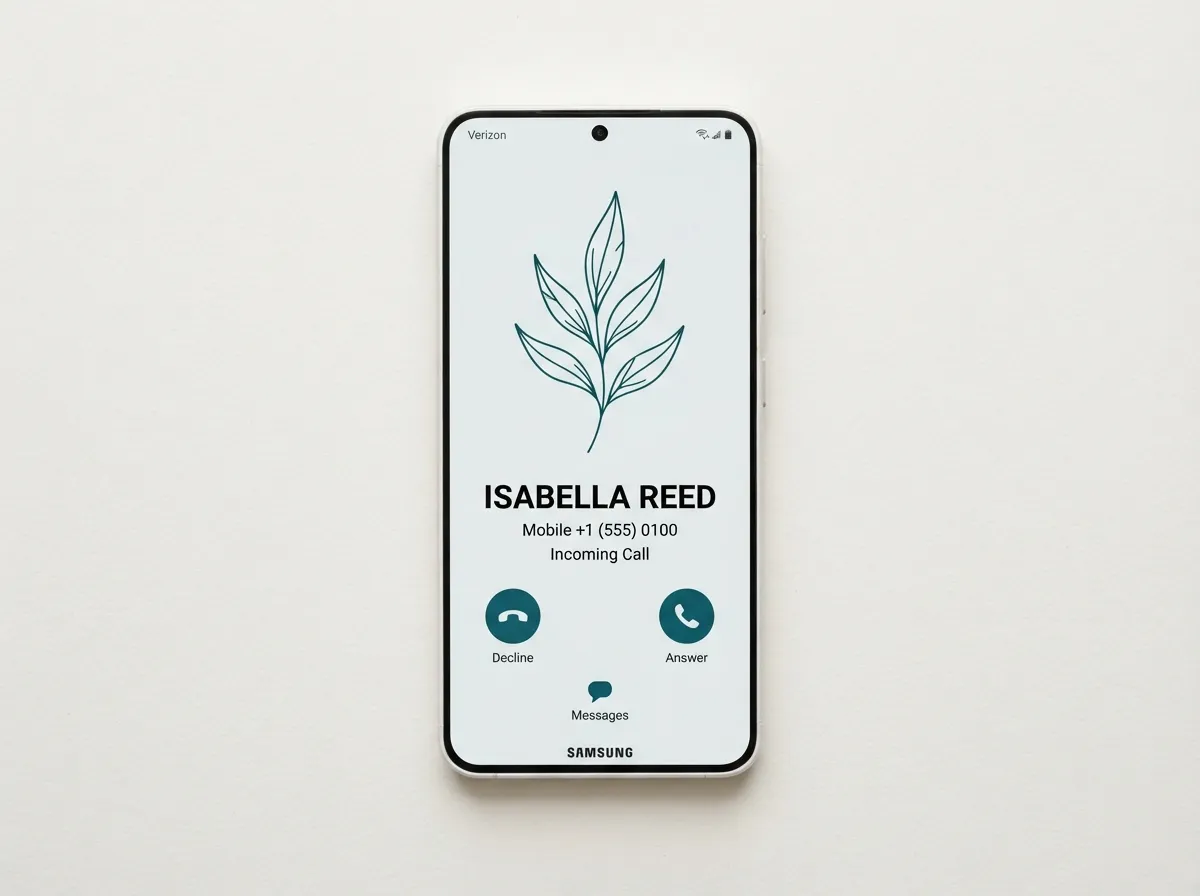
Clean, single-color line drawings of plants, leaves, or geometric botanical forms create a call screen that feels intentional and design-forward without being distracting. This aesthetic pairs well with neutral home screens and lock screens, helping the entire phone feel cohesive.
Samsung’s own customization guides note that any Gallery image can be used as a call background [3], which means a downloaded or self-created line-art wallpaper in PNG format works perfectly. Choose a white or off-white background with a single dark ink color for maximum legibility. The caller’s name will sit cleanly on top without competing with busy visual elements.
Pro tip: Match the line-art ink color to the accent color set in One UI’s theme settings for a fully unified look.
3. Looping Aesthetic Video Clip
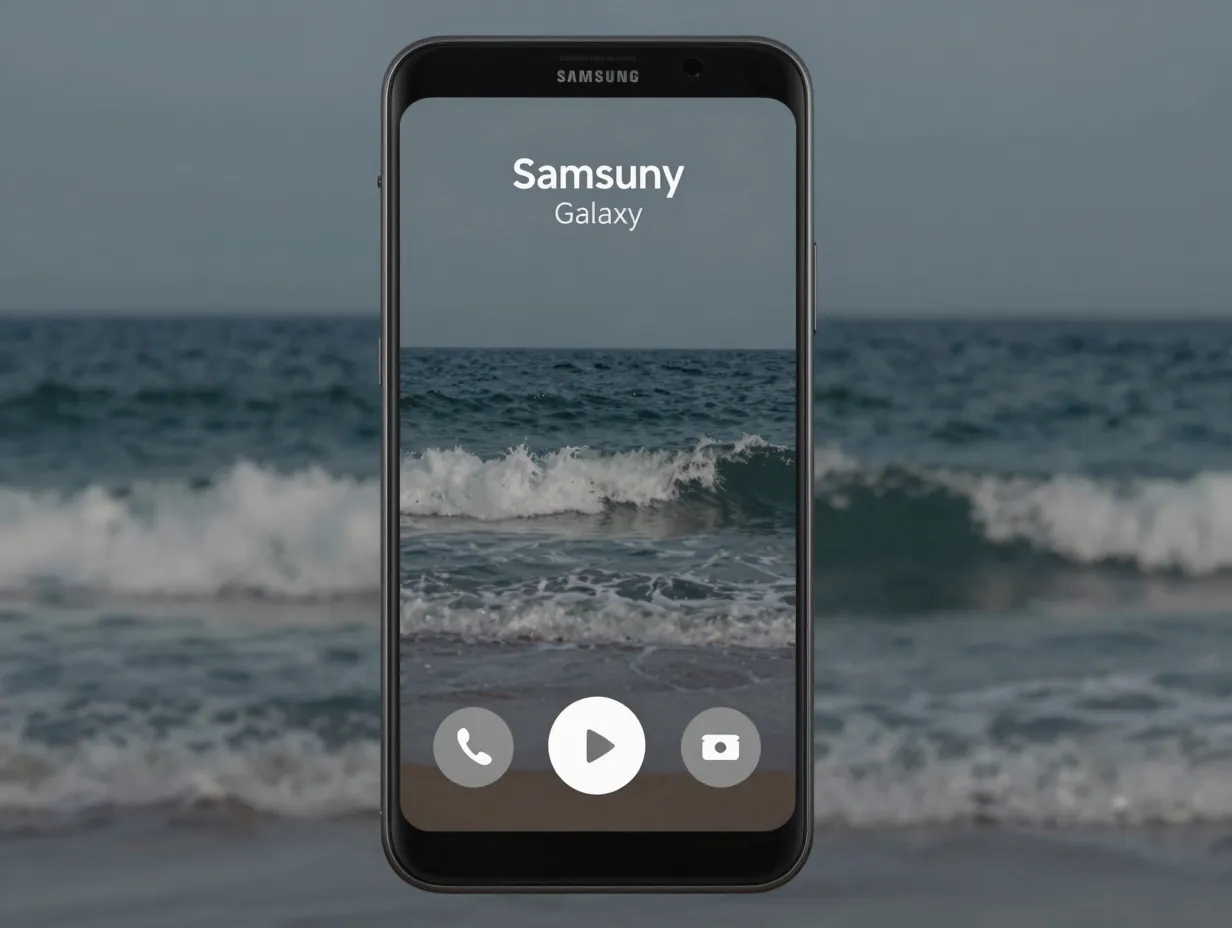
One UI supports short video files as call backgrounds, and this opens up a category of moving wallpapers that static images simply cannot match. [4] Slow-motion ocean waves, a candle flame, falling cherry blossoms, or a time-lapse of city lights at night, any of these creates an immersive, almost cinematic call screen.
The key technical constraint is length: call background videos should be approximately 15 seconds or shorter and in vertical format. [7] [8] This encourages tight, looping clips rather than long recordings. A well-chosen loop feels intentional and atmospheric rather than accidental.
One UI even allows the video’s audio to play as the ringtone [8], so a clip of rain on a window could serve as both the visual background and the incoming call sound, a fully immersive aesthetic experience.
Best video subjects for this aesthetic:
- Slow-motion water (waves, rain, flowing streams)
- Soft bokeh light bokeh loops
- Minimalist motion graphics (geometric shapes, gradient shifts)
- Night city time-lapses with light trails
4. Cyberpunk Neon City Aesthetic
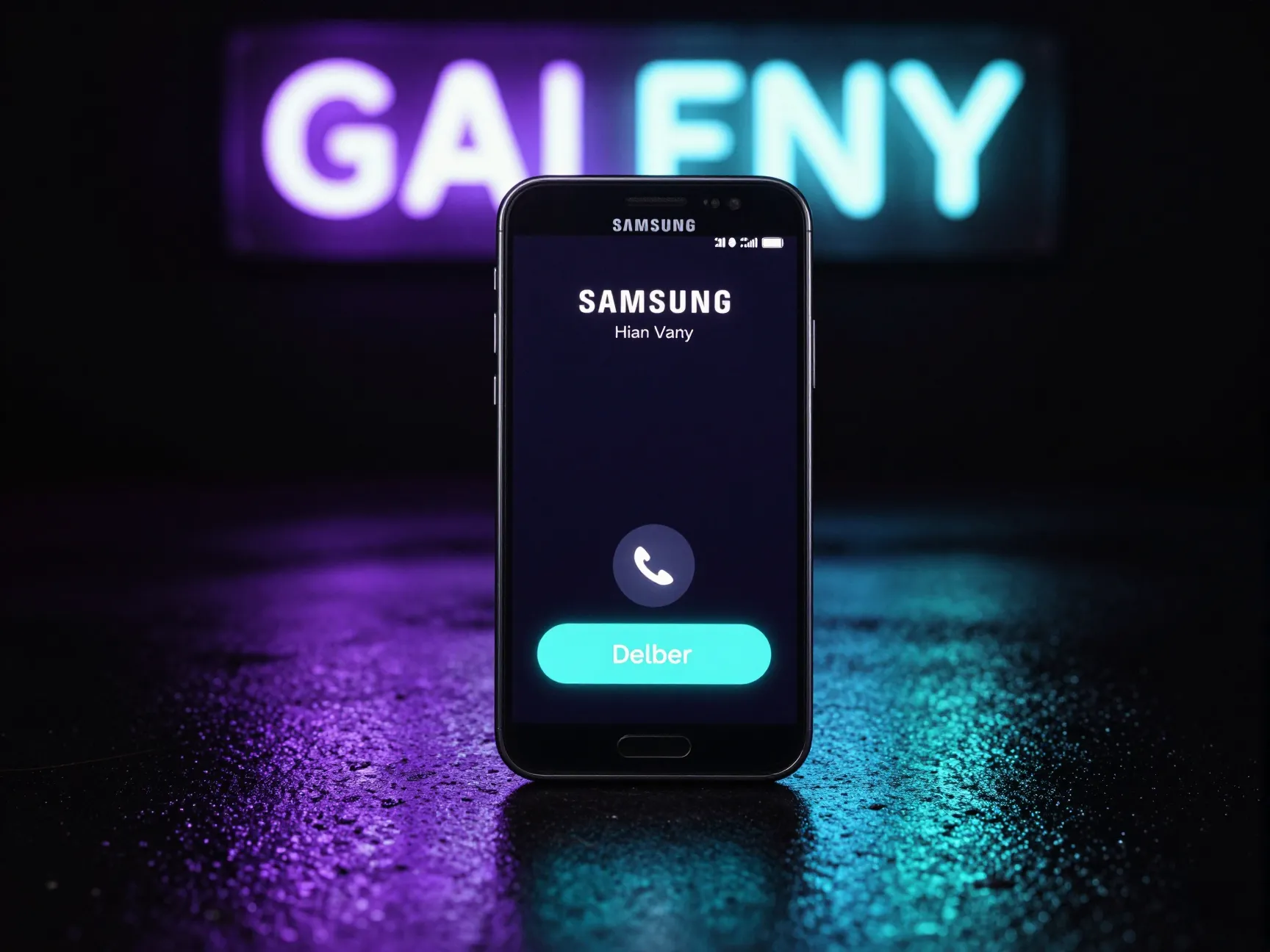
For users who prefer a bold, high-energy visual identity, a cyberpunk-inspired call background delivers strong contrast and visual drama. Think deep black backgrounds, electric purple and cyan neon reflections on wet pavement, or glowing signage photographed at night with a long exposure.
Because the call screen UI text (caller name, answer/decline buttons) appears in light colors against the background, a dark base image with bright accent colors creates excellent readability without any extra effort. [10] The contrast does the legibility work automatically.
This aesthetic also translates well to video: a short looping clip of neon-lit rain or a busy night market creates a call screen that genuinely stands out. [5] Pair it with a dark One UI theme and matching lock screen for full visual consistency.
5. Warm Seasonal Gradient
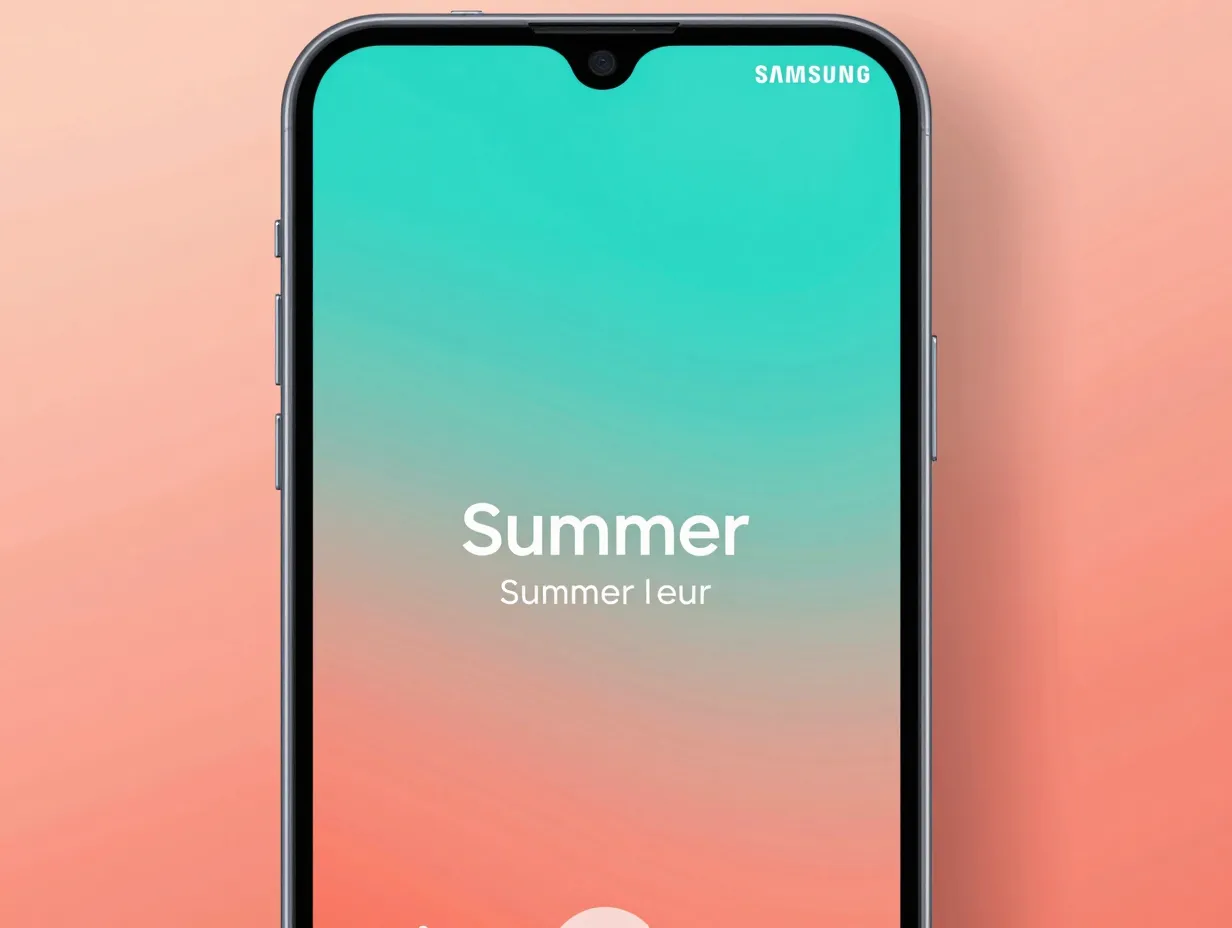
One of the most practical aesthetic strategies is building a small library of seasonal call backgrounds and rotating them throughout the year. Samsung’s support documentation confirms that the call background can be changed at any time by revisiting the same settings path [2] [11], making seasonal rotation effortless.
A suggested seasonal rotation:
- Spring: Soft pink and white cherry blossom gradient
- Summer: Bright turquoise-to-coral ocean gradient
- Autumn: Deep amber, burnt orange, and warm brown tones
- Winter: Cool white, pale grey, and icy blue minimalism
Gradient images work especially well for call screens because they have no busy details that compete with the caller’s name. Samsung’s featured background options include several gradient styles [1] [4], but custom gradients downloaded from wallpaper apps or created in design tools give more specific color control.
6. Monochrome or Duotone Abstract Art
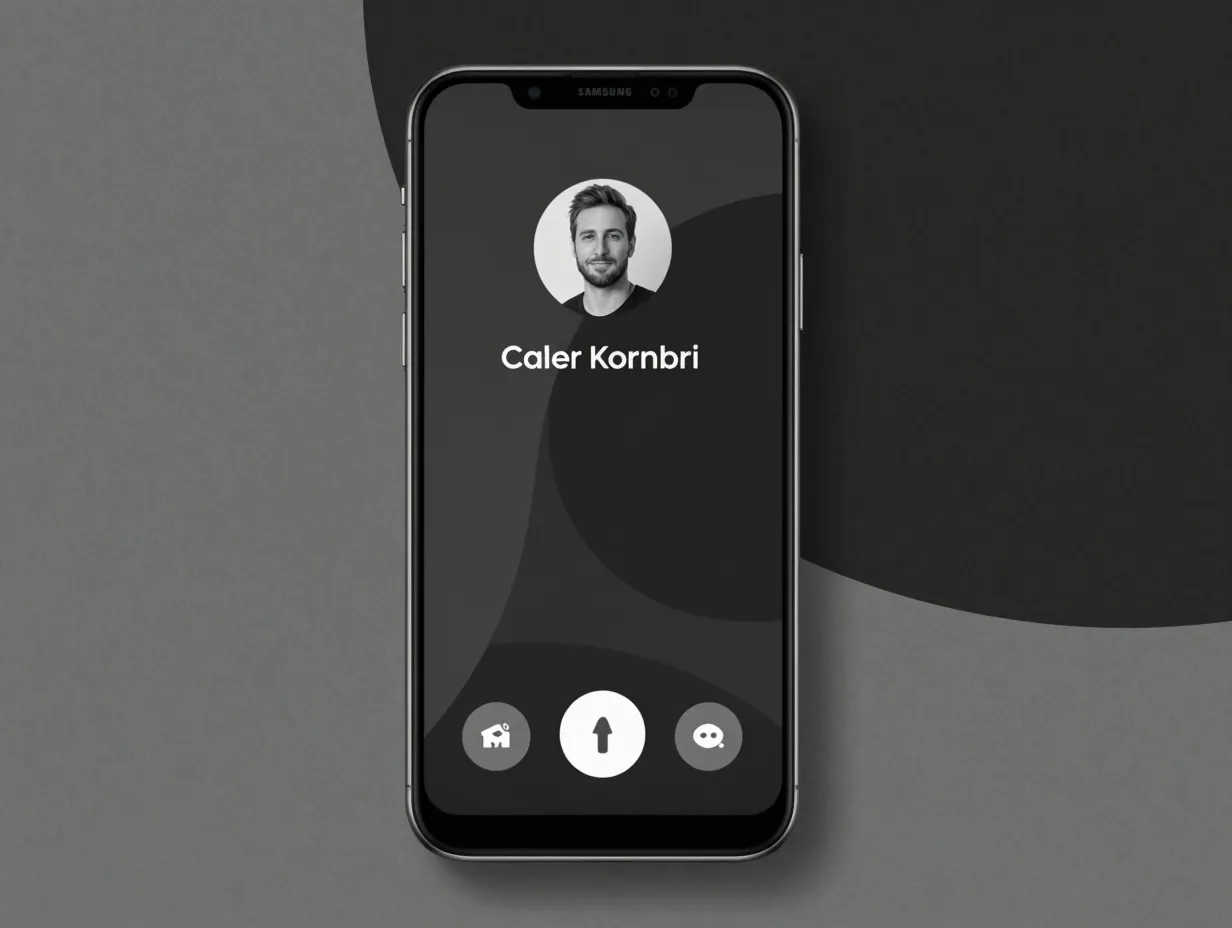
A monochrome image, one that uses a single color in various shades, or a duotone image that maps a photo to just two contrasting colors creates a call screen that feels artistic and modern. This aesthetic is particularly popular in design communities because it transforms ordinary photography into something graphic and intentional.
To create this look, apply a monochrome or duotone filter to any Gallery photo before setting it as the call background. Many Samsung Galaxy camera apps and built-in editing tools offer these filters directly. The result is a call screen that looks curated rather than accidental.
Why this aesthetic works technically: Monochrome and duotone images have reduced visual complexity, which means the call UI text, caller name, photo, and buttons, sits cleanly on top without clashing. [10] This is one of the most legibility-friendly aesthetic choices available.
7. Per-Contact Portrait Wallpapers
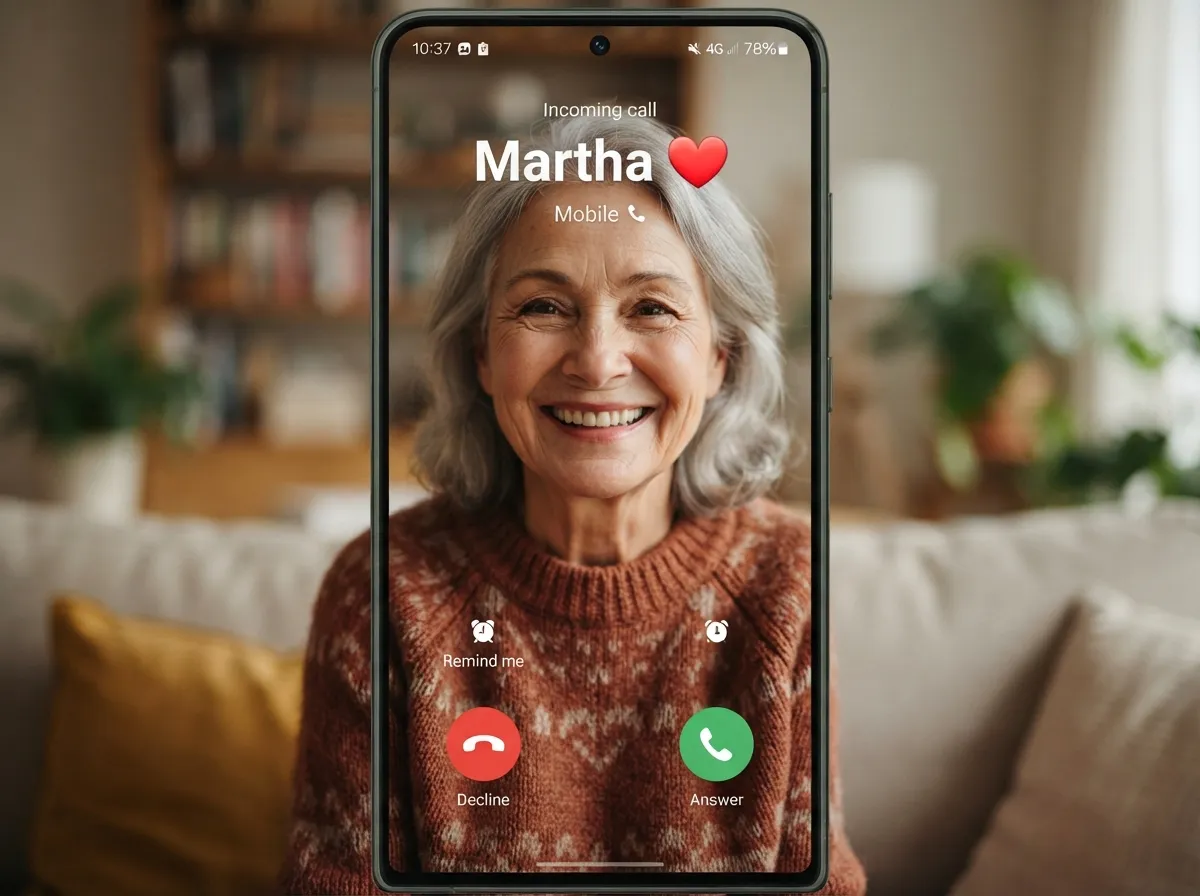
Rather than using a single global call background for every incoming call, One UI allows users to assign specific call backgrounds to individual contacts. [14] [15] This per-contact personalization creates a more meaningful and visually organized call experience.
Practical applications:
- A close-up portrait photo of a family member as their personal call background
- A brand-colored or logo-adjacent wallpaper for a work contact
- A shared memory photo (a vacation snapshot, a group photo) for a close friend
- A simple, professional gradient for frequently-called business numbers
To set a per-contact call background, open the contact in the Contacts app, edit the contact, and look for the call background option within the contact’s settings. [15] This coexists with the global default, contacts without a specific assignment will still show the global background.
“Per-contact call backgrounds turn every incoming call into a small, personal moment of recognition before the phone is even answered.”
8. AR Emoji Animated Avatar
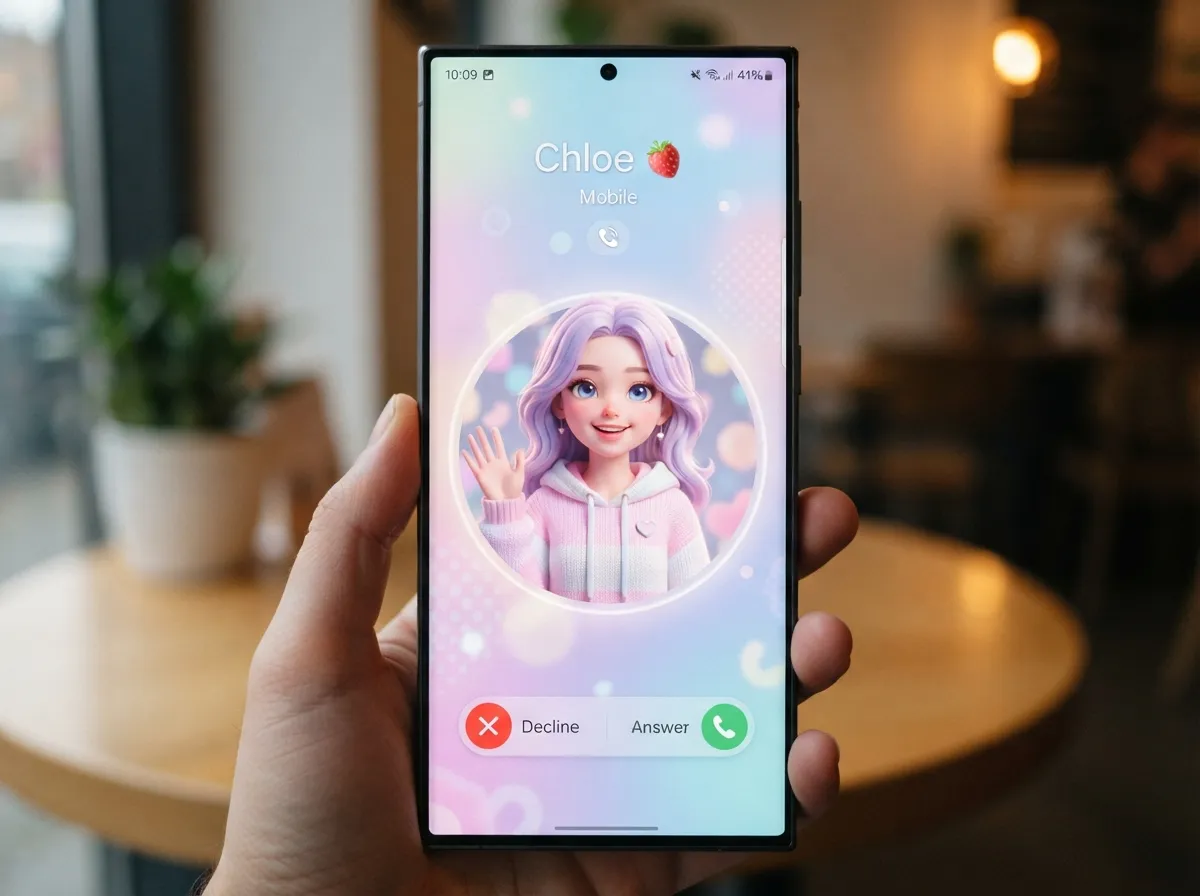
Samsung’s AR Emoji feature allows users to create a stylized digital avatar and animate it in various styles, then use it as a call background. [3] This is one of the most distinctive aesthetic options available because it is entirely unique to the user, no two AR Emoji avatars look the same.
The aesthetic possibilities here are wider than they might first appear. AR Emoji supports different visual styles, which means the avatar can be rendered in a:
- Pastel cartoon style for a soft, playful aesthetic
- Minimalist line-art style for a clean, modern look
- Stylized realistic style for something closer to a personalized avatar
This feature is accessible directly through the Call background settings [3], making it easy to set up without navigating to a separate app. For users who have already created an AR Emoji for other Samsung features, applying it to the call screen takes only a few taps.
9. Dual-SIM Aesthetic Differentiation
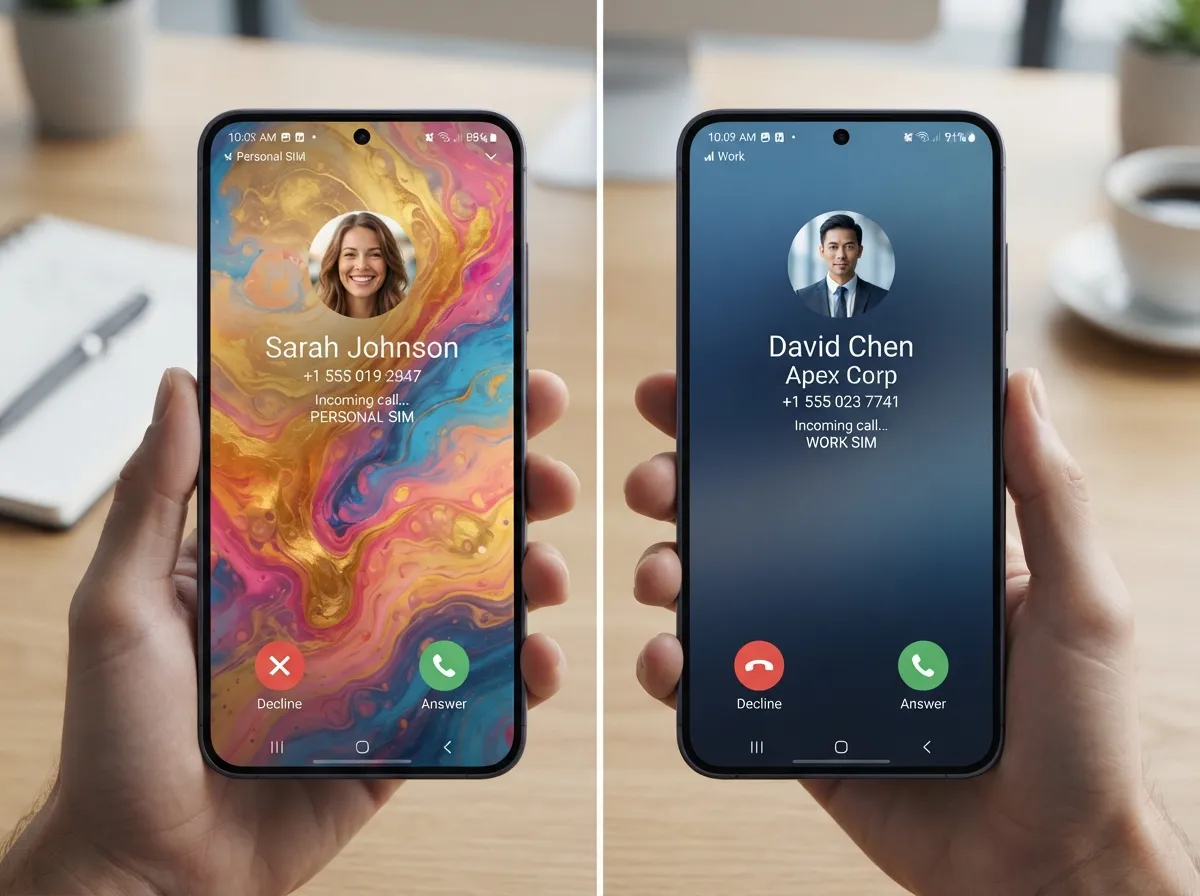
For Galaxy users who carry two SIM cards, one personal, one for work, One UI supports assigning different call backgrounds to each SIM. [8] This creates an immediate visual cue the moment an incoming call arrives: the aesthetic of the background tells the user which line is ringing before they even read the caller’s name.
A recommended dual-SIM aesthetic strategy:
| SIM | Recommended Aesthetic | Visual Effect |
|---|---|---|
| Personal SIM | Colorful, warm, expressive | Signals a personal call immediately |
| Work SIM | Muted, professional gradient | Signals a business call immediately |
This is not just an aesthetic choice, it is a functional one. The visual differentiation reduces the mental load of checking which line is ringing, especially useful during busy workdays. [8] Dual-SIM call background instructions are documented in step-by-step guides for Samsung devices [8], and the setup follows the same core path as the standard call background settings.
Tips for Getting the Best Results From Any Call Background
Regardless of which of the nine aesthetic ideas appeals most, a few universal principles help every call background look its best.
Keep the center clear. The caller’s name, photo, and answer/decline buttons appear in the center of the screen. Busy details in the middle of the image will clash with this UI. Choose images where the visual interest is at the edges or in the background, not the center.
Use the zoom and crop controls. When setting a Gallery image as the call background, One UI provides zoom and repositioning tools. [5] [10] Use these to frame the image exactly as intended rather than accepting the default crop.
Test before committing. After setting a new call background, ask someone to call the phone (or use a second device) to see how the background actually looks during an incoming call. The preview in settings does not always capture how the image will feel in real use.
Match the overall phone aesthetic. The call screen is one layer of the phone’s visual identity. Using the same color palette as the home screen wallpaper, lock screen, and One UI accent color creates a cohesive, intentional look across every screen state. [3] [13]
For video backgrounds, keep it subtle. A looping video that is too busy or too bright can make it harder to read the caller’s name quickly. Slow, calm motion, gentle waves, drifting bokeh lights, a slowly shifting gradient, works better than fast-moving or high-contrast footage. [7]
Accessibility and Readability Considerations
Aesthetic choices should never come at the cost of usability. A call screen that looks beautiful but makes it hard to read the caller’s name or find the answer button quickly defeats its own purpose.
High-contrast backgrounds, very dark or very light images with minimal mid-tone complexity, give the call UI the best chance to remain readable. Samsung’s featured gradient options are designed with this in mind. [1] [4]
Avoid busy textures in the center zone. Brick walls, dense foliage, or heavily patterned fabrics in the center of the image will compete visually with the caller’s name text. A soft blur or a smooth gradient in the center, with more detail toward the edges, is the ideal layout.
For users with visual accessibility needs, One UI’s background color and gradient options (available alongside the wallpaper selection in Call background settings [15]) offer simpler, high-contrast alternatives to photo-based backgrounds while still allowing some personalization.
Conclusion
The call screen is one of the most frequently seen interfaces on any smartphone, yet it is also one of the most overlooked when it comes to personalization. The 9 Aesthetic Call Background Wallpaper Ideas For Your Samsung Phone covered in this guide, from soft bokeh portraits and minimalist line art to looping video clips, cyberpunk neon aesthetics, and dual-SIM differentiation, show just how much creative range One UI already provides.
Actionable next steps:
- Open the Phone app right now and navigate to More options, Settings, Call background to see the current options available on the device
- Choose one of the nine ideas above that fits the existing phone aesthetic
- If using a video background, find or record a 10-to-15-second vertical clip that matches the chosen mood
- Set a reminder to rotate the call background seasonally using the warm gradient idea
- For dual-SIM users, assign distinct backgrounds to each SIM this week to immediately improve call-line recognition
The entire setup takes under five minutes, and the result is a call screen that reflects the same level of care and intention as every other part of the phone.
References
[1] Watch – https://www.youtube.com/watch?v=e8pXuwwAgRw
[2] How Can I Customize The Call Background On My Galaxy Phone – https://www.samsung.com/ae/support/mobile-devices/how-can-i-customize-the-call-background-on-my-galaxy-phone/
[3] How To Customise Your Galaxy Phones Like A Pro – https://www.samsung.com/ph/members/whats-new/how-to-customise-your-galaxy-phones-like-a-pro/
[4] Watch – https://www.youtube.com/watch?v=JzqANRTAQME
[5] Watch – https://www.youtube.com/watch?v=zJg-E51PyVA
[7] Jak Si Na Samsung Telefonech Prizpusobit Pozadi Hovoru – https://samsungmagazine.eu/en/2025/08/13/jak-si-na-samsung-telefonech-prizpusobit-pozadi-hovoru/
[8] How To Customize Call Backgrounds On Samsung Phones 518 – https://sammypolice.com/how-to-customize-call-backgrounds-on-samsung-phones-518/
[9] Watch – https://www.youtube.com/watch?v=IabdBwczsWo
[10] Watch – https://www.youtube.com/watch?v=u0ZZEIbjdTM