6 Creative Ways to Use Earphones for Better Phone Photography
Fewer than 10% of smartphone users realize the earphones already in their pocket can replace a dedicated camera remote, a tool that typically costs $20 to $50 on its own. Whether the earphones are wired or wireless, Apple or Android, brand-new or years old, they carry hidden shutter-triggering capabilities that most people never activate. Exploring the 6 creative ways to use earphones for better phone photography reveals a range of techniques, from a single button press to a DIY hardware hack, that can sharpen images, reduce camera shake, and open up entirely new shooting scenarios without buying a single extra accessory.
Disclosure: This post contains affiliate links. As an Amazon Associate, we earn from qualifying purchases, and at no extra cost to you.
Key Takeaways
- Pressing the volume button on wired earphones triggers the shutter on most iPhones and many Android phones, requiring no setup at all.
- iOS 26 introduced a dedicated Camera Remote feature for AirPods, letting users fire the shutter by squeezing the stem or pressing the Digital Crown from across the room.
- Reducing physical contact with the phone during capture is one of the most effective ways to eliminate camera shake, especially in low light.
- Android users can unlock earphone shutter control through built-in camera settings, dedicated apps, or automation tools like Tasker.
- Old or broken earphones can be repurposed into a low-cost DIY remote shutter cable for cameras with a remote jack.
Why Earphones Belong in Every Photographer’s Kit
Most people think of earphones as audio-only tools. The reality is that the hardware already built into earphone cables and wireless earbuds, volume buttons, touch panels, and stem controls, maps directly onto camera shutter functions supported by both iOS and Android. Using earphones as a remote shutter solves one of the most persistent problems in phone photography: camera shake caused by pressing the on-screen shutter button.
When a finger taps the screen to take a photo, it introduces a tiny but measurable vibration into the phone. In bright daylight, the shutter speed is fast enough to freeze that movement. In low light, during long exposures, or when the phone is balanced on an improvised surface, that same vibration blurs the image. Triggering the shutter from an earphone eliminates the contact entirely.
Beyond stability, earphone-based shutter control also enables shooting from a distance, capturing candid scenes without raising the phone, and recording video without walking back to the device. The 6 creative ways to use earphones for better phone photography covered in this article range from zero-setup tricks to advanced automation, so there is a method for every skill level and every type of phone.
6 Creative Ways to Use Earphones for Better Phone Photography
1. Use Wired Earphone Volume Buttons as an Instant Shutter
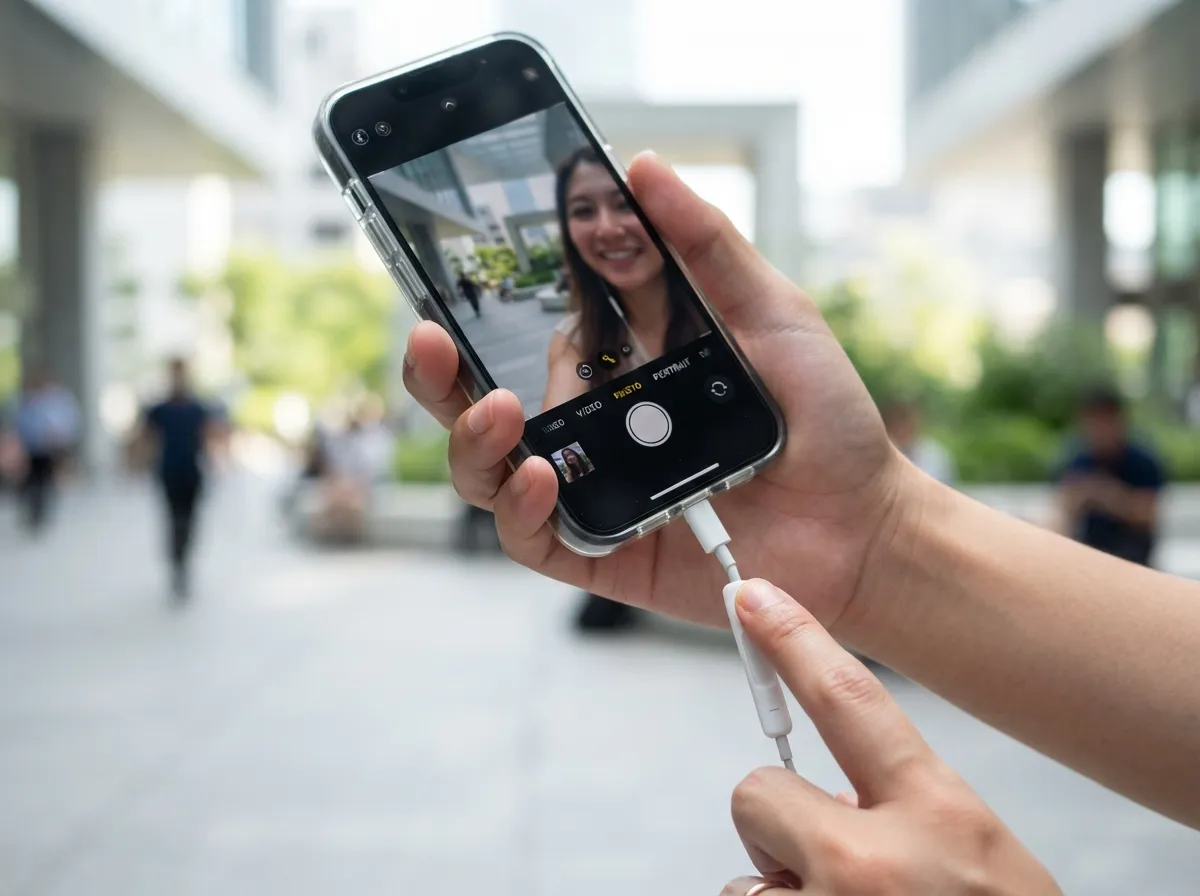
The simplest entry point into earphone-assisted photography requires no app downloads, no settings changes, and no wireless pairing. On iPhones, plugging in Apple EarPods, or any compatible wired headset with an inline remote, and pressing the volume-up or volume-down button while the native Camera app is open fires the shutter immediately [7].
This technique has been documented since the early days of the iPhone and remains fully functional in 2026 [7]. The principle is straightforward: the Camera app on iOS treats the volume buttons on a connected headset as shutter triggers, the same way the physical volume buttons on the phone itself work in camera mode.
How to use it:
- Plug in wired earphones with an inline volume remote.
- Open the Camera app.
- Frame the shot and press volume-up or volume-down on the earphone cable.
- The shutter fires without any screen contact.
This method is especially useful for selfies, because the phone can be held at arm’s length or propped against a surface while the cable hangs within easy reach. It is also effective for stabilized shots on a tripod or flat surface, where even a gentle tap on the screen would shift the frame.
On Android, the same principle applies, though behavior varies by manufacturer and camera app. Many Android camera apps include a setting to map volume keys to the shutter function. Enabling “Volume key function: Take photo” inside the camera settings unlocks this instantly for wired headsets [10].
2. Activate AirPods Camera Remote on iOS 26
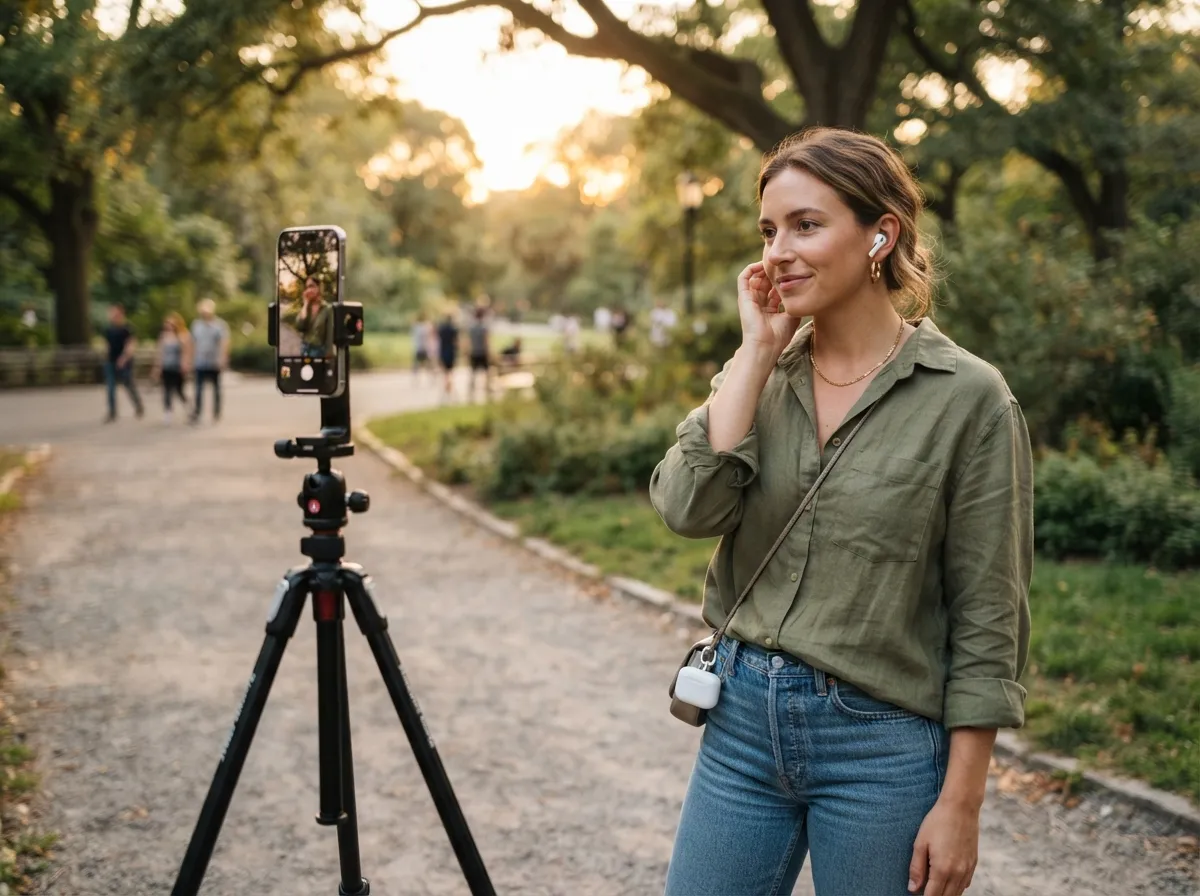
Apple’s iOS 26 introduced a feature that elevates AirPods from audio accessories to dedicated camera controllers. The Camera Remote setting, accessible in Settings, allows users to configure a stem press on AirPods Pro 2, AirPods Pro 3, or the Digital Crown on AirPods Max to trigger the iPhone or iPad camera shutter [1][5].
Setting it up takes under a minute:
- Connect AirPods to the iPhone.
- Open Settings and tap the AirPods name at the top.
- Select Camera Remote.
- Choose “Press Once” to take a photo or “Press and Hold” to start and stop video recording [1].
Once configured, the AirPods stem or Digital Crown becomes a fully functional remote shutter. The phone can sit on a tripod, lean against a wall, or rest on any surface while the photographer stands several meters away and fires the shutter with a squeeze [5][9].
Tech publications covering iOS 26 highlight that this feature works with the native Camera app and many third-party camera apps, making it compatible with most shooting workflows [5][9]. The practical benefit for group photography is significant: instead of using the self-timer and rushing into frame, one person can hold the AirPods and trigger the shot at exactly the right moment.
For street photography, the AirPods Pro configuration described in detailed iOS 26 guides allows photographers to keep the phone at waist level or on a monopod and fire the shutter discreetly by squeezing the stem, capturing more natural, candid scenes without the subject noticing the camera [3].
| AirPods Model | Gesture | Action |
|---|---|---|
| AirPods Pro 2 / 3 | Press Once (stem) | Take photo |
| AirPods Pro 2 / 3 | Press and Hold (stem) | Start/stop video |
| AirPods Max | Press Once (Digital Crown) | Take photo |
| AirPods Max | Press and Hold (Digital Crown) | Start/stop video |
3. Eliminate Camera Shake for Sharper Low-Light Photos
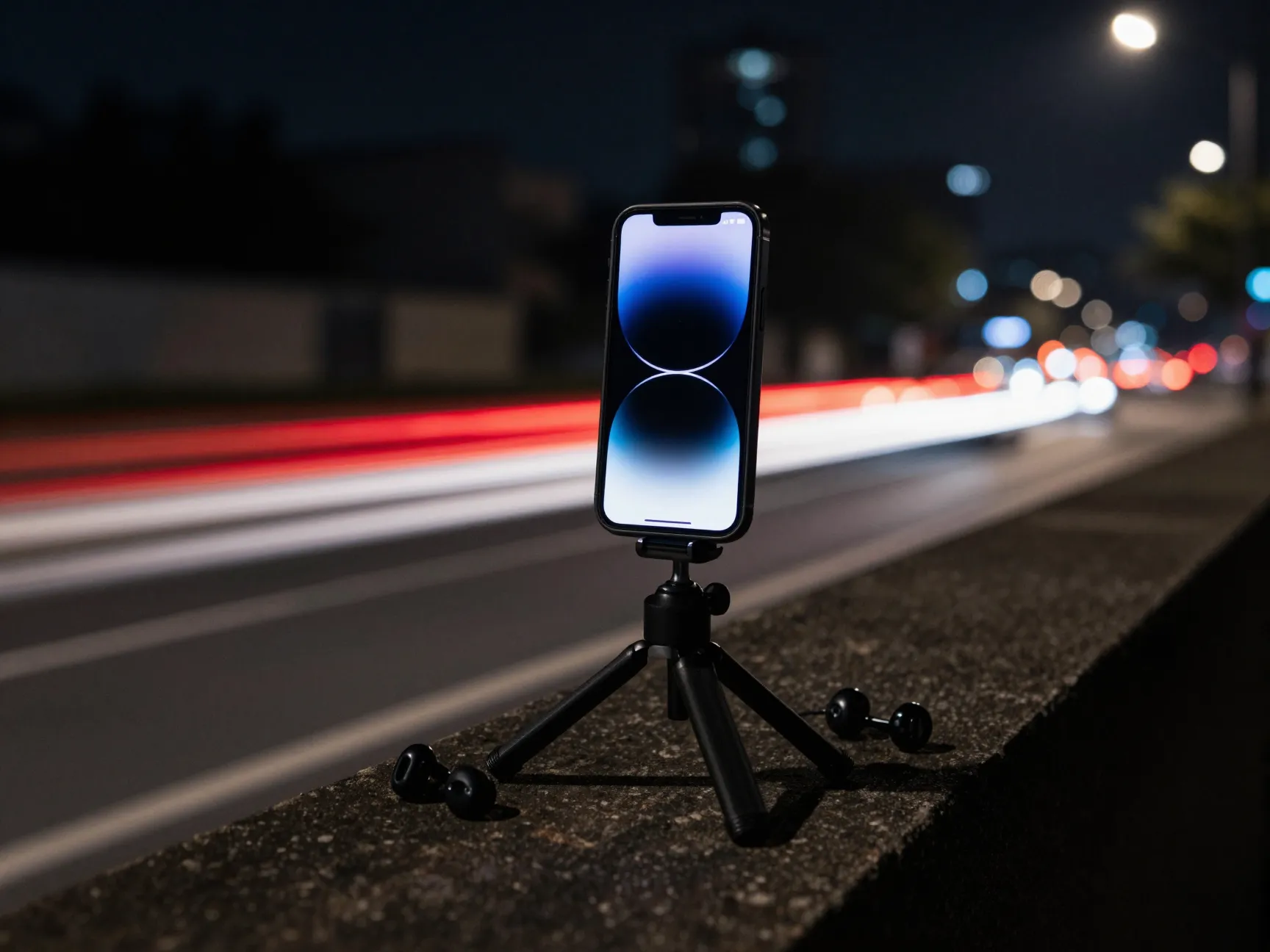
Camera shake is the enemy of sharp photos, and it becomes most destructive in low light, where the camera needs a longer shutter speed to gather enough light. Any movement during that exposure, including the vibration from pressing the on-screen shutter button, registers as blur.
A CNET analysis of AirPods as a camera remote specifically identifies shake reduction as one of the primary photography benefits [4]. When the shutter is triggered from earphones rather than by touching the phone, the phone remains completely still at the moment of capture. This is the same reason professional photographers use cable releases or wireless remotes with traditional cameras.
Scenarios where earphone shutter control makes a measurable difference:
- Night photography with the phone propped on a ledge or tripod
- Long-exposure light trail shots
- Macro photography where the depth of field is razor-thin
- Slow-motion video where any initial shake is magnified
- Portrait shots in dim indoor light
The technique pairs naturally with the iPhone’s built-in timer modes, but earphone triggering is faster and more precise. Instead of waiting 3 or 10 seconds after pressing the timer, the photographer can frame the shot, stabilize the phone, and fire at exactly the right instant [4].
For Android users, enabling the volume-key shutter function in camera settings and connecting any wired or Bluetooth headset achieves the same shake-free result [10]. The earphone cable or wireless connection carries the shutter command without any physical contact with the device.
4. Capture Candid and Street Photography with Discreet Earphone Controls
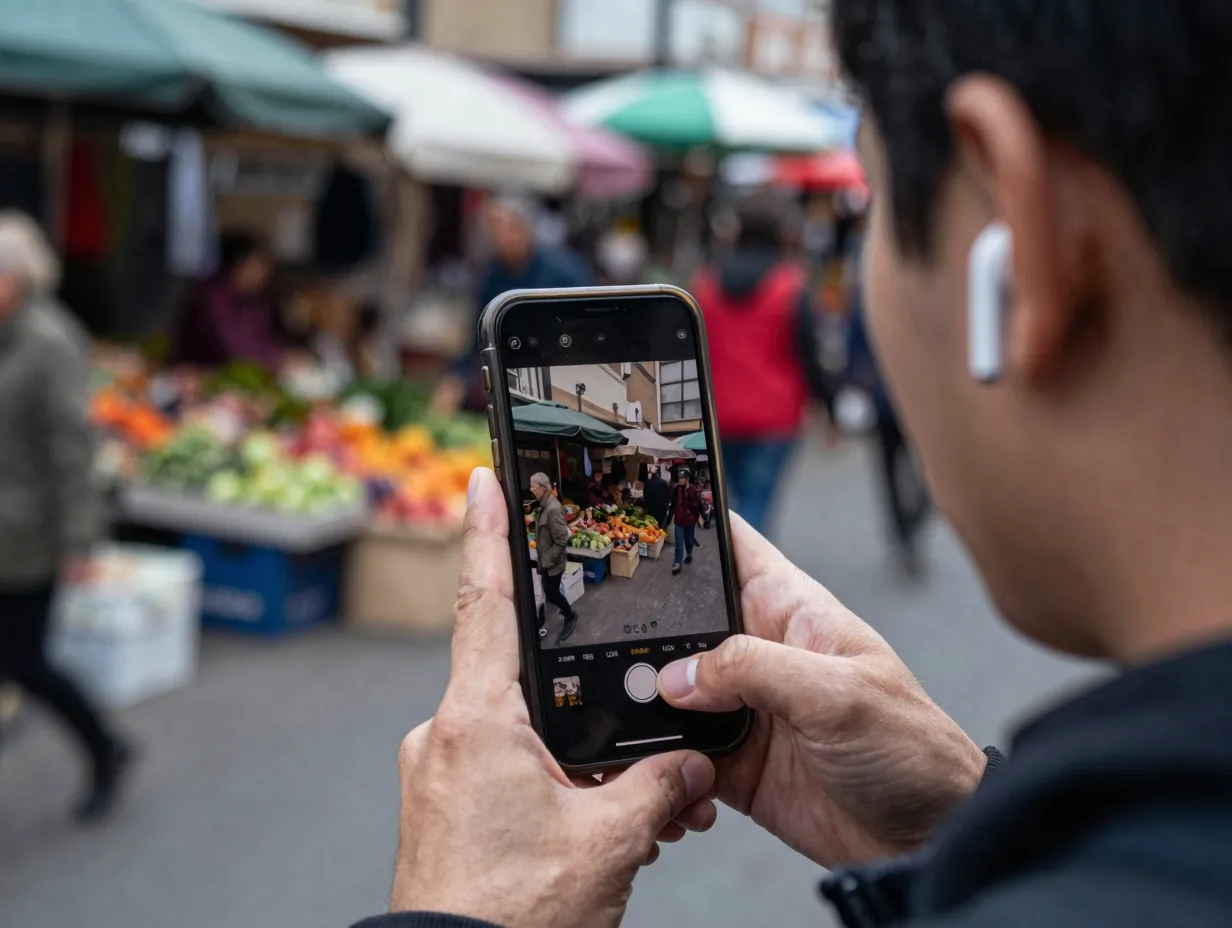
One of the most compelling applications among the 6 creative ways to use earphones for better phone photography is discreet street shooting. Raising a phone to eye level signals intent and changes how subjects behave. Holding the phone at waist level looks natural but makes it nearly impossible to press the on-screen shutter without looking at the screen.
Earphone controls solve this problem directly. With AirPods Pro configured for Camera Remote, the phone can be held casually at the side or mounted on a small monopod while the photographer triggers the shutter with a stem squeeze that looks, to any observer, like adjusting music playback [3].
The guide covering AirPods Pro camera remote use in depth recommends assigning “Press Once” for photos and “Press and Hold” for video, so the photographer can switch between still and moving images without ever touching the phone [3]. This setup is particularly effective for:
- Busy market or street scenes where subjects act naturally when the camera is not visibly raised
- Documentary-style photography in public spaces
- Travel photography where drawing attention to a camera invites unwanted interactions
- Event photography where a raised phone disrupts the moment
The same principle applies to Android users with wireless earbuds that support volume-button shutter triggering. Many Android camera apps, as well as dedicated shutter apps available on the Google Play Store, map headset button presses to the shutter function, enabling the same discreet shooting workflow on non-Apple devices [10].
5. Use Tasker or Dedicated Apps to Turn Any Bluetooth Earphones into a Camera Remote on Android
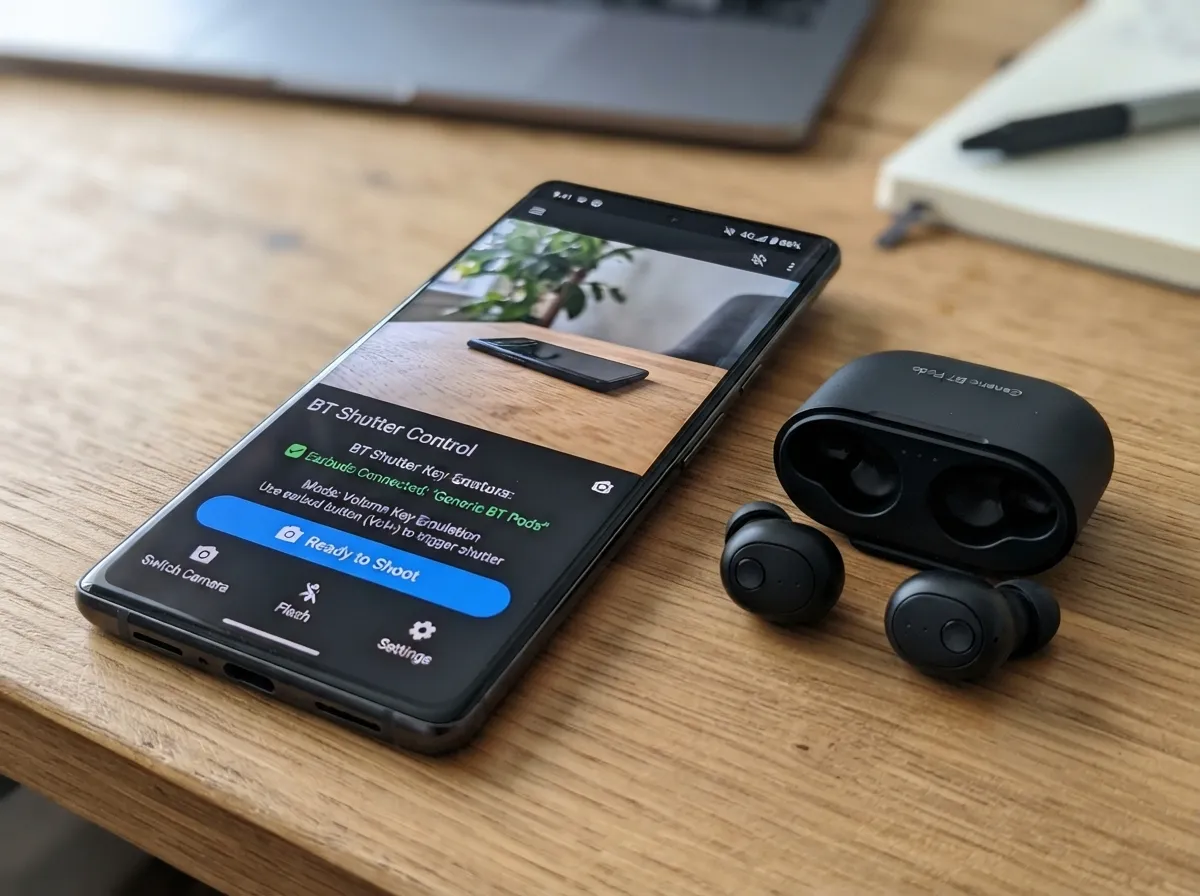
Android’s open ecosystem allows for more customized earphone-to-camera workflows than any single built-in feature provides. Two approaches stand out: using a dedicated shutter app or automating the connection through Tasker.
Dedicated shutter apps like Remote Selfie / Camera Shutter via Bluetooth listen for button presses on connected wireless headphones and translate them into shutter commands in any camera app, not just the stock one [15]. This means the app works with third-party camera apps that offer RAW capture, manual controls, or specialized shooting modes. The setup process is simple:
- Install the shutter app from the Google Play Store.
- Connect Bluetooth earphones.
- Open the app and grant camera permissions.
- Press the earphone button to fire the shutter from any distance.
Tasker automation offers a deeper level of customization for users comfortable with Android automation tools. A method documented in XDA Developers forums shows how to create Tasker profiles that intercept Bluetooth headset media-button events and map them to specific camera app intents [6]. This approach works with virtually any Bluetooth earphones that have a button, regardless of brand or model.
The Tasker method is particularly powerful because it allows conditional logic: for example, a single press could open the camera and take a photo, while a double press could switch between front and rear cameras. These custom workflows turn a basic pair of wireless earbuds into a fully programmable camera controller [6].
Comparison of Android earphone shutter methods:
| Method | Setup Difficulty | App Required | Works With Any Camera App |
|---|---|---|---|
| Volume key in camera settings | Easy | No | Stock app only |
| Dedicated shutter app | Easy | Yes | Yes |
| Tasker automation | Advanced | Yes (Tasker) | Yes, with configuration |
6. Build a DIY Earphone Remote Shutter Cable for Cameras with Remote Jacks
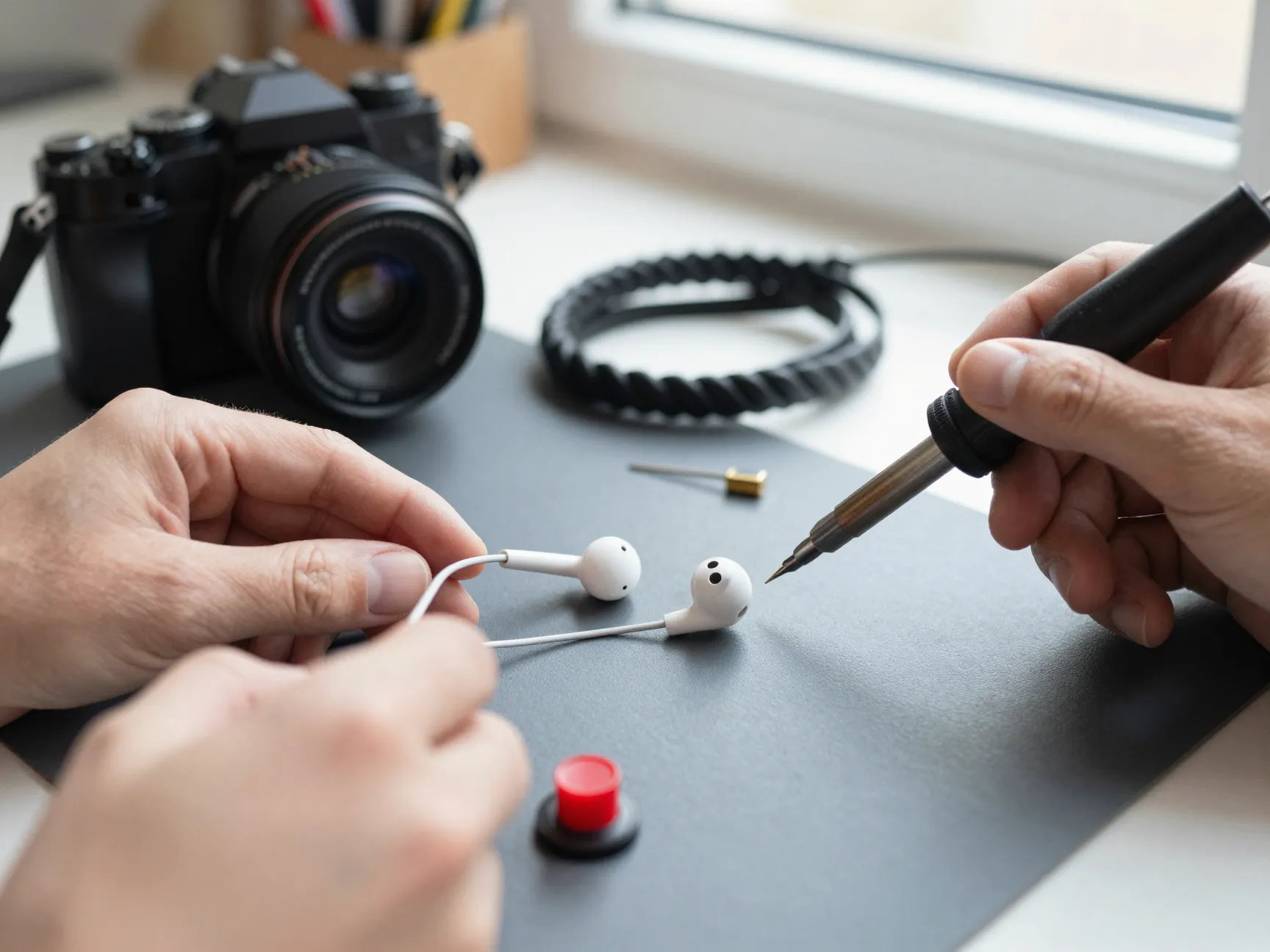
The final method among the 6 creative ways to use earphones for better phone photography takes a hands-on approach that repurposes old or broken earphones into a functional piece of photography hardware. Many cameras, including mirrorless and DSLR models, accept a physical remote shutter release through a 2.5mm or 3.5mm jack. The internal wiring of a standard earphone cable is electrically compatible with these remote inputs.
An Instructables project documents the full process of converting a set of earphone cables into a working camera remote shutter [8]:
- Cut the earphone cable near the earbuds, keeping the plug end.
- Strip the cable to expose the internal wires.
- Identify the correct wire pair (typically the ground and one signal wire).
- Solder the identified wires to a normally-open momentary push button.
- Connect the plug to the camera’s remote jack and press the button to fire the shutter.
The result is a low-cost, functional remote shutter release built from hardware that would otherwise be discarded [8]. The total material cost beyond the earphones is minimal, a small push button and basic soldering supplies.
This hack is particularly useful for:
- Long-exposure photography where any vibration ruins the shot
- Astrophotography requiring precise, shake-free shutter control
- Timelapse setups where the shutter needs to fire repeatedly
- Photographers who want a physical remote without paying for a branded accessory
The technique also illustrates the broader principle underlying all six methods: the electrical and signal infrastructure inside earphone cables and wireless earphone protocols is fundamentally compatible with camera shutter functions, whether through software mapping, iOS features, Android apps, or direct hardware wiring [8].
Choosing the Right Method for Your Shooting Style
Not every method suits every photographer. The table below summarizes which approach fits which situation best.
| Shooting Scenario | Best Method |
|---|---|
| Quick selfie, no setup | Wired earphone volume button |
| Group photos at a distance | AirPods Camera Remote (iOS 26) |
| Low-light or long-exposure | Any earphone shutter method on tripod |
| Candid street photography | AirPods Pro stem press (discreet) |
| Android with any Bluetooth earbuds | Dedicated shutter app or Tasker |
| Camera with remote jack | DIY earphone cable hack |
The most important variable is the phone’s operating system. iOS 26 users with AirPods have the most seamless experience, with Camera Remote built directly into system settings [1][5]. Android users have more flexibility through apps and automation but require slightly more initial configuration [6][10]. Wired earphone volume-button triggering works across both platforms with zero configuration and remains the fastest way to get started.
Conclusion
The earphones already connected to a phone are a capable photography tool that most users never think to deploy. From the zero-setup volume-button shutter on wired EarPods to the iOS 26 AirPods Camera Remote feature, from Android automation via Tasker to a hands-on DIY cable build, the 6 creative ways to use earphones for better phone photography cover the full range of skill levels and equipment types.
Actionable next steps to take today:
- Plug in wired earphones, open the Camera app, and test whether the volume button fires the shutter, no setup required.
- If using an iPhone with AirPods and iOS 26, navigate to Settings, select the AirPods, and enable Camera Remote with the preferred gesture.
- Android users should check the camera app’s volume-key settings or download a dedicated Bluetooth shutter app to unlock earphone control.
- For long-exposure or tripod work, commit to using earphone shutter triggering exclusively to eliminate camera shake from every shot.
- Anyone with old or broken earphones and a camera that accepts a remote jack should consider the DIY cable hack as a free upgrade to their kit.
The investment is zero. The improvement in image sharpness, shooting flexibility, and creative range is immediate.
References
[1] Use AirPods with Camera apps – https://support.apple.com/guide/airpods/use-airpods-with-camera-apps-dev8e2a2ba2e/web
[3] Deep Dive Into Using Airpods As A Camera Remote – https://wiki.beard.fm/whats-new-airpods-pro-tips-new-ios-features/deep-dive-into-using-airpods-as-a-camera-remote
[4] Your Airpods Could Help Take Great Iphone Photo – https://www.cnet.com/tech/services-and-software/your-airpods-could-help-take-great-iphone-photo/
[5] iOS 26 Control iPhone Camera With Your AirPods – https://www.macrumors.com/how-to/ios-26-control-iphone-camera-with-your-airpods/
[6] DIY Tasker Use Any Bluetooth Headset As Remote Camera Shutter – https://xdaforums.com/t/diy-tasker-use-any-bluetooth-headset-as-remote-camera-shutter.2769359/
[7] Take An iPhone Photo Remotely Using The Earbuds – https://osxdaily.com/2012/07/07/take-an-iphone-photo-remotely-using-the-earbuds/
[8] Homemade Remote Shutter Using Earphones – https://www.instructables.com/Homemade-Remote-Shutter-Using-Earphones/
[9] How To Control Your iPhone Camera With Your AirPods And The New Camera Remote Feature – https://eshop.macsales.com/blog/98271-how-to-control-your-iphone-camera-with-your-airpods-and-the-new-camera-remote-feature/
[10] How To Use Wireless Earphones As A Camera Remote – https://radiotochki.net/blog/tws-earbuds/kak-ispolzovat-besprovodnye-naushniki-kak-pult-dlya-kamery-smartfona-polnyy-gid-po-skrytym-vozmozhnostyam-tws.html